Slack workflows are automations that run inside Slack, and each one starts with a trigger that you choose. You pin a link in a channel, somebody clicks it, and the steps run in order, a form gets filled out, answers get posted, or an approval is sent out to a manager.
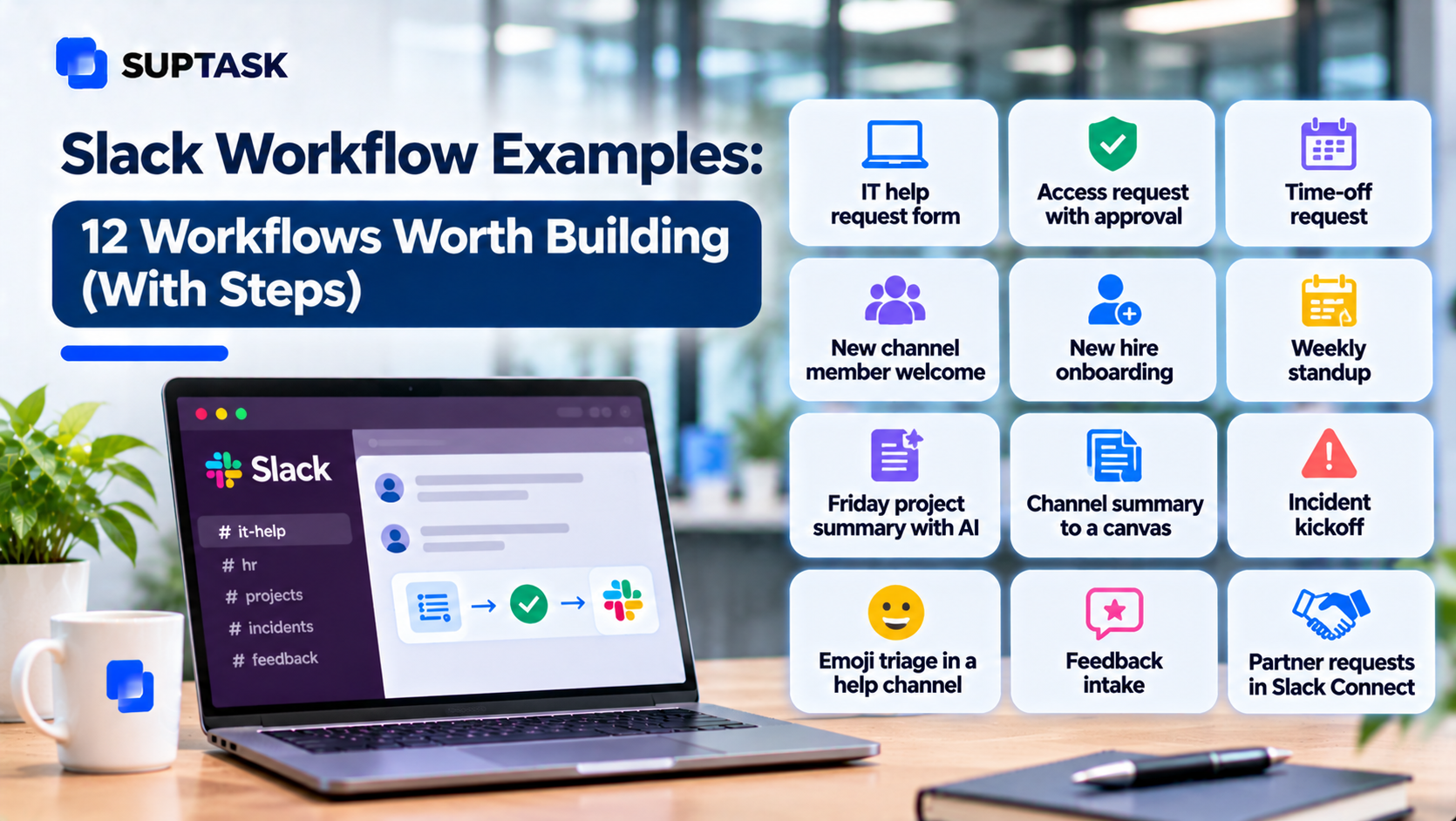
What should you build first, though? The Slack workflow examples below give you 12 of them, each with its trigger, its steps, and the plan it needs. You build all of these in Workflow Builder, and Slack has a template for a few of them already.
Key Takeaways
- A Slack workflow runs a series of steps when a trigger fires, like a link click, a schedule, or an emoji.
- Workflow Builder is included in Slack's Pro, Business+, and Enterprise plans.
- Templates cover common jobs, and channel templates bundle a canvas, a list, and a workflow.
- Approvals with separate Approve and Decline paths need branches, which are on Business+ and Enterprise.
- AI steps can summarize channels and draft updates inside a workflow, on eligible Slack plans.
What Is a Slack Workflow?
A Slack workflow is an automation built in Workflow Builder, and it runs steps when something happens in Slack. Workflow Builder comes with Slack, so no extra app is needed for Slack automation.
Every workflow needs a trigger to start it. Some are started by a person, an emoji reaction, for example. Others also run on a schedule, or from a webhook that another system calls.
Then come the steps. A step can be used to send a message, or to collect the answers in a form. Other steps add a new hire to a channel. The newer steps use Slack AI to summarize a channel.
The answers an employee gives in a form are kept as variables. A later step puts those variables in the message, so the issue and the urgency level are carried into the channel. A button stops the workflow until the manager clicks it. You can also restrict the people allowed to click.
How Slack Workflows Work: Triggers, Steps and Templates
Workflow Builder opens from Agents & tools in the sidebar. If you are using the older layouts, it can be found under Tools or More. Every workflow is a trigger plus the steps that come after it.
Triggers
Seven events can start a workflow, and the one you choose gets set at the top of the build.
An event from a connected tool can start one as well. A link workflow has a catch, though, the link works only when it is clicked inside Slack.
Steps
Workflow Builder gives you four kinds of steps. The Slack ones are built in, collect answers in a form, add the new hire into a channel, update a list, or write into a canvas. A connector step does its work in another tool, adding a row to a Google spreadsheet, for example, and your admins may need to approve the connector first. The account for that tool has to be authenticated too. Custom steps get built by developers for the systems your own company runs. The fourth kind is the AI steps, with Generate AI response summarizing a channel or drafting an update from a prompt.
Start From Slack Workflow Templates
Slack has two template galleries. One holds single workflows, and the other holds whole channels. Workflow templates are available under Agents & tools → Workflows → Templates. Pick one template, click Set Up, fill the blue inputs with your channel names and your message text, then Publish.
Advanced templates open in Workflow Builder instead, where the steps get edited before publishing, and Slack's guide to workflow templates has the setup order for both kinds. New channel member welcome is the template Slack names. It DMs a welcome plus a form to the new hire, then the answers land in the channel.
Channel templates are in the other gallery, opened from More, then Templates. Project starter kit, New hire onboarding, Feedback intake. Each one builds a channel that comes with its canvas, its list, and its workflow in the header tabs. The onboarding workflow adds your new hire into every channel you specify. Canvases and lists have to be on for the workspace. Without them, the templates are not available.
How much of this you get depends on the plan.
Slack Workflow Examples by Team
Each of these Slack Workflow Builder examples lists its trigger, its steps, and the plan it needs.
1. IT Help Request Form
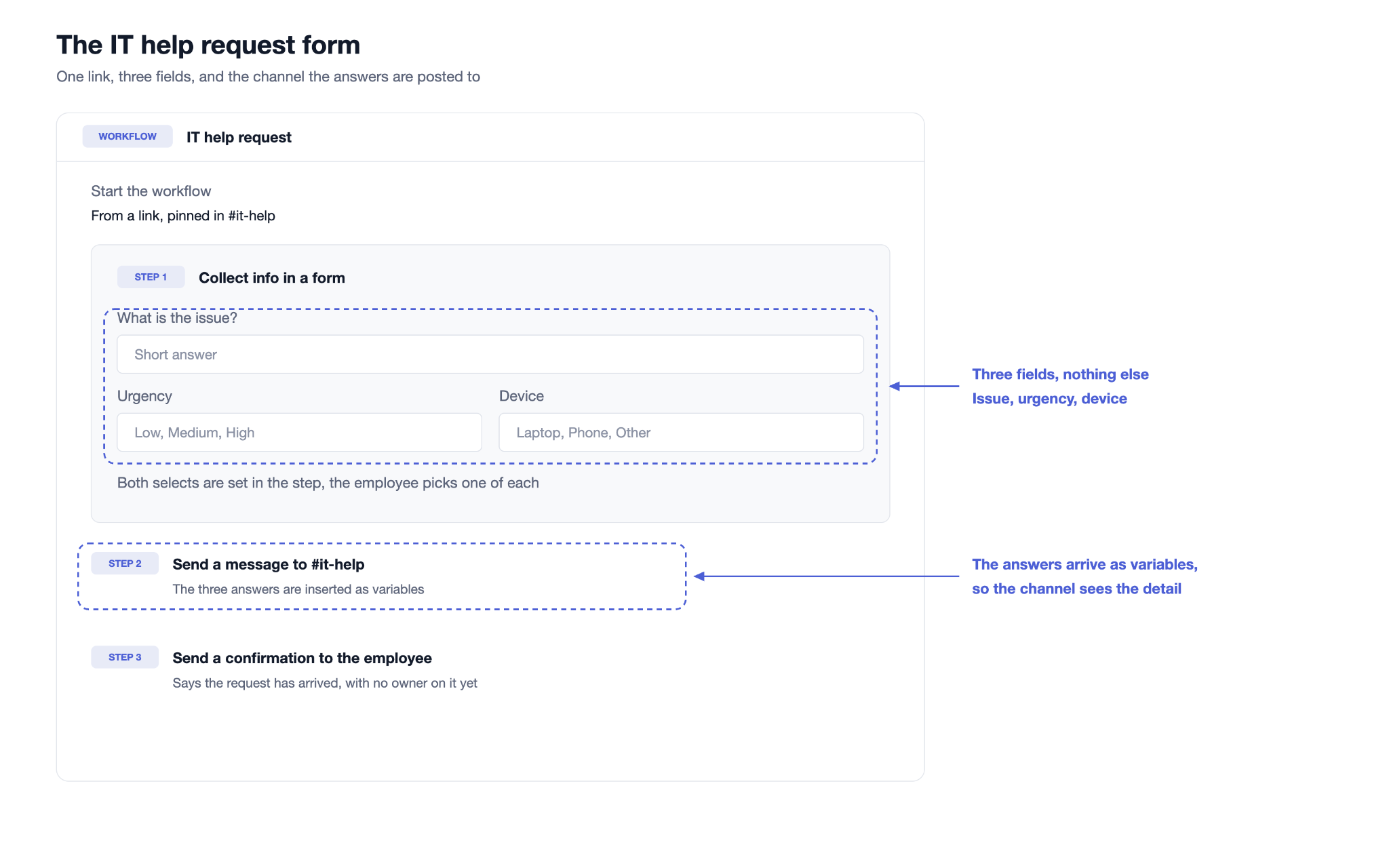
An IT agent takes the request as a form submission in #it-help. The workflow starts from a link, and the link gets pinned to the top of that channel so the employee can find it. A link workflow runs only when the link is clicked inside Slack, so pinning it in the channel is part of the build.
- Build the workflow with the link trigger, then pin the link in #it-help.
- Add a form step with three questions, the issue, the urgency, and the device.
- Post the form answers into #it-help as a message.
- Send a confirmation to the employee who submitted the form.
The form answers are inserted into that posted message as variables, so the issue and the urgency level are visible in the channel before anyone opens anything.
Plan: Pro and up.
Watch out: The posted message has no owner and no status on it. Therefore, whoever reads #it-help next decides whether to pick up the request.
2. Access Request With Manager Approval
Every access request has two outcomes, approved or declined, and the workflow should have both of them.
- The link opens a form that asks for the tool, the access level, and the reason.
- A message with those answers goes to the manager.
- Approve and Decline buttons are added to that message. Both are set to single-click, and both are restricted to the manager.
- A branch under each button runs the steps for that outcome.
- The employee gets the result in a DM.
Branches need a higher plan than the other steps here. Slack supports a third button as well, Escalate, and how to build a Slack approval workflow sets out the conditions that go under each one.
Plan: Pro for the buttons, Business+ or Enterprise for the branches. On Pro, the Decline button can be configured to start a second workflow that covers the second outcome without a branch.
Watch out: An Approve button with no restriction on it can be clicked by anyone who sees the message, so the restriction gets set before publishing.
3. Time-Off Request
The time-off request workflow starts from a link in the HR channel. The first step is to collect the dates, so the manager can see them before approving anything.
- Collect the leave dates and the leave type in a form.
- Send the request to the manager with Approve and Decline buttons.
- Tell the employee the outcome.
- Write the approved dates into a list, or into a canvas that the HR lead maintains.
A list holds the approved PTO requests where the HR lead can sort them by month, and a Slack message cannot be sorted that way.
Plan: Pro for the form and the buttons, Business+ for separate approve and decline paths.
Watch out: Skipping step 4 leaves the approval in a thread, where it cannot be sorted or counted.
4. New Channel Member Welcome
Slack provides a new channel member welcome workflow as a ready-made template, so you fill in the channel and the message instead of adding steps.
- The trigger fires when a person joins the channel you pick.
- A DM goes to that person, carrying the welcome message.
- The same DM includes a form that asks what you want to know about the new member.
- The answers are posted into the channel.
Plan: Pro and up.
Watch out: The template arrives with Slack's own wording in it, and the welcome message is the first thing worth rewriting.
5. New Hire Onboarding
New hire onboarding is a channel template. Choose it while creating the channel, and the canvas, the list, and the workflow are added for you.
- Create the channel from the template.
- An onboarding guide canvas comes with it, for company resources and the required documents.
- A first-week to-do list comes with it as well, for tracking what the new hire has to finish.
- The included workflow adds your new hire to every channel you specify.
The IT side is covered by that same workflow, because the channels it adds the new hire to include the IT ones. The documents and the introductions that fill the canvas come out of HR's role in onboarding.
Plan: Pro and up, with canvases and lists enabled.
Watch out: Templates are unavailable when canvases or lists are disabled for the workspace, or when the HR lead setting it up has no Workflow Builder access.
6. Weekly Standup
The standup workflow runs on a schedule rather than on anybody's reminder, set for Monday at 9:00.
- Set the schedule trigger for the day, time, and repeat.
- Send a form with the standup questions to the people in the channel.
- Collect the answers in a list, or post them into a thread.
- Share the link to that list or thread in the channel.
Plan: Pro and up.
Watch out: Answers kept in a list stay searchable after the week ends.
7. Friday Project Summary With AI
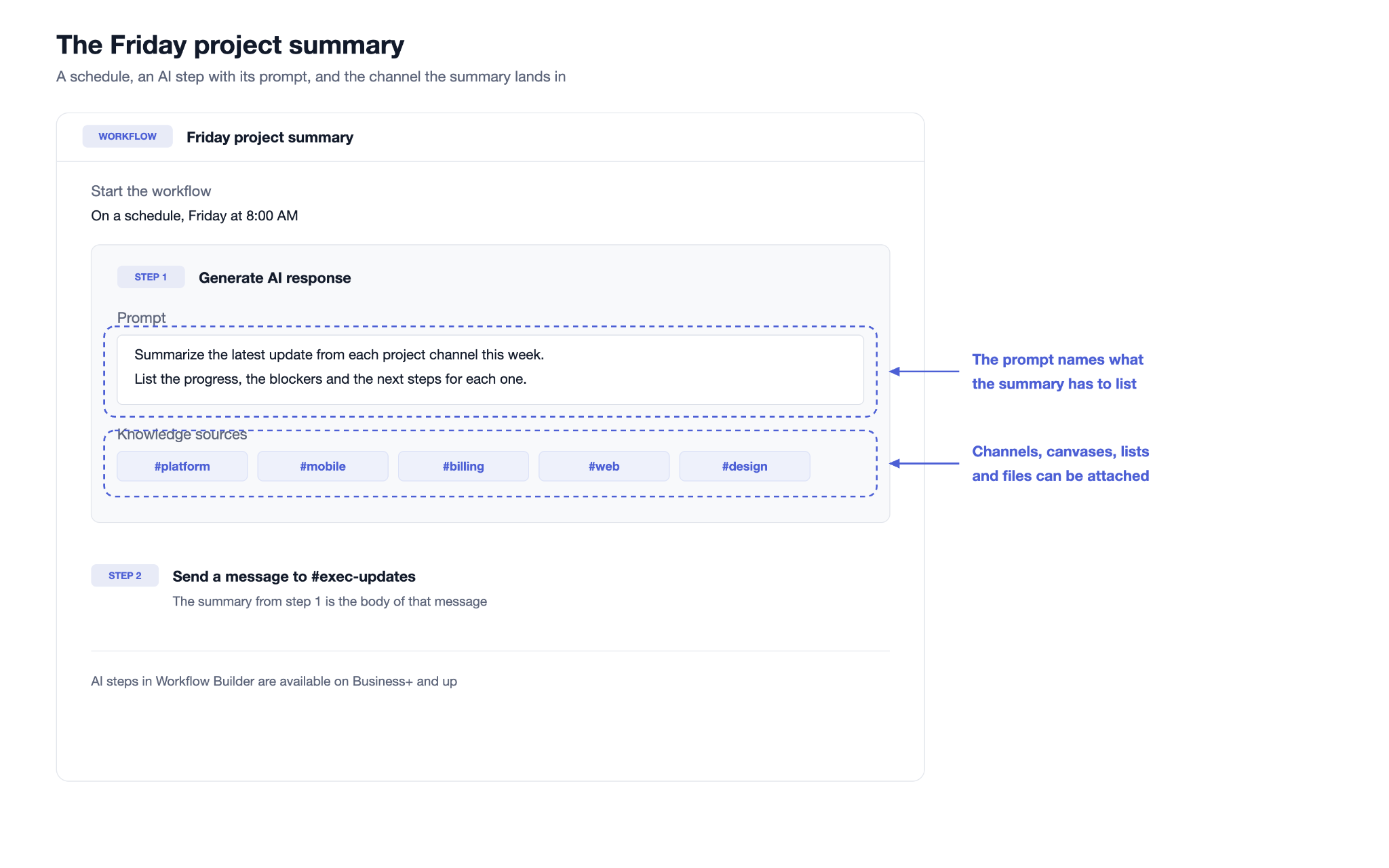
A manager following five project channels can have the week's updates summarized by the workflow before the review meeting.
- Set the schedule trigger for Friday at 8:00 AM.
- Add a Generate AI response step with a prompt asking for the latest updates from each project channel, the progress, the blockers, and the next steps.
- Attach the project channels to the step as knowledge sources.
- Post the summary into the leadership channel.
Slack's own version of this workflow posts into #exec-updates. The AI step reads channels, canvases, lists, and files, so the sources you attach decide what the summary can cover. A step that reads the channels and then writes from them is where agentic AI shows up inside Workflow Builder.
Plan: Business+ and up.
Watch out: The prompt decides the output, so name the things you want listed in it, like the blockers.
8. Channel Summary to a Canvas
The canvas is the destination in this workflow. A Summarize public channel step reads the channel, writes the summary, and sends it to the canvas for the team to read later.
- Start the workflow on a schedule, or from a link when the team lead wants it on demand.
- Add the Summarize public channel step, then pick the channel.
- Send the summary to a canvas, or to a channel.
Plan: Business+ and up.
Watch out: Only public channels go through this step. Summaries of a private channel depend on what your admins have allowed AI steps to read, so check the data controls before building it.
9. Incident Kickoff
A webhook starts this workflow when your monitoring tool fires an alert. One workflow carries one trigger, so an incident a person reports needs a second copy of it, started from a link.
- Create the workflow with the webhook trigger, and give the URL to the monitoring tool.
- Post the alert details into #incidents.
- Mention the on-call group in that message.
- Add a Generate AI response step that drafts the first status update.
- Post the draft into the channel for the on-call engineer to edit.
Plan: Pro and up, Business+ and up for the AI step.
Watch out: Admins can switch off workflows that start with webhooks, so check that permission before the build.
10. Emoji Triage in a Help Channel
An emoji reaction is the trigger on this one. When an IT agent adds 👀 to a message in #help, the workflow replies in that thread and mentions the IT group.
- Set the emoji reaction trigger for 👀 in #help.
- Reply in the thread of the message that got the reaction.
- Mention the IT group in that reply.
Plan: Pro and up.
Watch out: Reserve the emoji for triage, because the workflow starts each time somebody adds it in #help.
11. Feedback Intake
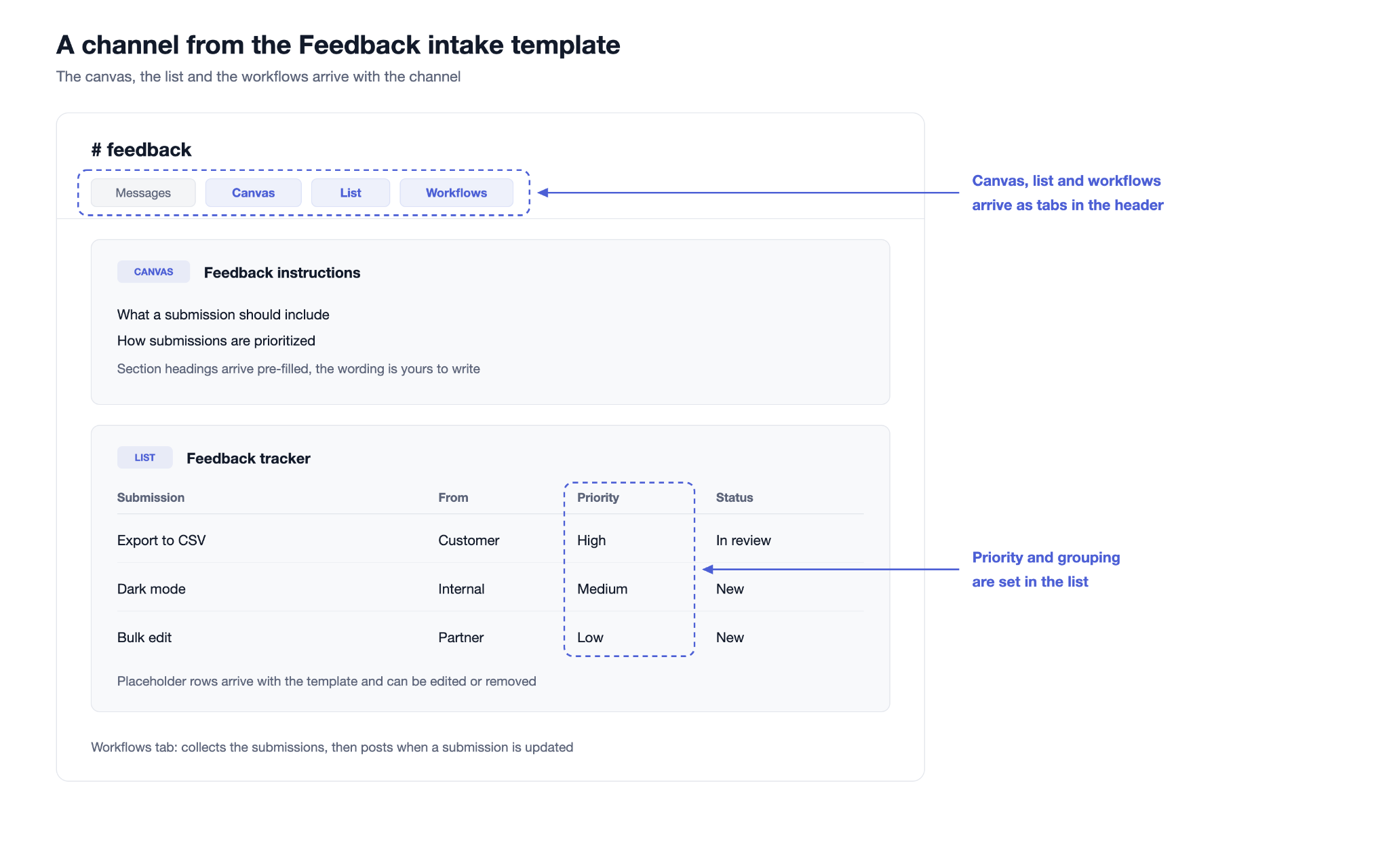
Feedback intake is the third of Slack's channel templates, built for submissions arriving from the team, the customers, or the partners.
- Create the channel from the template.
- A feedback instructions canvas holds the submission guidelines.
- A feedback tracker list groups the submissions and sets their priority.
- The included workflows collect the submissions, then post when a submission is updated.
Plan: Pro and up, with canvases and lists enabled.
Watch out: The product lead sets priority in the list, and the canvas holds the rules for what a submission should contain.
12. Partner Requests in Slack Connect
This workflow takes requests from partners inside a Slack Connect channel. None of the steps are new. The admin setting that lets external organizations run your workflows is what makes it work.
- The admin allows external organizations to use workflows in Slack Connect conversations.
- The connected organizations are added in the workflow's settings.
- The workflow link is shared in the channel you share with the partner.
- The partner contact clicks the link and fills out the form, then the request posts into your internal channel.
Plan: Pro and up, with external use allowed by admins.
Watch out: A partner contact cannot be added to a button's restriction list, so approval buttons in this workflow stay with your own team.
When a Workflow Should Become a Ticket
A workflow is built for intake. It collects the request in a form and posts it into the channel, and the workflow has no steps after the message is posted. A message in a channel stays a message. It cannot be reassigned, and it does not show up in any queue the team works from.
A request that closes in the thread never needs more than a workflow. A request that is still open when the thread moves down the channel needs an owner, a status other people can see, and the approval kept somewhere it can be found.
Suptask has a Create ticket step that gets added into Workflow Builder. The workflow you have already built can finish on a ticket, and the form answers are carried into it. The workflow posts its message into a private channel that a Suptask Form is watching, and Suptask turns that message into a ticket. Ticket fields can be pre-filled from field markers, the tags Suptask reads inside the message. Connect Slack workflows to Suptask is where the markers for a watched channel are listed.
The connection works in the other direction also. A Suptask automation is able to start a Slack workflow through that workflow's webhook trigger, and Suptask Support may have to activate it first.
Tickets made in either of these ways come with an owner, a status, and the SLA tracking of a workflow ticketing system.
Tips for Workflows That Keep Working
The person who builds a workflow is made its manager automatically, and nobody else can edit it. Other managers get added from the workflow's settings to keep it editable even after the builder leaves the team.
A workflow name has two readers: the employee clicking the link and the manager who inherits it later. Access request tells both of them what the workflow is for.
A private channel is a good place to publish the first version. The steps get run end to end there, and the form is filled in by an IT agent who did not build it. A workflow can be unpublished afterwards and published again into the real channel, so nothing is lost by testing it this way.
Workflow activity shows the runs in progress, the completed ones, and the ones that hit an error. Creators and managers are able to open it. Errors are listed against the run, so the step that failed is the one to open first, and a look after any change to the steps is worth the minute it takes.
Two admin settings can stop a workflow that is already built. Connector steps can need approval before an IT agent adds one, and external organizations are able to run your workflows only when admins have allowed it. Both of them show up at the first run.
Start With the Request You Answer Most
One request reaches you by DM every week, and that is the one to build first. Build it, watch a week of real requests come through it, then add the next one. The Slack workflows examples above work in any order, so the IT help form, the standup, or the time-off request can each be the starting point. How far down the list you get depends on the plan, since branches and the AI steps need Business+ or higher.
When a workflow's requests need an owner and a record, Suptask's Slack ticketing system turns them into tickets without leaving Slack.
Frequently Asked Questions
Is Slack Workflow Builder free?
No, Workflow Builder is available with paid plans like Pro, Business+, and Enterprise. Templates need a paid plan, too. Branches are available with Business+ or Enterprise, same as the AI steps, those are on Business+ or higher.
Is there a Slack workflow app?
Yes, Workflow Builder is already part of Slack, so no additional app has to be installed for it. Other applications can add their own steps into a workflow, like a step that creates a record in some other tool. Those ones may need approval first. The admins decide that, and the account for the third-party tool has to be authenticated before the step will complete.
How do I create a workflow form in Slack?
In Workflow Builder, you should start a new workflow, then add a form step into it. The questions are written inside that step, and the answers come back as variables that the later steps are able to use. Then the responses need a destination. A channel is the usual one, and after that, the workflow link gets shared where the employee is going to look for it, pinned at the top of the channel, for example.
Can AI build a Slack workflow for you?
It can, yes. You describe the workflow in a prompt, and Slack drafts the steps out; then the builder goes through them before publishing anything. AI steps are a separate thing. Those run inside a workflow that is already published, summarizing a channel or drafting a response from your prompt, and Business+ or higher is needed for both.
Can people outside your company use your Slack workflows?
Only with permission. The admins have to allow external organizations first, and the connected ones are then included in the settings of the workflow. A partner contact can run it after that. The limit is on the buttons, a partner contact cannot be put on the list of people allowed to click one, so approvals stay with your own team.
Can a Slack workflow start from another app?
Yes. A webhook is the usual route, another system calls it, and the workflow starts running. Some apps start workflows from their own events. Everything else is inside Slack, a link, a schedule, an emoji reaction, a keyword in a message, a list item that gets updated, or a new member joining a channel.