Workflow Ticketing System With Routing and Approvals Built-In
Expense, purchase, and invoice requests arrive on the right form, with an approval on the ticket and a record finance can audit.

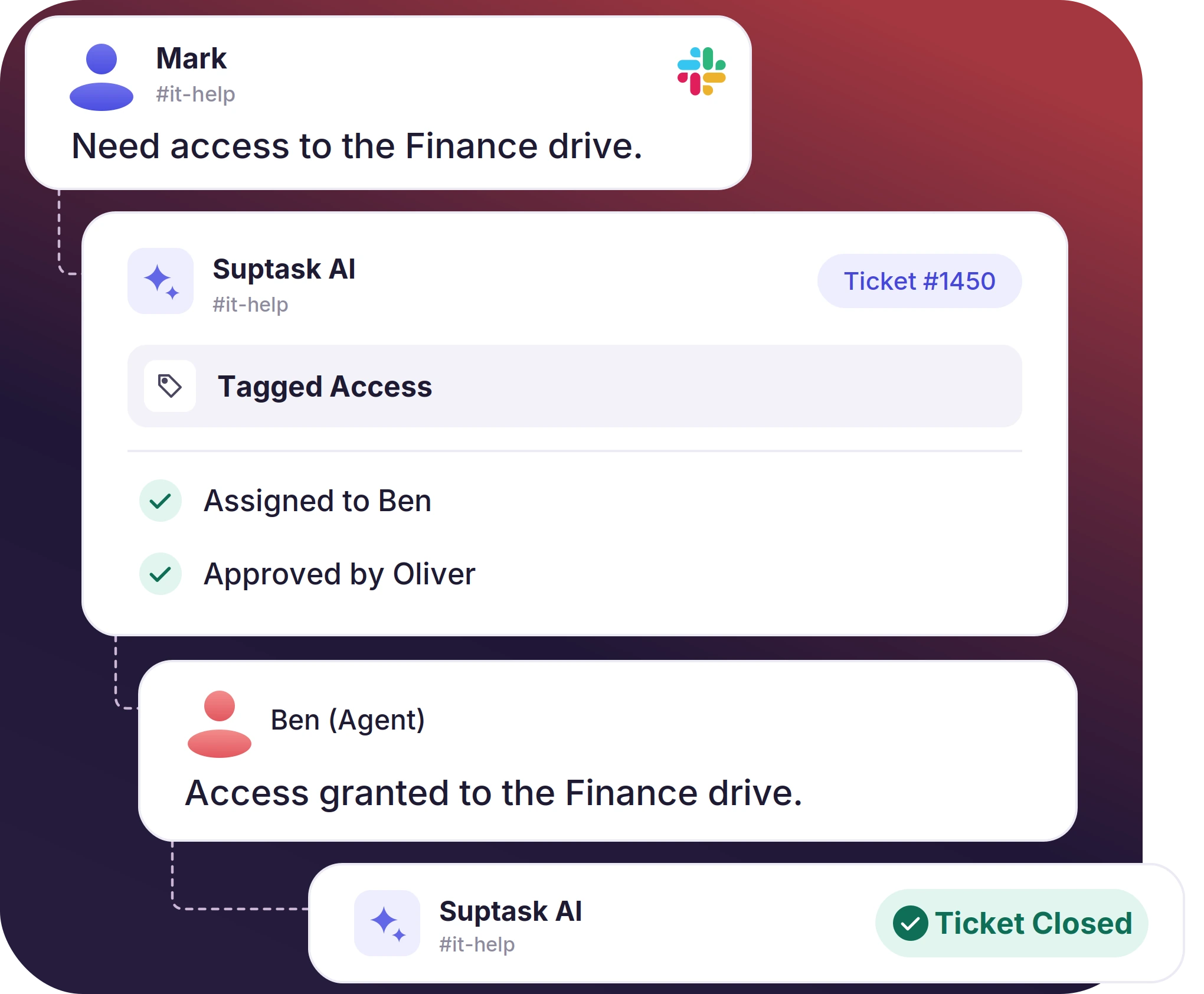










Help Desk Ticket Workflows for IT, Finance, HR, and Support Teams

IT and service desks
Access and hardware requests come in on a form that sets the Inbox. The rule assigns them, and the SLA clock escalates the ones running late.

Finance and HR
Expense and onboarding requests need a decision before the work starts. The approver answers on the ticket, and the requester sees the outcome in the thread.

Customer support teams
An automatic reply confirms the request. When the customer stops replying, a time-based rule follows up. Engineering joins the support ticket workflow on the same ticket.
A Support Ticket Workflow That Acts When a Ticket Is Created or Updated
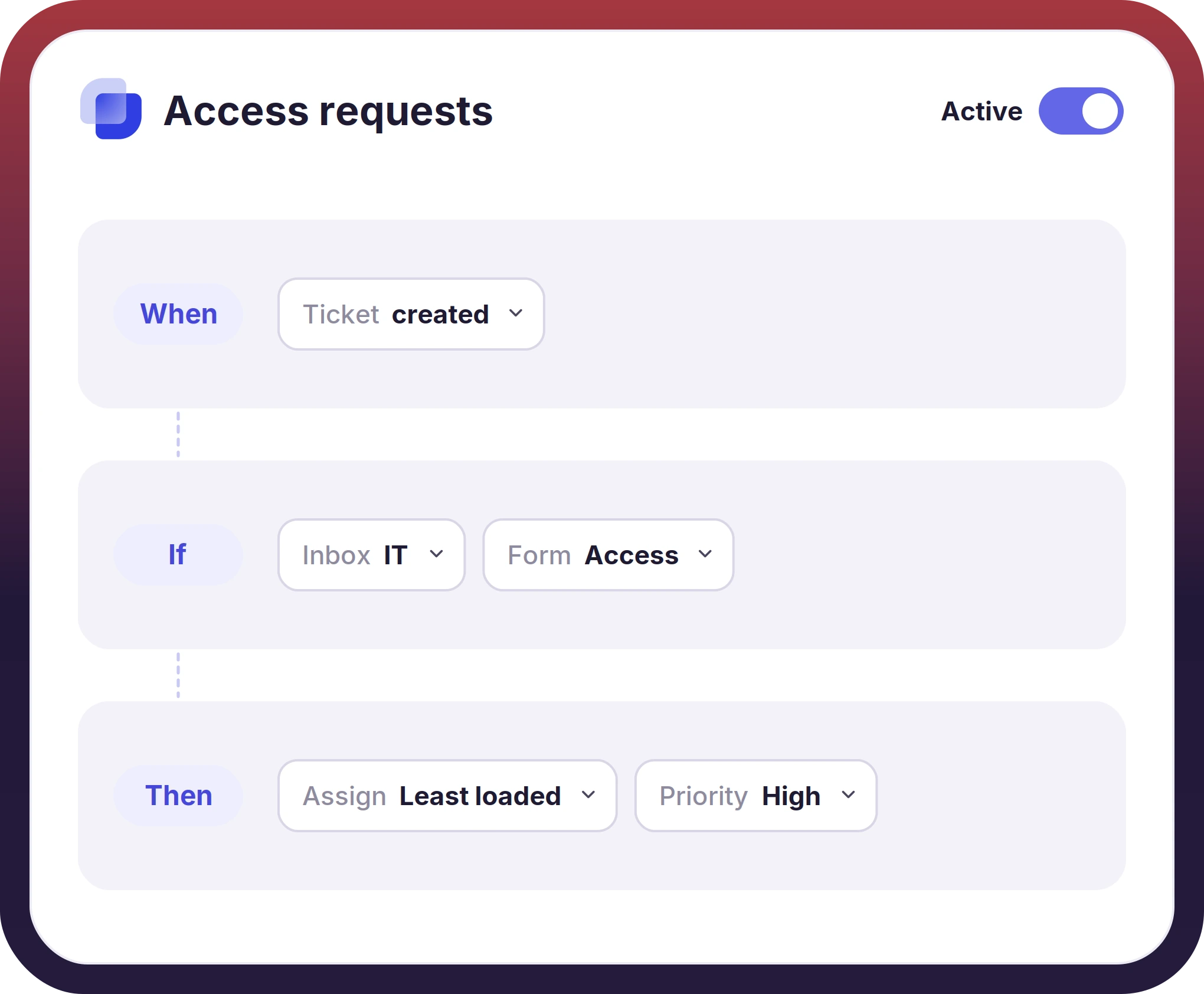
- The trigger is run when a ticket is created or updated. Conditions read ticket fields, so a rule can be limited to one Inbox, one form, or one priority
- Tickets are assigned by round-robin, least loaded, or a fixed agent. Rules can also set priority, status, tag, reply, or request approval
- The automated ticketing system covers intake too. Channel messages become tickets, and AI categorization routes emails to the right Inbox
The Slack Approval Workflow Records the Decision and the Reason
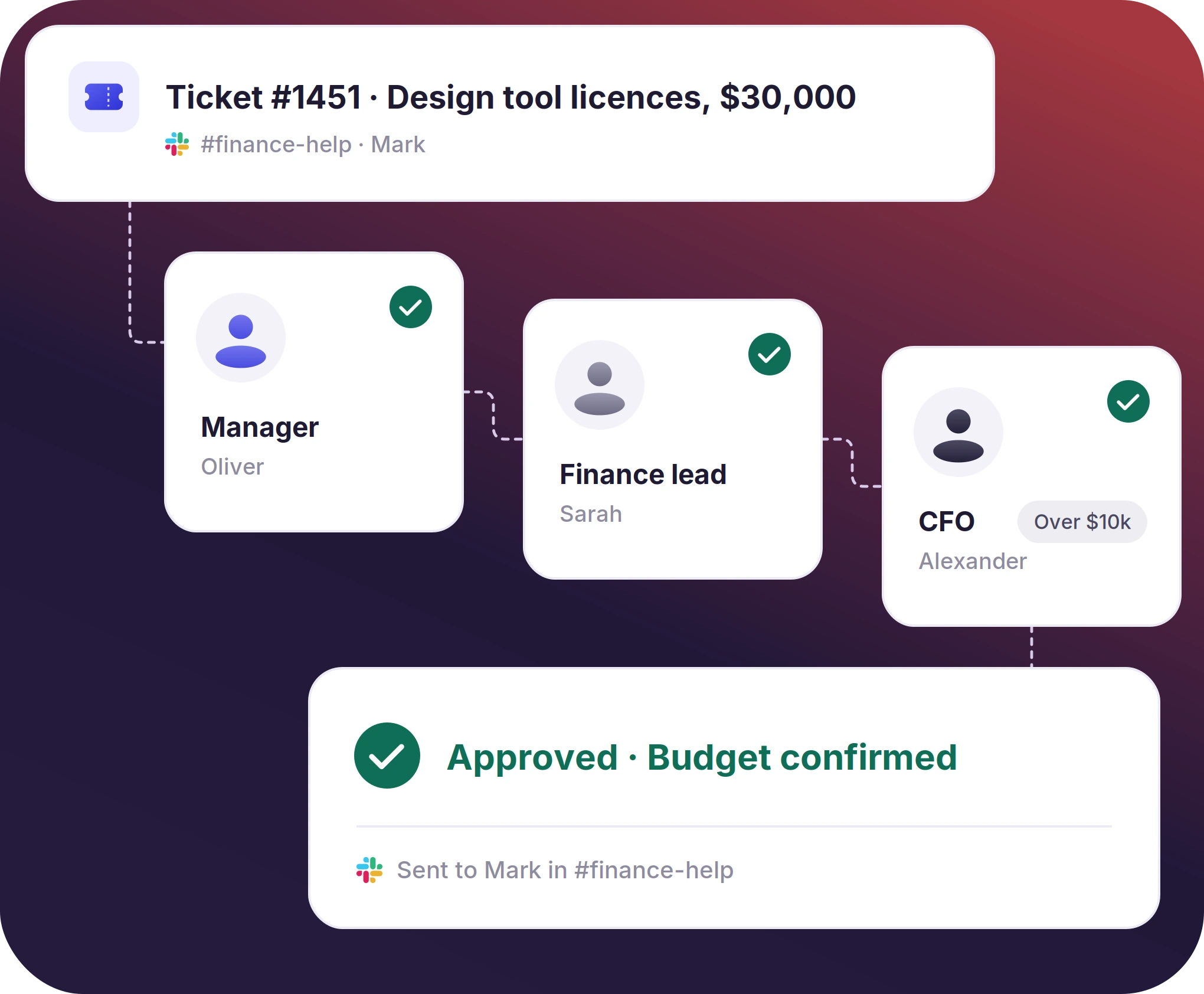
- Approval is requested from the ticket and sent to the Slack user by name. The final decision about approval or rejection is sent to the requester
- Approval runs in a sequence: first the manager, then the finance lead, and the CFO above a set threshold
- The same approval steps are followed for every request from IT, finance, to HR teams
The numbers speak for themselves.
A Help Desk Workflow With Custom Statuses per Inbox
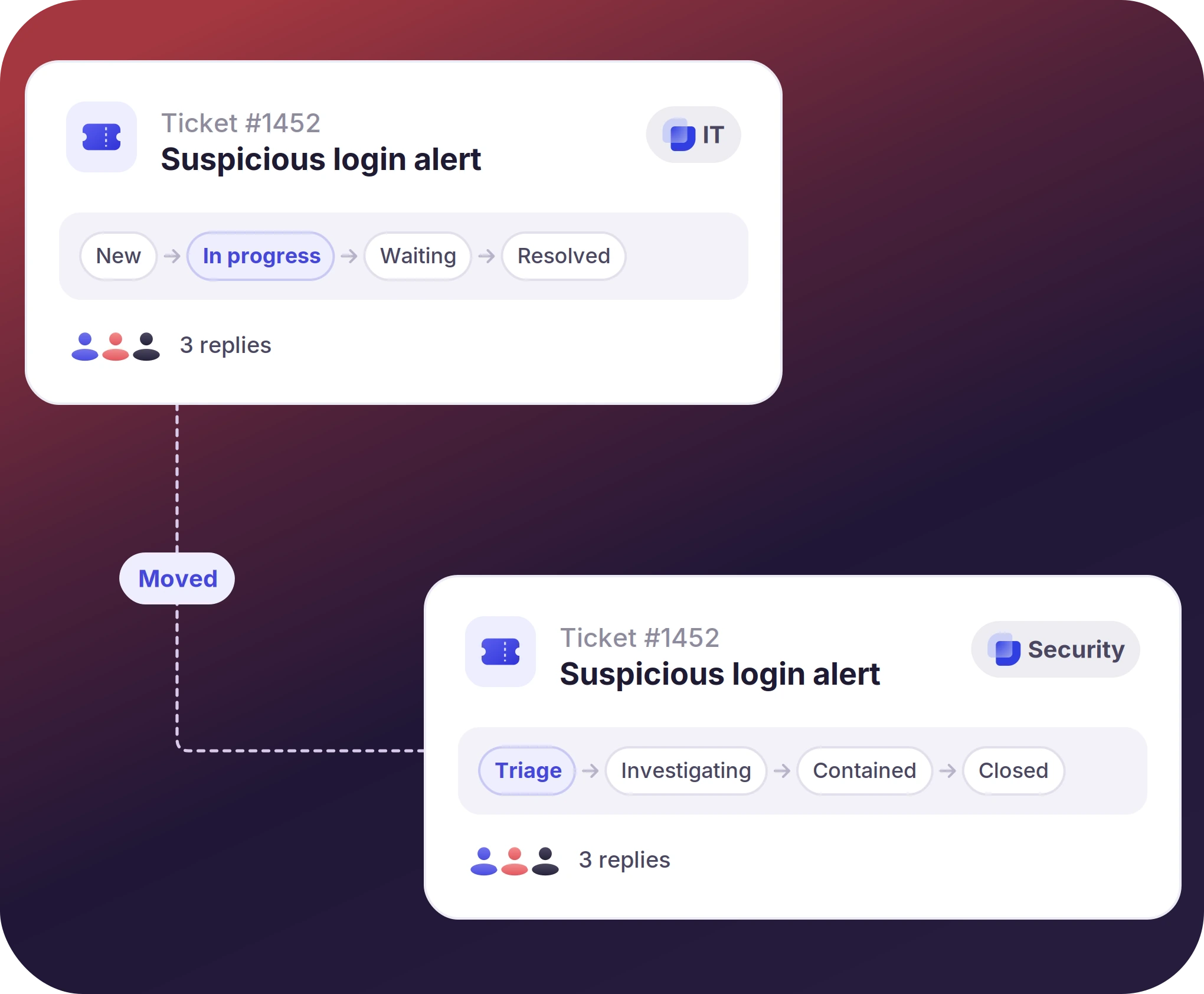
- A status change posts into the thread, so the requester reads it without asking. The same change can trigger the next rule
- Move and escalate send the ticket to another team's Inbox, thread intact, and ticket routing automation does the same by rule
- Engineering joins as a follower on a customer service request workflow, and duplicates from the same requester are merged into one ticket
The Service Desk Workflow for SLA Clocks and Follow-Ups
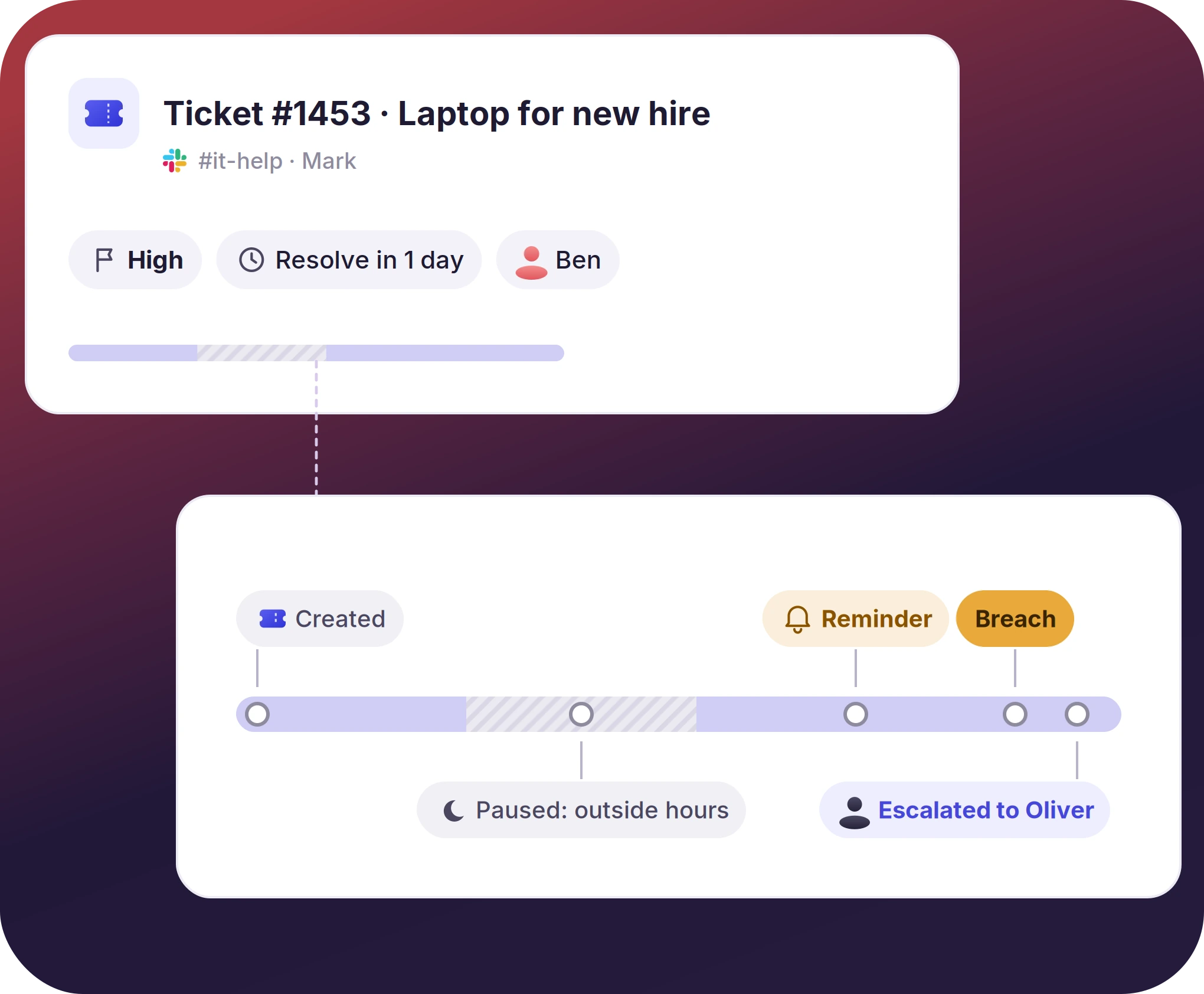
- Reply and resolution targets are set for each priority. Business hours per team pause the clock overnight and on weekends
- Service Desk automation also runs on time, chasing a ticket after a set interval, closing it when no reply comes, or escalating again
- Tickets can be created on a schedule for work that repeats. Each reminder and closure posts in the thread the requester already reads


What Suptask Changes About the Help Desk Ticket Workflow
How the Ticketing System Workflow Works in Slack
Create
Route and approve
Chase and close
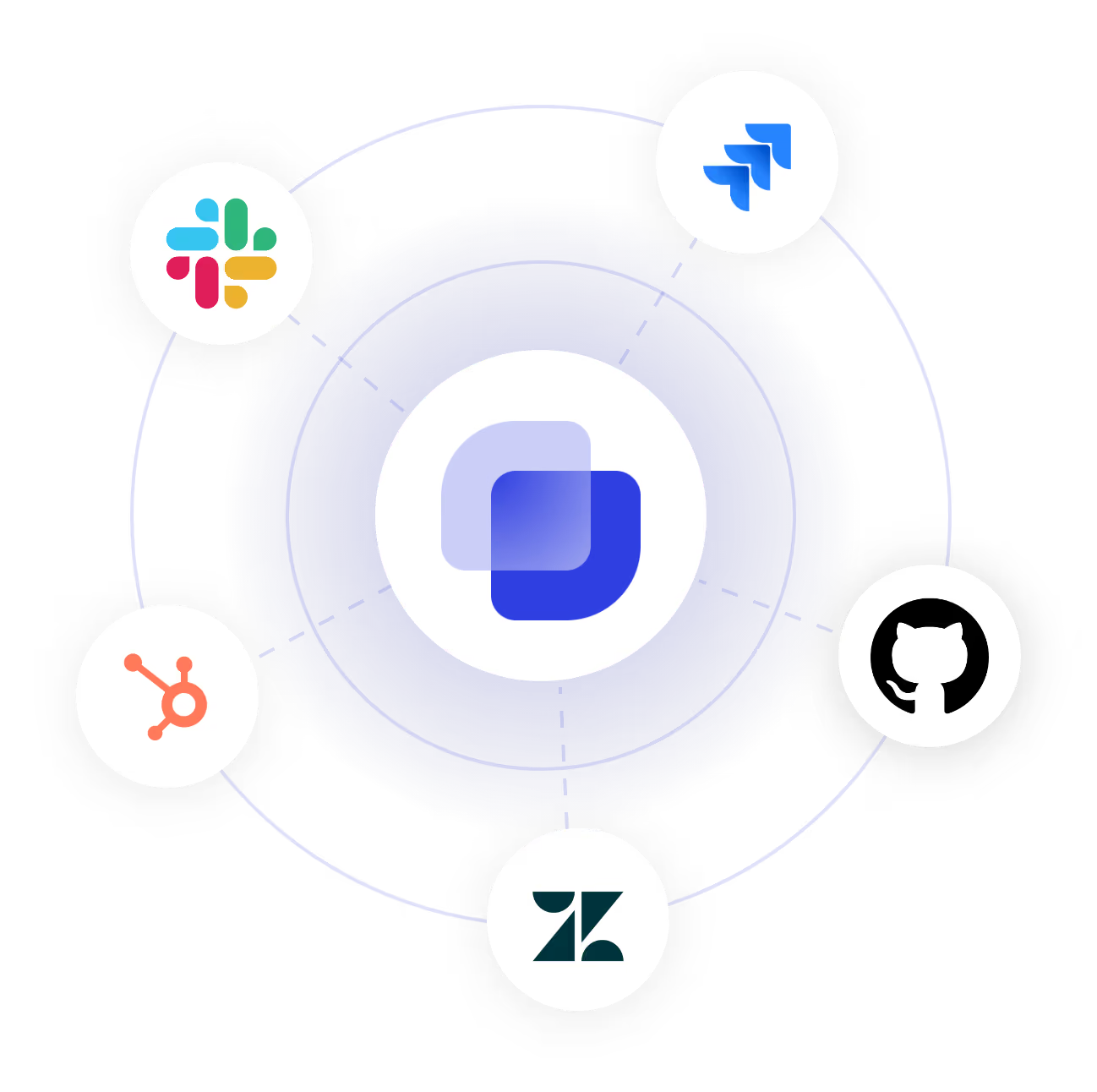
Connect Slack Workflow Builder and Your Systems to the Ticketing Workflow
Frequently Asked Questions
What is a workflow ticketing system?
A workflow ticketing system runs the post-ticket creation steps by rules. These steps are routing, assignment, approval, status change, and follow-ups. When using Suptask an admin can set the rules in the web app without writing any script. Also, the results of each workflow step are posted in the thread, so the requester can see them.
Intake comes first, when a message, a form, or an email becomes a ticket. Categorization puts it in the right Inbox, and routing or assignment gives it an owner. An approval step is added when someone has to agree before the work starts. The status lifecycle, the SLA clock with its escalation, and the resolution with its record complete the ticket system workflow, and service desk and help desk automation applies to each of those stages.
Every automated ticketing system has varying capabilities. For example, Suptask’s Professional plan covers assignment, priority, status, automatic replies, routing between inboxes, and approval requests. When upgraded to the Growth plan, beyond these capabilities, SLA based rules, SLA management with escalation, a multiple-step approval sequence, and AI tagging. The Custom plan adds Agentic workflows on top of earlier said capabilities. Learn the details about each plan from Suptask pricing.
An approval is requested from the ticket and sent to any Slack user by name. The approver gets a message with Approve and Reject buttons, and the answer with its reason is written back to the ticket. A Slack approval workflow can also run in sequence, with a second approver added when the amount passes a set threshold.
Yes. SLA thresholds are set by priority, for the first reply and for the resolution. The assignee gets a reminder before the target is missed, and a manager gets the escalation message after a breach. Business hours keep the clock from running overnight, and a ticket waiting on the requester can be closed automatically. SLA management and time-based rules are part of the Growth plan.
Slack Workflow Builder handles a form and a message posted to a channel. Suptask adds the ticket behind it, with an owner, a status, an SLA clock, an approval that leaves a record, private tickets, and reporting. Workflow Builder steps can create Suptask tickets as well, so the two work together. A side-by-side comparison covers where each one fits.
Creating the ticket takes a second. Slack ticketing automation handles the rest.