Email Ticketing System Built For Support Teams
Email to your support address becomes a ticket in Slack, each with an owner, status, and deadline. The agent answers in the thread, and the reply reaches the customer as a normal email back.

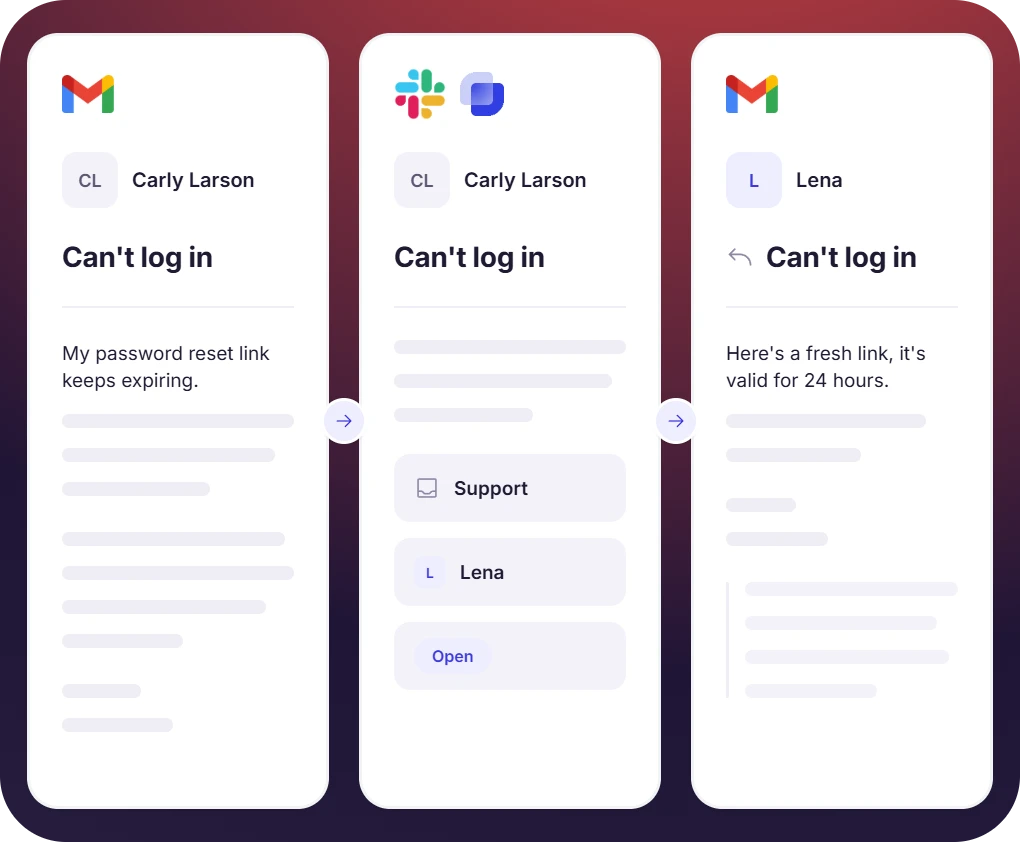











Email Ticketing for Support, IT, and Operations Teams

Customer support teams
Customer email support@ and the message goes into a shared inbox. Suptask creates a ticket from each email with an owner and a response target on it.

IT help desks
When Slack is unavailable to an employee, send the request by email. The request lands in the IT queue with the same form, routing, and assignee as a Slack request.

Operations and internal requests
Customers email support@ and the message goes into a shared inbox. Suptask gives the team a customer service email ticketing system, with an owner on every email ticket.
The Customer Stays in Email While the Team Works in Slack
- Agents answer email tickets in a Slack thread
- Sensitive requests are answered in private ticket form
- Each email ticket holds the customer messages and the internal notes in one thread
.webp)
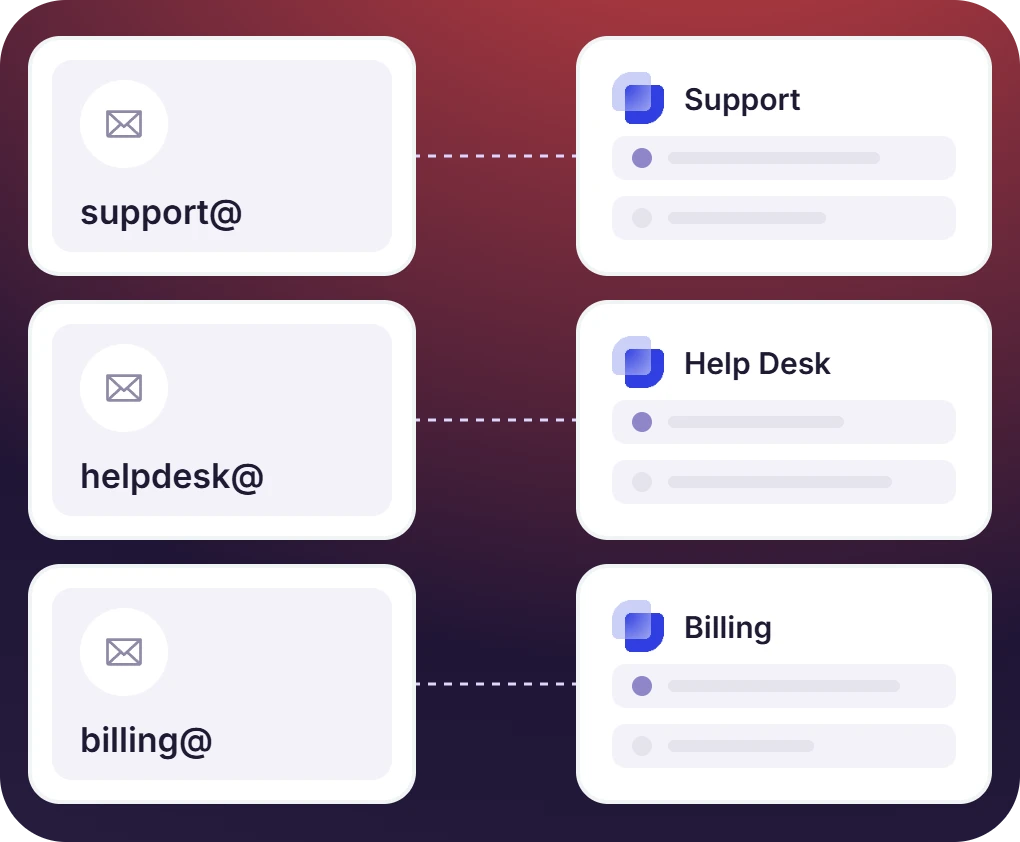
Forward Any Support Address Into an Email to Ticket System
- Email sent to helpdesk@, support@, or any other address is forwarded to Suptask
- Several support addresses can run at once, each in its dedicated Inbox
- Outgoing replies have the configured sender name and use DMARC, DKIM, and SPF authentication
The numbers speak for themselves.
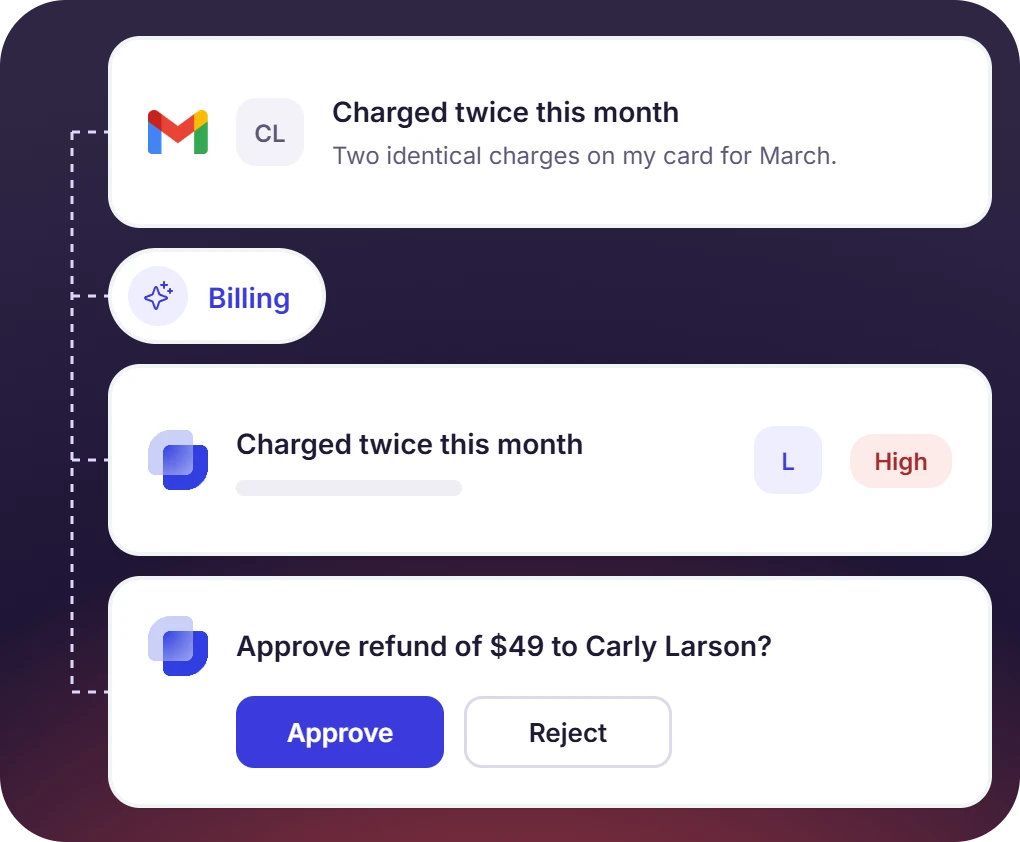
Assign, Escalate, and Approve Each Email Support Ticket
- Suptask AI reads each incoming email and sends it to the right form and team, with no manual forwarding
- Automation rules set the owner, the status, and the priority at creation, with assignment running round-robin, by workload, or to a fixed agent
- Approvals, followers, and escalation work on an email ticket the same as on a Slack ticket
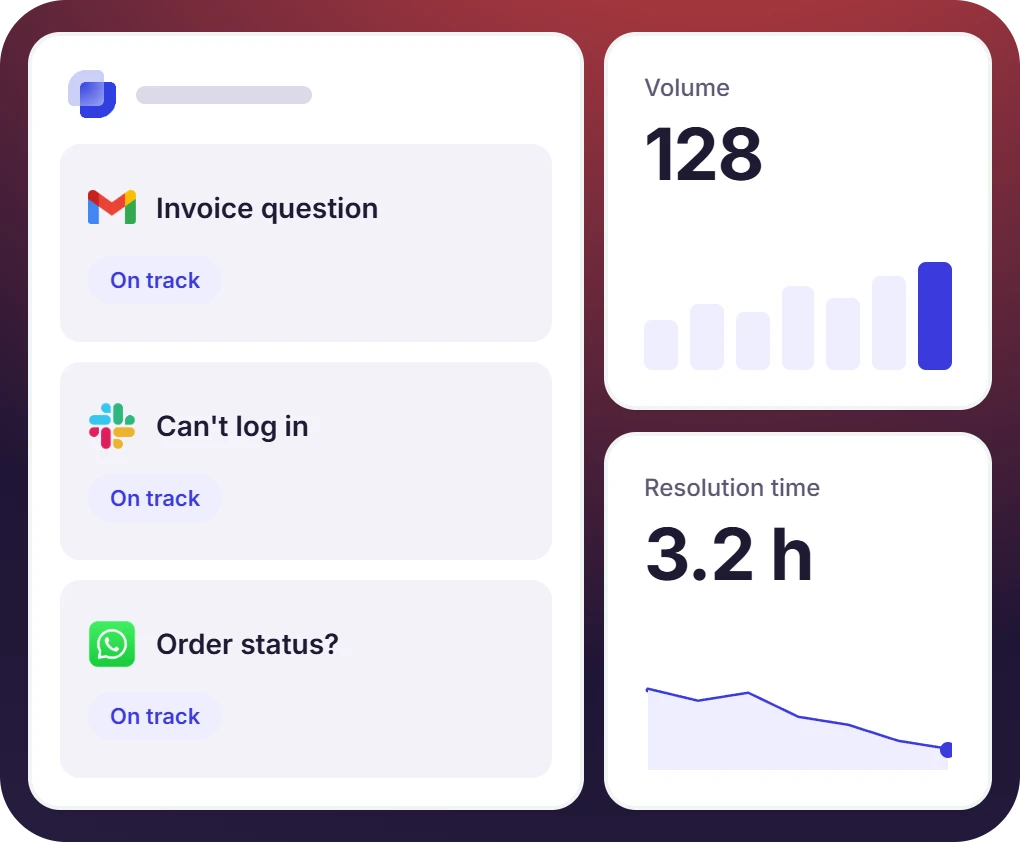
Measure Your Email Support System With SLAs and Reports
- An SLA is set on each request type, and the clock starts when the email arrives
- Ticket volume, agent workload, and resolution time are shown on the built-in dashboards
- Email tickets are reported alongside Slack and WhatsApp tickets in the same view


What Suptask Changes About Email Help Desk Software
How the Email Ticketing System Works Inside Slack
Forward
Capture
Resolve
Connect Gmail, Outlook, and Your Other Tools to the Email Ticketing System
Frequently Asked Questions
What is an email ticketing system?
An email ticketing system turns incoming email into tickets with an owner, status, and response target assigned to it. When working in a shared inbox, no such structured process exists, so requests are either answered or missed. Simply put, an email ticketing system is a structured way to manage email tickets.
The support address is forwarded to Suptask, and then Suptask maps it to an inbox. An incoming email to the support address creates a ticket in the connected Slack channel and notifies the agent. Agents reply in the Slack thread, and the answer reaches the customer as an email sent under your company name, or from your own domain if you set up a custom sending domain.
Yes, any email address that supports forwarding can be used, whether it is support@, helpdesk@, or info@.
The customer reply is added to the Slack thread, and a notification is sent to the agent working on it. All the customer conversation remains in the same thread, so the agent can learn and reply in the same thread.
Yes. Suptask's sending domain is authenticated with DMARC, DKIM, and SPF, so the default setup needs no DNS changes on your side. If you want replies sent from your own domain, Suptask Support generates DKIM and Return-Path records for your DNS admin to add.
Email ticketing is included from the Professional plan, $24 per agent per month billed annually ($29 monthly). SLA targets and time-based escalation are part of the Growth plan at $38 per agent per month billed annually. Starter covers Slack ticketing for a single team and does not include email. See the pricing page for the full comparison.
Your support inbox, handled as tickets in Slack