Stop paying the toggle tax. Build a Digital HQ where communication, data, and logic live in one flow of work.
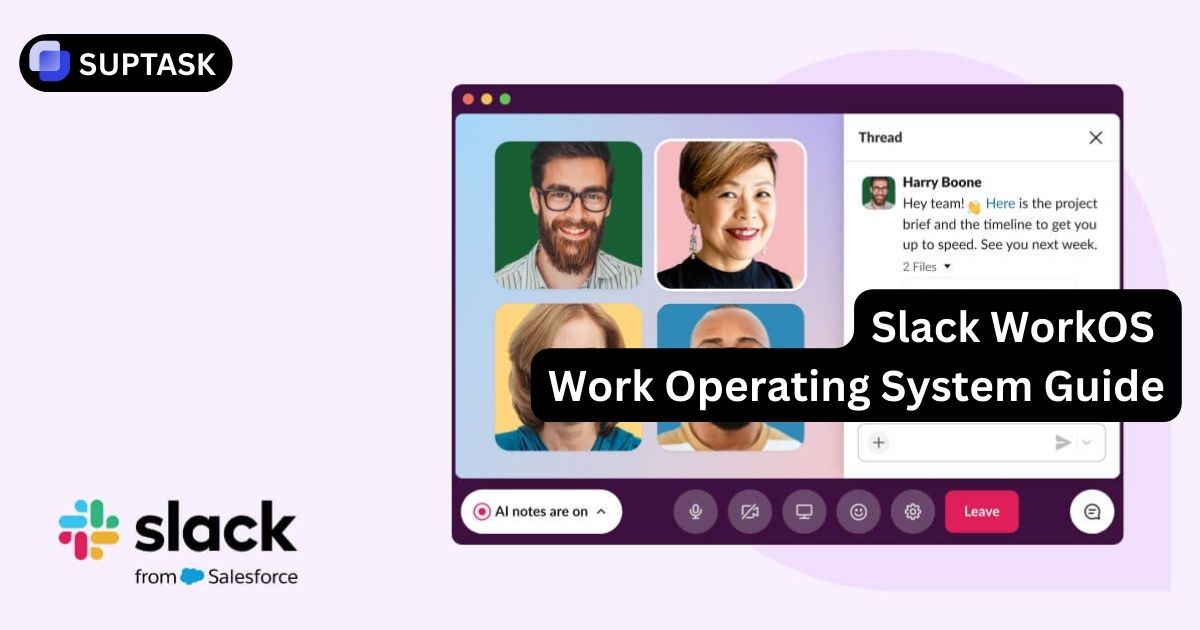
This guide breaks Slack WorkOS into four buildable layers: Channels, Canvas, Lists, and Automation With AI Agents.
What “Slack WorkOS” Actually Means
Think of Slack WorkOS as a layer on top of your tech stack:
- Channels become the default place work happens (not just chat).
- Canvases hold durable knowledge (plans, SOPs, meeting notes).
- Lists track tasks and projects inside Slack (so action stays near discussion).
- Workflow Builder automates repeatable processes without code (and can connect to other apps).
- Integrations + AI agents pull tools, context, and “do work for you” actions into the same place.
Slack also highlights scale metrics like 2,600+ app integrations and measurable time savings from automation and AI inside Slack.
Slack WorkOS Quick Start Wizard
Follow these 4 steps to turn Slack into a Work Operating System that holds context, structure, and execution.
Step 1: Build Slack Channels As Digital HQ Topology
A Slack WorkOS starts with structure. Channels are not just chat rooms. They are namespaces for people, decisions, and live signals from your tools. When the topology is clean, your Work Operating System stays high signal.
✅ Channel Topology Checklist
- ✓Prefix Based Naming:
#team-#proj-#help-#ops-#ext- - ✓Public By Default Channels To Preserve Searchable Context
- ✓ Admin Only Announcement Channel For High Signal Updates
- ✓ One Major Workflow Per Channel: Project, Support, Sales, Or Ops
Step 2: Add Persistence With Slack Canvas Knowledge Layer
Chat moves fast. Work needs memory. Slack Canvas turns channels into living workspaces where the why and the current state stay visible. Think of Canvas as the long term memory of your Slack WorkOS.
Living Project Charter Canvas
Put scope, owners, timelines, and links in the channel canvas. New joiners ramp fast without asking for a doc link.
Goals, Owners, Milestones, Risks, Links, Decision Log
Incident Runbook Canvas
During an outage, the canvas becomes the war room wall. Roles, steps, and live links stay pinned to the moment.
Severity, On Call, Timeline, Metrics Links, Comms Template
Step 3: Create Structure With Slack Lists Work Operating System Layer
Lists are where your Slack WorkOS stops being only conversation and becomes work tracking. They cover the middle tier: real team work that is too structured for chat and too lightweight for heavy systems.
📌 The WorkOS Middle Tier Examples
- IT Intake Queue: Priority, Owner, Due Date, Status, System
- Launch Readiness: Risk, Approver, Target Date, Checklist
- Support Swarm: Customer, Severity, Next Action, Escalation Path
# List Recipe
Name: "WorkOS Intake"
Fields: Priority (Select), Owner (People), Due Date (Date), Status (Select), Source (Text)
Views: Table (Default), Kanban (Status)
Step 4: Orchestrate With Workflow Builder And AI Agents
A Work Operating System needs an engine. Workflow Builder connects triggers to steps, so intake, triage, and approvals happen without manual chasing. Add AI Agents when you want reasoning and execution inside Slack, with human review built in.
Intake And Triage Workflow
- Trigger: Shortcut Or Form
- Capture: Issue Type, Urgency, System
- Route: Post To Channel, Create List Item
- Escalate: Page On Call For Urgent
Approval Loop Workflow
- Request: Submit In Slack
- Decision: Approve Or Reject Buttons
- Update: System Of Record In Background
- Audit: Log Timestamp And Actor
# Agent Readiness Checklist
- Define Topics: IT Support, Sales Briefing, HR Policy
- Define Actions: Search Slack, Create Canvas, Update List, Call Approved API
- Ground With Trusted Sources: Canvases, Tickets, CRM Records
- Respect Permissions: Same Access Rules As The Requesting User
Slack WorkOS Blueprint Builder
Choose your context and generate a practical Work Operating System starter plan
Generating Slack WorkOS Blueprint...Live Slack WorkOS Preview
See how Work Operating System events can look inside Slack
Select A WorkOS Event
Slack WorkOS Component Reference
Quick scan descriptions, starter patterns, and where each Work Operating System layer fits
Slack WorkOS Troubleshooting
Click common Work Operating System issues to see fast fixes
- Publish a channel taxonomy with 5 to 7 prefixes and clear examples
- Create a single intake workflow for new channels with naming validation
- Default to public channels so knowledge stays searchable
- Add a Canvas template to every new project channel: goals, owners, milestones, links
- Archive stale channels quarterly with a simple checklist
- Add a Decision Log section to the channel Canvas
- Require threads for decisions to preserve context and reduce main channel noise
- Pin the Canvas and key links, then reference it during meetings
- Convert key messages into List Items so the work stays trackable
- Route noisy alerts into dedicated ops channels with clear on call ownership
- Use workflows to summarize and batch notifications on a schedule
- Create List based queues and only notify when status or priority changes
- Set norms for @here and @channel usage, and limit broad pings
- Start with one pain point: IT intake, approvals, or incident kickoff
- Make the workflow the fastest path, not an extra step
- Post confirmations and outcomes back into the channel so the loop is visible
- Train a champion network in each department to build and iterate workflows
Common Failure Modes (and Fixes)
- Too many channels, no owners → assign channel owners + archive aggressively
- Knowledge scattered across threads → enforce “Canvas is home, thread is discussion”
- Tasks stay in messages → use Lists as the default “commitment tracker”
- Automation chaos → create a shared “Workflow inventory” canvas + approval rules
Key Features of Slack Work OS
.webp)
Whether through concentrated communication via Slack Channels or improved integration for transparency, discover how Slack simplifies workflows and elevates productivity levels.
1. Slack Channels
Slack Channels are the heart of team communications in Slack, offering a space where project management methodology can be applied to organize conversations into clear, structured threads.
How does this benefit teams? Assigning specific channels to distinct projects or topics keeps discussions focused and relevant.
This arrangement boosts teamwork and simplifies revisiting previous discussions—crucial for ongoing project progression.
Participants can integrate file-sharing into conversations within these channels, aligning critical documents with collaborative efforts.
Features like colleague tagging, scheduled messaging, and Slack lists benefits add more coherence to team interactions.
Ready-to-use templates and Huddles for live interaction emphasize Slack Channels as essential tools fostering united effort in contemporary corporate structures.
2. Integration of Enterprise Apps and Data
What sets Slack Work OS apart is its ability to integrate with over 2,600 applications, consolidating your entire toolkit in a single interface.
This integration promotes a good process flow and boosts productivity by reducing app switching.
Slack provides your team essential resources, from Salesforce CRM data to ticketing system tools like Suptask.
With a ticketing system in Slack, efforts to resolve issues become simpler and more efficient.
By centralizing tickets alongside project discussions, Suptask makes monitoring progress easy, reduces delays, keeps everyone in the loop, enhances project management, and fosters real-time team collaboration.
3. AI Agents for Task Automation
How does Slack leverage AI to facilitate daily operations? Integrating artificial intelligence to handle repetitive chores such as organizing meetings, summarizing discussions, and managing reminders.
This optimization allows team members to focus on key tasks that drive business growth.
Slack's AI capabilities extend beyond automation. They enhance decision-making processes with data-backed insights and analysis, accelerating task completion while ensuring choices are founded on solid evidence from past experiences.
The introduction of Agentforce, a set of Salesforce tools for creating and customizing AI agents within Slack, further enhances the platform's capabilities.
These digital agents can perform complex tasks, analyze data, and provide valuable insights, making them indispensable for teams looking to boost productivity and make data-driven decisions.
4. Improved Visibility and Transparency
Channeling all communication into designated spaces ensures individuals know where to find relevant information and updates.
By aggregating discussions and project status updates in one place, Slack offers a comprehensive view of the tasks at hand.
This approach diminishes isolated pockets of data while promoting unified knowledge across the team.
This inclusive strategy addresses project management challenges by allowing stakeholders immediate access to up-to-the-minute information, fostering collaborative efforts and informed decision-making processes.
5. Customizable and Scalable Platform
Why is Slack's adaptable design crucial for businesses? It caters to the diverse needs of organizations across multiple sectors, regardless of size.
Slack templates allow businesses to standardize their workflows, enabling teams to commence projects using predefined frameworks rapidly.
This flexibility allows Slack to quickly meet the distinct demands of various groups, such as sales, marketing, or customer support.
The platform offers compatibility with external AI agents that can be customized for particular duties, significantly extending its range of capabilities.
Companies benefit from integrating these features into their CRM systems on Slack, linking customer data and discussions. Sales representatives can now access customer insights, deal progress, and account information without leaving their Slack workspace.
This facilitates improved teamwork and positions Slack as an invaluable tool applicable to workgroups throughout all fields of industry.
6. AI-Powered Search Functionality
.webp)
Why is Slack's enhanced search functionality a game-changer? The intelligent search can understand context and intent, delivering more accurate results and suggesting related information that users find helpful.
This advanced capability saves time and reduces frustration, allowing team members to locate the necessary information quickly.
Whether you're looking for a specific conversation from months ago or a crucial document, Slack's AI-powered search ensures that no valuable information gets lost in the shuffle.
This feature is particularly beneficial for large organizations with extensive communication histories.
7. Third-Party AI Agent Integration
How does third-party AI agent integration expand Slack's capabilities? Slack's open platform allows for integrating specialized AI tools for specific tasks or industries, all within the familiar Slack interface.
From AI-powered project management assistants to advanced data analysis tools, this integration makes Slack a versatile platform that can adapt to the unique needs of any organization.
This ecosystem of AI agents positions Slack as a central hub for AI-driven productivity in the workplace.
It allows organizations to leverage cutting-edge AI technologies without leaving their primary communication platform.
8. Secure AI Environment
Data security and privacy are critical as AI becomes more integrated into workplace tools.
Slack provides a secure environment for AI interactions, ensuring that customer data within Slack's AI features remains within the platform's closed environment and is not used to train large language models.
This commitment to data security and powerful Slack moderation tools allow organizations to leverage AI's power while maintaining control over sensitive information.
Slack's secure AI environment provides peace of mind for businesses that handle confidential data or operate in regulated industries.
9. On-Demand Business Data Analysis
Slack's AI capabilities extend to providing real-time analysis and visualizations based on user queries.
By integrating with various data sources and analytics tools, Slack can offer instant insights directly within conversations.
This feature empowers teams to make data-driven decisions quickly without switching to separate analytics platforms.
From sales forecasts to customer behavior analysis, on-demand business data analysis in Slack puts powerful insights at the fingertips of every team member.
Slack WorkOS Best Practices
Proven patterns for building a Digital HQ that scales
Channel Naming Taxonomy
Adopt 5 to 7 prefixes and make them non negotiable. Channels are your WorkOS navigation map. Use #team- for teams,
#proj- for projects, #help- for service, and #ops- for operations.
Public By Default Knowledge
A Work Operating System grows stronger when decisions are searchable. Use private channels only for truly sensitive work. More transparency equals less repeated context.
Canvas As Source Of Truth
Put the durable artifacts in Canvas: project charters, runbooks, onboarding guides, decision logs. If it should survive scrolling, it belongs in Canvas.
Lists For The Middle Tier
Use Slack Lists for structured work that is too big for chat and too small for heavy tools. Make status changes visible and keep the thread attached to the work item.
Workflows First, Integrations Second
Start with a single workflow that removes chasing: intake, triage, and approvals. Once the loop is trusted, connect systems of record and expand automation.
Guardrails For Agents And Approvals
Keep high impact actions behind approvals. Scope AI Agents to narrow topics, ground them in trusted sources, and map permissions to the requesting user.
Build A Slack WorkOS That Actually Runs Work
The moment Slack becomes your default surface, you either get compounding context or compounding chaos. Use Channels for topology, Canvas for memory, Lists for structure, and Workflows for movement. Then add agents with guardrails.
Open The Slack WorkOS Guide