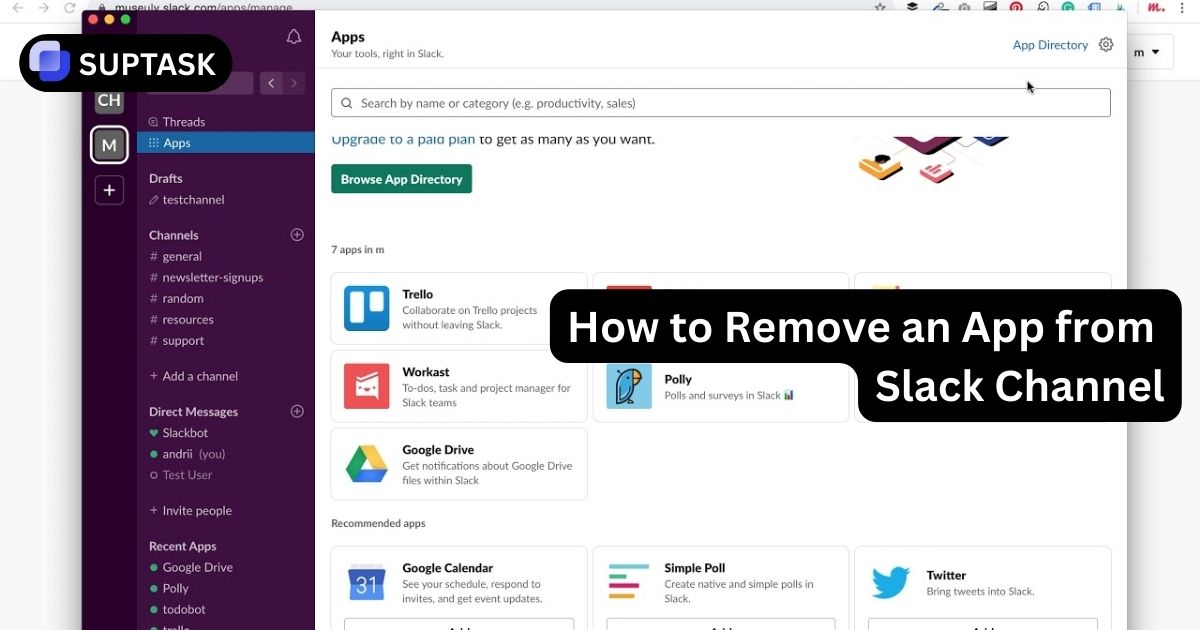
Picture a busy Slack channel where bots and apps have slowly taken over. Build alerts, surveys, calendar notifications, and test integrations are all talking at once. You want the useful tools to stay, but you need the noise to stop. This guide shows exactly how to remove an app from a Slack channel without breaking the rest of your workspace, from simple channel removal to full uninstalls and legacy webhook cleanup.
How To Remove An App From Slack Channel
There are two different actions that sound similar but behave very differently. Removing an app from a Slack channel only stops it from posting in that one space. Uninstalling an app from the workspace revokes its access everywhere. This guide focuses on channel removal first, then explains when you should escalate to a full uninstall for security reasons.
Channel App Removal
Use channel details or the /remove command to stop a bot from posting in one channel. Ideal when you want to reduce noise while keeping the app available elsewhere.
Legacy Integration Cleanup
Some older integrations send messages through incoming webhooks and do not show up as bot users. You remove these from the app configuration rather than the channel member list.
Workspace App Uninstall
When you no longer trust or need an app, remove it from the entire workspace through the Manage Apps page. This is the correct path for security concerns and vendor deprecation.
Slack Channel App Removal Methods
Use the selector to see how to remove a Slack app from a channel on desktop, with slash commands, and when you are dealing with legacy webhooks or workspace uninstalls.
Remove Slack App From Channel On Desktop
On desktop, the most reliable way to remove an app from a Slack channel is through the Channel Details pane. This works for bots and modern apps that join channels as members.
Open Channel Details
Go to the channel where the app is active. In the header, click the channel name to open the Channel Details pane. Look for tabs such as About, Members, or Integrations.
Find The Slack App In Members Or Integrations
In the details pane, locate the app you want to remove. It usually has an APP badge next to its name. Some workspaces list apps under an Integrations or Apps section inside Channel Details.
Remove The App From The Slack Channel
Click the three dots menu next to the app, then choose Remove from channel. Confirm when Slack asks if you are sure. A system message will show that the app was removed from the channel.
Use Slash Command To Remove App From Slack Channel
Slash commands work the same on every Slack client. The /remove and /kick commands let you remove an app from a Slack channel even if the graphical interface is limited, which is common on mobile. This fits naturally into other Slack command habits your team may already use.
Slack /remove Command Builder
Steps To Remove Slack App With /remove
Step 1: Open the channel where the app is active.
Step 2: In the message box, type /remove @app-name and select the app from autocomplete.
Step 3: Send the command. Slack confirms that the app has been removed from the channel or shows an error if it was not a member.
You can also use /kick @app-name. It behaves the same way for channel removal.
Remove Legacy Slack Integrations And Built Apps
If a Slack app posts messages but does not show up when you try to remove it, you are probably dealing with a legacy integration or a configuration that connects a specific channel to the app behind the scenes.
Remove Legacy Webhook Posting To Slack Channel
Go to Tools and settings → Manage apps in Slack. Look for Incoming Webhooks or Custom Integrations. Open the configuration that posts to your channel and disable or delete it. This removes the pipeline that sends messages into that Slack channel.
Update Slack Built App Configuration
For Slack built apps such as Google Calendar or other system tools, removal sometimes requires editing settings in the app Home tab or configuration page. You may need to delete a channel mapping instead of just removing the bot user.
Clean Up App Based Workflows
If a tool like Zapier, Relay, or a workflow automation system keeps inviting the app back to a channel, review your automation rules and disable the step that joins the bot or posts messages.
Uninstall Slack App From Workspace
Channel removal is about noise reduction. Uninstalling a Slack app is about security. This action revokes the app tokens and stops it from accessing any channel in the workspace.
Open Manage Apps
In Slack desktop, click your workspace name, select Tools and settings → Manage apps. This opens the app management page in your browser.
Select The Slack App To Remove
Under Installed Apps, choose the app you want to uninstall. Review which channels it is connected to and whether any teams still rely on it.
Remove App From Slack Workspace
Click Remove app. Confirm when prompted. The app tokens are revoked and the bot stops working in every channel. Plan replacements first if the app powers important flows, such as ticket intake or project tracking.
Slack App Removal And Uninstall Comparison
Use this matrix to decide whether you should remove an app from a single Slack channel, adjust configuration, or uninstall the app from the workspace entirely.
| Action | Scope | Use Case | Security Impact | Where To Do It |
|---|---|---|---|---|
| Remove App From Channel | Single channel | Reduce noise in one space while keeping the app elsewhere. | Stops new posts in that channel only. | Channel Details or /remove |
| Disable Legacy Webhook | Specific posting configuration | Messages from a tool that does not appear as a bot user. | Stops posts from that webhook configuration. | Manage Apps configuration page |
| Uninstall Slack App | Entire workspace | Vendor no longer trusted, compliance changes, or app is not used. | Revokes tokens and stops API access for all channels. | Manage Apps → Remove app |
| Restrict Or Block App | Future installations | Prevent users from adding the app again. | Stops new connections from being created. | Admin dashboard on Enterprise plans |
What Happens After You Remove an App
When you remove the app from a channel:
- The app stops posting new messages
- Existing messages from the app stay in the channel
- Other channels remain unaffected
- The app stays installed in the workspace unless you uninstall it from the admin panel
If you need to fully uninstall an app for all users, you must do that through Manage apps in the workspace settings.
Find The Right Slack App Removal Strategy
Pick the situation that sounds closest to yours to see which removal path to start with.
✅ Recommendation: Channel Removal With Desktop Or /remove
Use Channel Details on desktop or the /remove @app-name command in the channel. This stops the app from posting there while keeping it active in other channels where it still supports workflows and Slack based projects.
✅ Recommendation: Uninstall Slack App From Workspace
Go to Manage Apps, open the app, and choose Remove app. Inform teams that rely on it and consider replacing core flows, such as standups or task tracking apps, before removal so you do not break essential work.
✅ Recommendation: Disable Webhook Or Edit Configuration
If /remove does not work and the app is not listed as a member, you are likely dealing with a webhook or deeply configured app. Use the app configuration in Manage Apps to disable the specific connection or remove the channel mapping, then audit any related automation workflows that may still post messages.
Best Practices
- Review integrations every quarter to prevent clutter
- Keep only the apps that give value to that specific channel
- Use naming and channel conventions to avoid noise
- Limit app permissions to essential channels only
Turn Slack Into A Ticketing System
As you clean up noisy apps, it helps to keep the important work visible. Suptask brings native ticket management into Slack so messages become structured tickets with owners, status, and history, instead of getting lost in busy channels.
Used by 1,000+ teams • 14 day free trial • No credit card required
Frequently Asked Questions About Removing Slack Apps
Start Cleaning Up Slack Apps Today
Use channel removal to cut noise where it hurts, uninstall apps you no longer trust, and tidy up hidden integrations. A clean Slack workspace makes it easier for your team to see the work that matters and keep conversations focused.