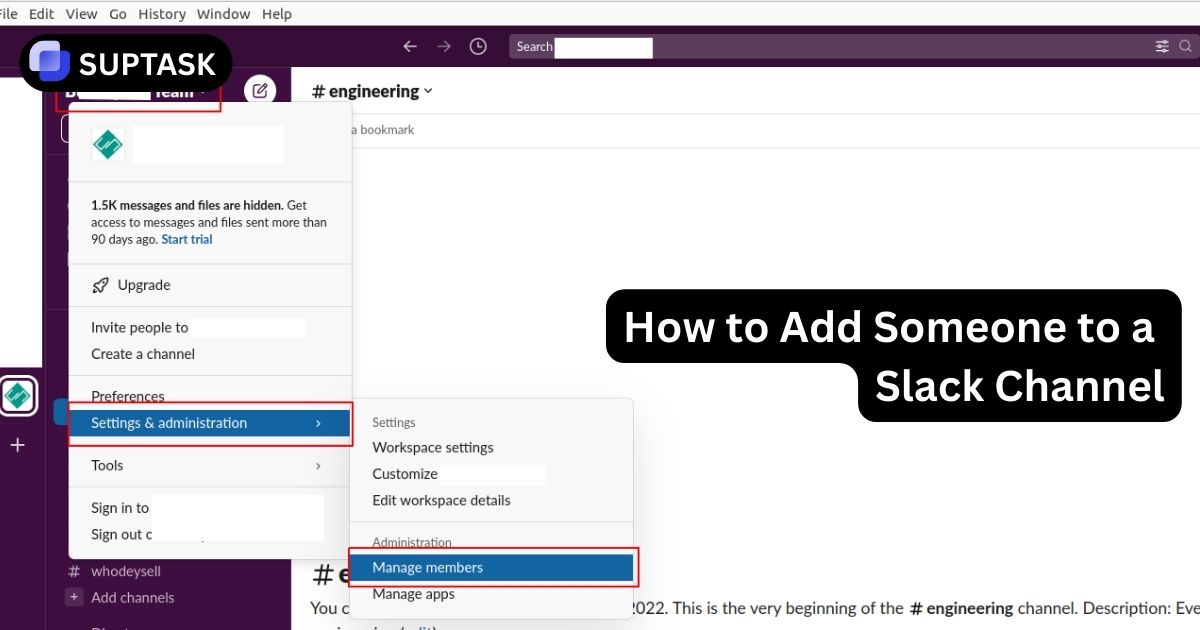
Imagine you join a new project in Slack and realize the designer is in an email thread, the account manager is in another channel, and the client is still waiting for an invite. Adding people to the right Slack channel is how you control who sees what work, who gets notified, and who can help. This guide explains how to add someone to a Slack channel on desktop, mobile, and with more advanced options like guests and Slack Connect, without breaking privacy or flooding people with noise.
Why Slack Channel Membership Matters
A Slack channel is more than a chat room. It holds your message history, files, app activity, and decisions. When you add someone to a Slack channel you give them access to that context. Good Slack channel hygiene supports clear Slack project management, keeps sensitive work protected, and helps new teammates ramp up faster.
Context And History
In public channels new members see the full message history. In private channels you choose if they see past messages or join a fresh channel with a clean slate.
Security And Compliance
Private channels, guests, and Slack Connect give fine control over what external people can see. They are essential for finance, HR, legal, and customer data.
Signal Over Noise
When membership is intentional, people get the updates they need without being added to every channel. That makes Slack easier to navigate and improves follow up on channel tasks.
What You Need to Know Before Adding Someone
A few quick points help you avoid mistakes:
- Private channels require you to be a member before you can invite others
- Workspace permission settings may limit who you can add
- Guests can join only the channels assigned to them
- Invitations to channels can be sent to individuals and user groups
Ways To Add Someone To A Slack Channel
Most Slack workspaces rely on a mix of simple member adds, guest invites, and shared channels with partners. Use the chooser below to learn each method with concrete steps and edge cases.
Method 1: Use Add People On Desktop
On desktop or in a browser this is the most visible way to add someone to a Slack channel. It works in public channels and in private channels where you already have permission to invite others.
Open The Slack Channel
Navigate to the channel where you want to add someone. You will see the channel name and a row of member avatars at the top of the screen.
Click The Member Area
Click the avatar row or the member count in the top right. In some layouts you click the channel name then choose View members. Look for an Add people button in the sidebar or modal that opens.
Search And Select Members
Start typing a name, handle, or email and pick the right person from the list. You can select multiple people in one go. For larger teams consider using user groups, which we cover later.
Confirm The Invite
Click Add or Invite. For public channels new members see all history by default. For private channels you will see an extra step about history, covered in Method 4.
Method 2: Add Someone With The /invite Command
The /invite command is one of the most useful Slack commands. It works in public channels and private channels where you have permission to invite others, and you can use it to invite people to a different channel without leaving your current one.
Invite Command Builder
Examples You Can Paste
Method 3: Mention Someone To Add Them Just In Time
When you type @name in a channel and that person is not a member, Slack detects the mismatch and offers to add them. This avoids posting a message that they can not see.
How The Mention Flow Works
- In the message box, type a message and include @teammate.
- Slack checks whether that user is in the Slack channel membership list.
- If they are not, a prompt appears asking if you want to add them.
- Confirm the add and then send the message so they get notified in context.
Method 4: Add Someone To A Private Slack Channel Safely
Private channels have a crucial extra step. When you add someone you decide if they see the entire history or if you fork a new private channel where everyone starts fresh.
History Options When Adding Members
- Add To Existing Channel: The new member can read the full message history and see all files that were shared in the private channel. Ideal when they are joining the core team and need context.
- Create New Channel: Slack builds a new private channel with the same existing members plus the new person and no history. Useful when you want them in the discussion going forward but need to keep earlier conversations private.
Method 5: Add Someone To A Slack Channel On Mobile
The iOS and Android apps can add full members to channels. They are perfect for quick fixes when you are away from your laptop. Guest invitations still require desktop.
Add On iOS
Open the Slack channel, tap the channel name at the top to open details, select Members, then tap Add people. Search for coworkers and confirm.
Add On Android
Open the Slack channel, tap the channel name or the three dots menu in the top right, choose View members, then Add people. Search by name or email and confirm.
Know The Limits
You can add people who already belong to the workspace. Creating new guest accounts or sending invitations to external emails still needs the desktop app or browser.
Method 6: Invite Guests To A Slack Channel
Guest accounts are internal Slack identities with strict limits. They are perfect for short term collaboration where you own the data and the timeline. Treat them like digital visitor badges.
Single Channel Guests
Single channel guests join one channel only. They can not browse others. Many plans allow several single channel guests per paid member, which makes them cost effective for individual collaborators.
Multi Channel Guests
Multi channel guests can join several channels but are billed like members. Upgrading a single channel guest by adding them to a second Slack channel can change their billing, so choose carefully.
Invite Workflow
On desktop, open Invite people, switch the invite type to Guest, bind them to the right Slack channel or channels, and set an expiration date. For structured external work you can also pair this with workflow automation so access ends when the contract ends.
Method 7: Use Slack Connect And User Groups For Scale
Slack Connect links a Slack channel in your workspace to a channel in a partner workspace. User groups help you add large internal teams in one action. Together they form a scalable strategy for Slack channel membership, especially when combined with Slack project and task management apps.
Invite a partner by email to a specific Slack channel, wait for their acceptance and any admin approvals on both sides, then start working together in a shared space where each company keeps its own data.
Create groups like @engineering or @support-oncall. Add the group to a channel once instead of inviting 30 people. Use this pattern for core channels that back your Slack project management setup.
Find Your Slack Channel Membership Approach
Choose the situation that matches your current need and get a quick starting point.
✅ Recommendation: Desktop Add People Or /invite
Use the channel header on desktop or the /invite command to add internal teammates. For private Slack channels decide whether they should see history or join a new channel. For ongoing work tie key channels to your Slack project management setup so new members immediately see tasks and context.
✅ Recommendation: Single Channel Guest
Invite them as a single channel guest and bind their account to one Slack channel for focused collaboration. Set an expiration date. If they need to join more channels consider whether multi channel guest access or Slack Connect is better for security, budget, and long term work.
✅ Recommendation: Slack Connect Channel
Create a Slack Connect channel for the relationship. Send an invite to their work email, have both admins approve, then agree on naming, rituals, and which tools will post into that channel, such as project and ticket integrations.
✅ Recommendation: User Groups And Default Channels
Use user groups like @sales and @support-oncall to add whole teams to Slack channels in one step. For new hires, configure default channels so they automatically join core spaces instead of relying on manual invites and checklists.
Slack Channel Membership Methods Comparison
Use this table to choose the right way to add someone to a Slack channel based on their relationship to your company and the level of access they need.
| Method | Best For | History Visibility | Who Can Use It | Internal Or External | Cost Impact |
|---|---|---|---|---|---|
| Desktop Add People | Day to day addition of coworkers | Full for public, choice for private | Members with invite rights | Internal | No change |
| /invite Command | Fast adds during active conversation | Same as channel type | Members comfortable with commands | Internal | No change |
| Mention To Add | Just in time access for tagged people | Same as channel type | Any member who mentions others | Internal | No change |
| Guest Account | Freelancers and contractors | Channel history for assigned channels | Admins and owners | External | May be free or billed |
| Slack Connect | Whole partner teams and vendors | Shared channel history | Admins and members with Connect rights | External | Requires paid plans |
| User Groups | Departments and large internal teams | Same as channel type | Group managers and admins | Internal | No change |
| Default Channels | Onboarding new hires | Channel history from join date | Workspace admins | Internal | No change |
Turn Slack Channels Into A Ticketing Hub
Once the right people are in your Slack channels you still need a clear way to own and track work. Suptask brings native ticket management to Slack so you can turn any message into a ticket, assign an owner, and keep status updates in the same channel where the request started.
Used by 1,000+ teams • 14 day free trial • No credit card required
Slack Channel Membership Frequently Asked Questions
Best Practices When Adding Someone to a Channel
Keep your Slack workspace clean and easy to navigate with these simple habits.
Add People Only When Necessary
Avoid flooding channels with unrelated teammates.
Use Descriptive Channel Names
Clear names help newcomers understand the purpose of the channel at a glance.
Announce New Members
A short welcome message reduces confusion and brings everyone into the conversation.
Review Membership Regularly
Remove members who no longer need access to sensitive channels.
Start Managing Slack Channel Membership With Confidence
Choose the right method for each person you add to a Slack channel. Use desktop and mobile adds for coworkers, guests for individual collaborators, Slack Connect for partner teams, and user groups for scale. Combined with clear channel purposes and simple rituals you will keep conversations focused, secure, and easy to join.