
A project wrapped up six months ago, and now you need the Slack channel where your team approved a budget, shared a file, or made a decision. If it is missing from your sidebar, you can still find archived channels in Slack if you had access before the channel was archived.
You may also be cleaning up a workspace and deciding whether to archive an inactive channel without losing its history. This guide covers finding archived channels, searching old messages, archiving active channels, and unarchiving channels when work restarts. Archive is non-destructive, it closes the channel to new activity, but available history remains under your workspace’s plan and retention settings.
What Happens When a Channel Is Archived
An archived Slack channel becomes read-only. Members cannot send new messages, upload files, start threads, or add new activity inside that channel.
- Message history is preserved, but search access depends on your Slack plan and retention settings. On Pro, Business+, and Enterprise Grid plans, archived channel history is searchable by default unless an admin has set a shorter retention policy.
- Note: On the Free plan, only the most recent 90 days of message and file history are visible and searchable. Data more than one year old may be deleted from free workspaces on a rolling basis.
- Public and private channels behave differently. Public channel members are removed when the channel is archived. Private channel members stay attached and can still find the archived channel if they had access before.
- The channel name also stays locked. You cannot create a new channel with the same name until you unarchive and rename the original. The #general channel, sometimes shown as #all-companyname, cannot be archived or deleted.
Tip: If channel visibility is the issue before archiving, review how to make a Slack private channel public.
Who Can Archive and Unarchive Channels in Slack
By default, members can archive and unarchive channels they belong to, except for guests. Guests cannot archive or unarchive Slack channels.
Workspace Owners and Org Owners can restrict archive permissions to specific role types, such as owners, admins, or custom roles. Channel managers can archive the channels they manage, even when other members are restricted.
Enterprise Grid workspaces may also have org-level rules for cross-workspace channels.
Note: If Settings → Archive channel or Settings → Unarchive this channel is missing, your workspace admin has likely restricted that permission. If you only want to stop seeing a channel yourself, how to leave a Slack channel is the better action.
How to Find Archived Channels in Slack
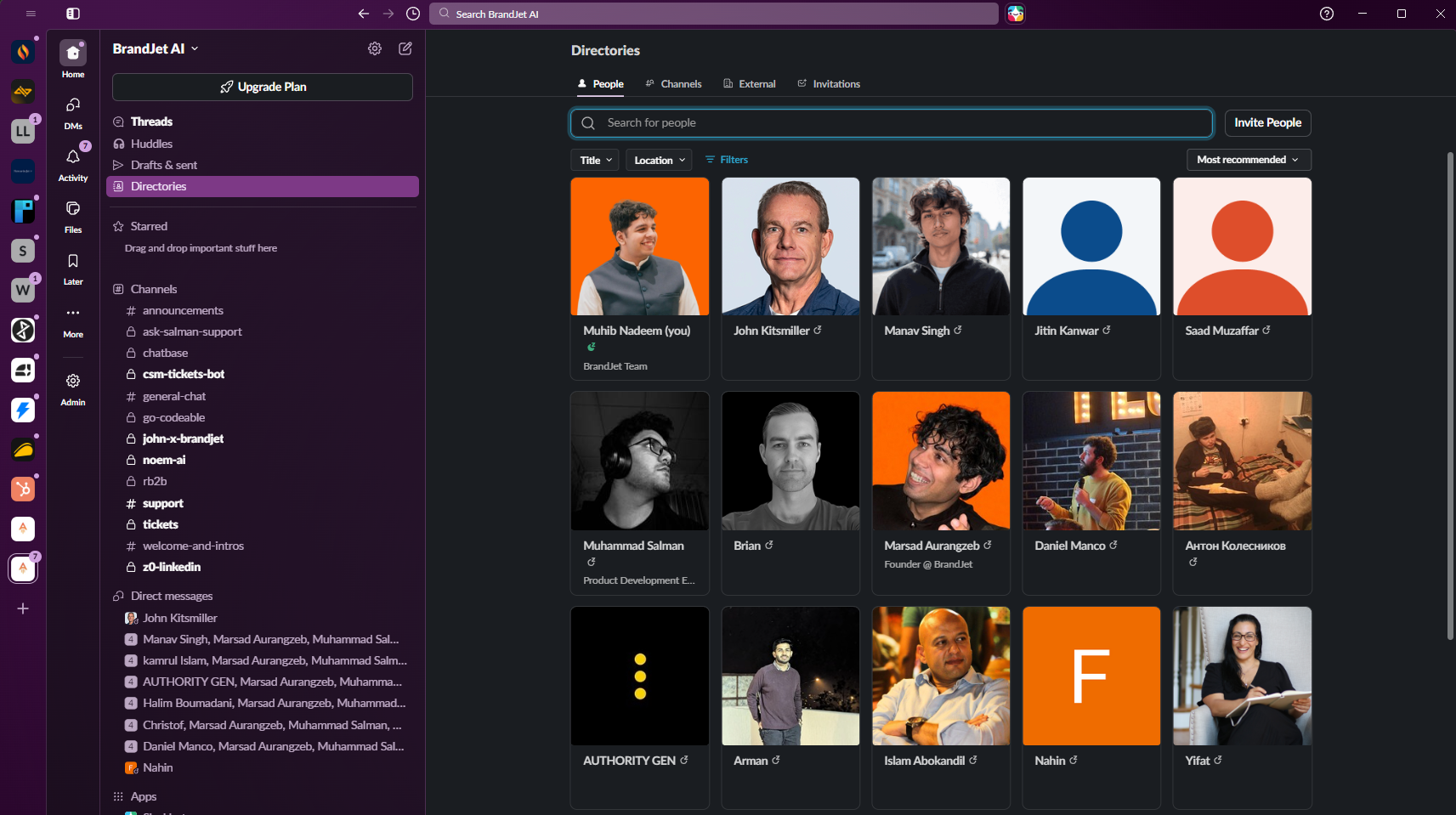
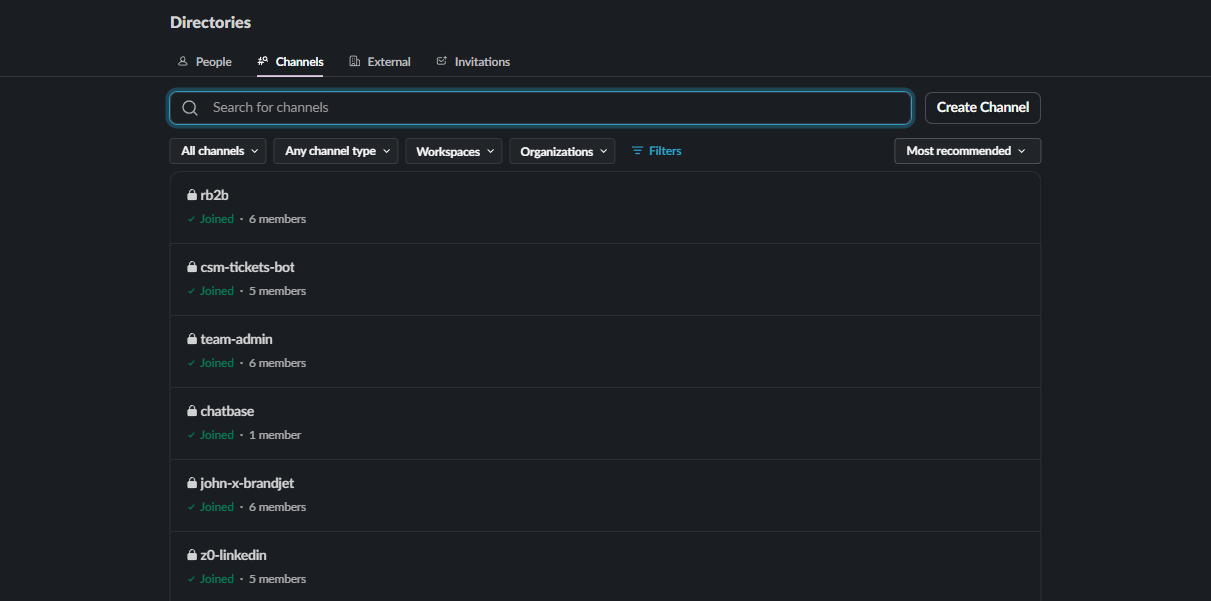
This is where to find archived channels in Slack in the current desktop UI. Slack now routes most channel browsing through Directories, then the Channels tab and Channel type filter.
Desktop
- Open Slack on desktop.
- From the left sidebar, click Home.
- Click Directories in the sidebar.
- If you do not see Directories, click More to expand the menu, then choose Directories.
- In Directories, click the Channels tab.
- Click the Channel type filter dropdown. It may read Any type of channel by default.
- Select Archived channels.
- Browse the filtered list, or search by channel name.
Tip: If your workspace still shows Channels directly in the sidebar, click Channels instead of going through Directories. Then use the Channel type filter and select Archived channels.
Note: You can only see archived channels you previously had access to. A private channel will not appear if you were never a member.
For how to find an archived channel in Slack by name, search for the exact channel name without the # first. If you searched how to find archived channel in Slack because the channel disappeared, confirm that you are in the right workspace before troubleshooting permissions.

Mobile
- Open the Slack mobile app.
- Tap the Home tab.
- Tap the + button next to Channels. Some app versions may show a three-dot channel menu instead.
- Tap Browse channels.
- Tap Filter at the top.
- Select Archived channels.
- Browse the list or search by channel name.
Note: On mobile, the archived-channel filter sits inside the same channel browser used for active channels. There is no separate Archives section.
How to Search for Messages Inside Archived Channels
Slack’s search bar can return messages from archived channels you have access to. Use this when you need a decision, file, link, or thread but do not need to reopen the channel.
Use search modifiers to narrow the results.
You can combine modifiers. For example, in:#q3-launch from:@sarah after:2025-09-01 budget approval looks for Sarah’s budget messages in #q3-launch after September 1, 2025.
Tip: If search returns no results from an archived channel you know existed, check your plan tier and retention settings. On the Free plan, messages and files older than the visible 90-day history limit will not appear in search. If you need a separate copy of old public-channel history, see how to export Slack conversation.
How to Archive a Channel in Slack
Use archive when a channel is no longer active but its history should remain available. This section covers how to archive a channel in Slack on desktop and mobile.
Desktop
- Open the channel you want to archive.
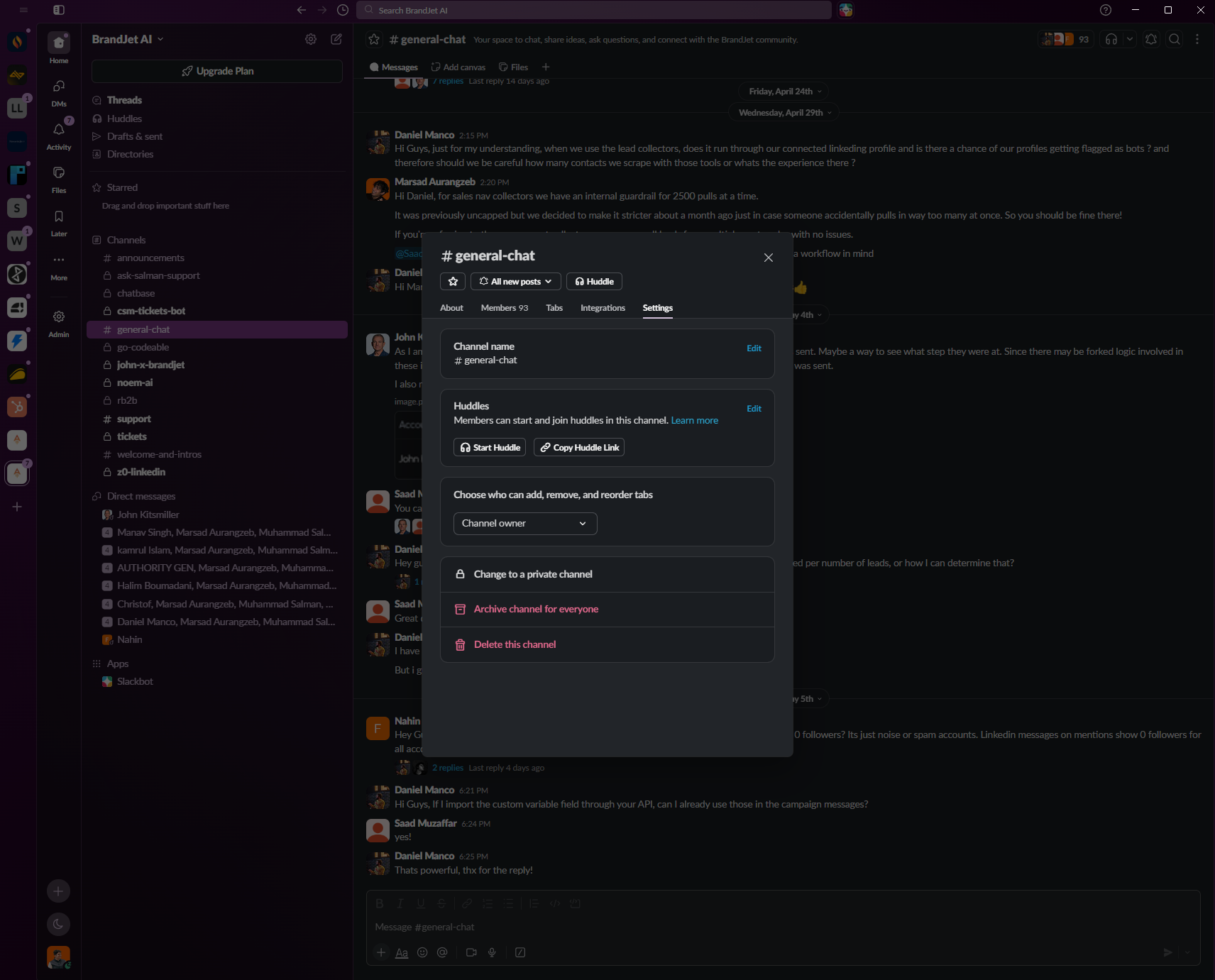
- Click the channel name in the conversation header.
- Click the Settings tab.
- Scroll down and click Archive channel for everyone.
- Click Archive channel to confirm.
Note: This archives the channel for all members. Public channel members are removed from the channel; private channel members stay attached.
If you searched how to archive channel in Slack and do not see the option, you may not have permission. Ask a workspace owner, admin, or channel manager to archive it for you.
Tip: If you are archiving an old channel before creating a replacement, make sure the old name is not needed. For setup help, see how to create a Slack channel.
Mobile
- Open the channel in the Slack mobile app.
- Tap the channel name at the top of the conversation.
- Tap Settings or the gear icon, depending on your app version.
- Tap Archive channel. You may need to scroll.
- Tap Archive to confirm.
Note: Archiving is a workspace-wide action. It does not only hide the channel from your own sidebar.
How to Unarchive a Channel in Slack
Unarchiving brings a channel back for new activity. If you searched how to retrieve archived channel in Slack, “retrieve” can mean either finding the archived history to read it or reopening the channel so people can post again.
Desktop
- From the sidebar, click Home.
- Click Directories.
- Click the Channels tab.
- Click the Channel type filter and select Archived channels.
- Click the channel you want to unarchive.
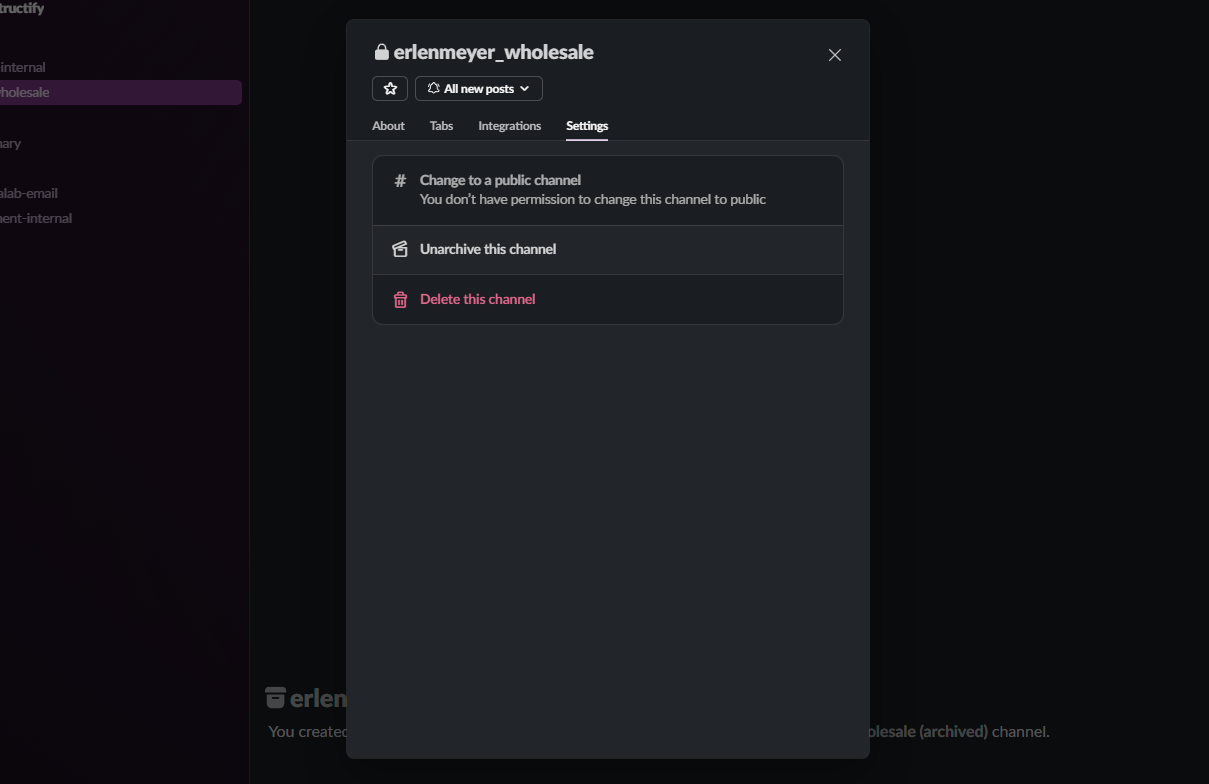
- Click the channel name in the conversation header.
- Click Settings → Unarchive this channel.
Note: Unarchiving a public channel does not automatically restore the previous members. They need to rejoin, be invited, or receive a channel link. Private channel members remain from when the channel was archived.
Mobile
- Open the Slack mobile app.
- Go to Browse channels.
- Tap Filter and select Archived channels.
- Tap the channel you want to reopen.
- Tap the channel name at the top.
- Tap Settings.
- Tap Unarchive channel.
Note: If Unarchive channel does not appear on mobile, try the desktop path.
Common Issues with Archived Channels
- I can’t find a channel I know exists
You can only see archived channels you previously had access to. If it was a private channel and you were never invited, it will not appear in your results. Ask a workspace admin to check the channel or confirm whether you had access. - The Archive option is missing from Settings
Your workspace admin may have restricted archive permissions. Channel managers can still archive channels they manage. Ask a workspace owner, org owner, admin, or channel manager to archive the channel for you or grant the right permission. - I want to reuse an archived channel’s name for a new channel
Slack reserves archived channel names. To reuse one, unarchive the old channel, rename it, archive it again if needed, then create the new channel with the freed name. - I can’t archive the #general channel
This is a Slack restriction. The #general or #all-companyname channel cannot be archived or deleted. The only way to remove it completely is to delete the workspace. - I unarchived a channel, but the old members are not there
This is expected for public channels. Public channel members are removed when the channel is archived and are not automatically restored when it is unarchived. Invite the people you need, or post a channel link in another active channel. - Search returns no results from an archived channel
Start with access and retention. You may not have been a member, or the messages may be outside your visible history. On the Free plan, older message and file history will not appear in search.
When to Archive vs. Delete a Slack Channel
Archiving is usually the better choice when a channel is inactive but still contains decisions, files, approvals, or project context. Deleting is permanent and should be reserved for history that no longer needs to exist.
Slack’s official archive or delete a channel guide treats these as separate actions.
Default to archiving unless you have a specific reason to delete. If you need deletion steps, see how to delete a Slack channel.
How Suptask Helps With Channel-Heavy Workspaces
Workspaces with hundreds of project channels often archive channels to keep the sidebar easier to scan. That can create a different problem: ownership, status, and follow-up decisions become harder to track once work moves on.
A Slack ticketing system turns recurring requests in active channels into trackable tickets, so your team can see who owns each request and what was resolved without digging through archived channels later.
Slack Archived Channels FAQ
Where do I find archived channels on Slack?
On desktop, go to Home → Directories → Channels, then open the Channel type filter and select Archived channels. If your sidebar shows Channels directly, you can use that shortcut instead.
Can I bring back an archived Slack channel?
Yes, if you have permission. Find the archived channel, open it, then go to Settings → Unarchive this channel.
What happens when you archive a channel on Slack?
The channel becomes read-only, and its history is preserved subject to plan and retention settings. Public channel members are removed, while private channel members stay attached.
Where do archived channels go in Slack?
Archived channels move out of the active channel list. You can still find them in the channel browser by filtering for Archived channels.
Can you read messages in an archived Slack channel?
Yes, if you had access to the channel and the messages are still available under your plan and retention settings. On Free workspaces, older history may not be visible or searchable.
Can any member unarchive a channel in Slack?
Not always. Members can usually unarchive channels by default, but Workspace Owners and Org Owners can restrict that permission.
What’s the difference between archiving and deleting a Slack channel?
Archiving closes the channel but keeps its history available, subject to retention settings. Deleting permanently removes the channel and its message history.