PDQ Connect Slack Integration for IT Help Desks
Suptask links Slack to PDQ Connect. An IT help desk can check a device or deploy software from the ticket after an agent approves it.
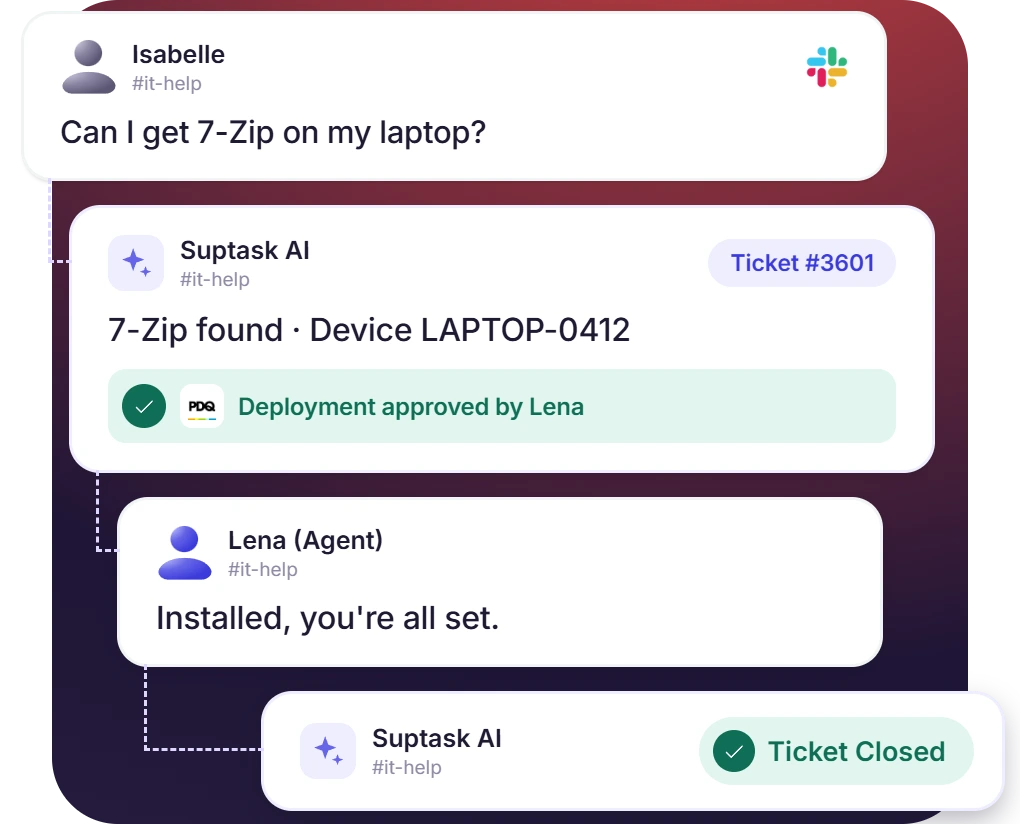











Get Device Details From PDQ Connect in Slack
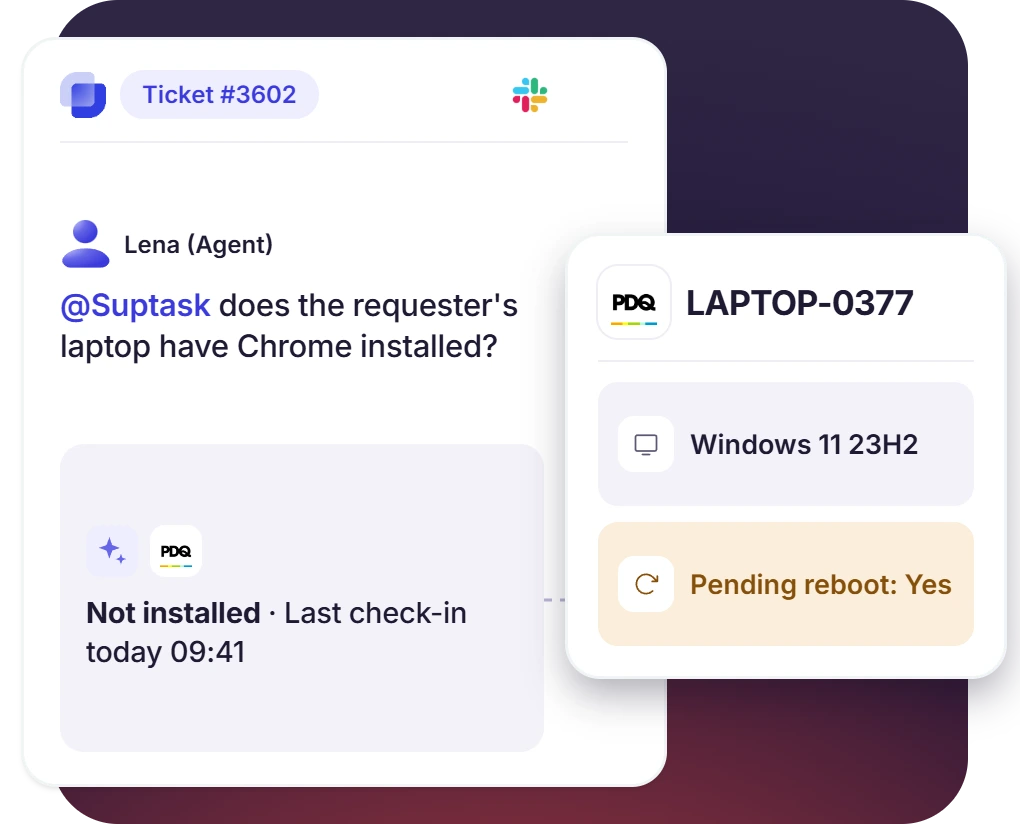
- Ask @Suptask to check the status of a requester’s laptop, whether it has an app installed, and when it last checked in
- The AI Assistant searches a group and lists the devices pending a reboot
- On a new ticket, a ready-made template attaches the device name and the OS version
Software Requests Reach the Device Through PDQ Connect
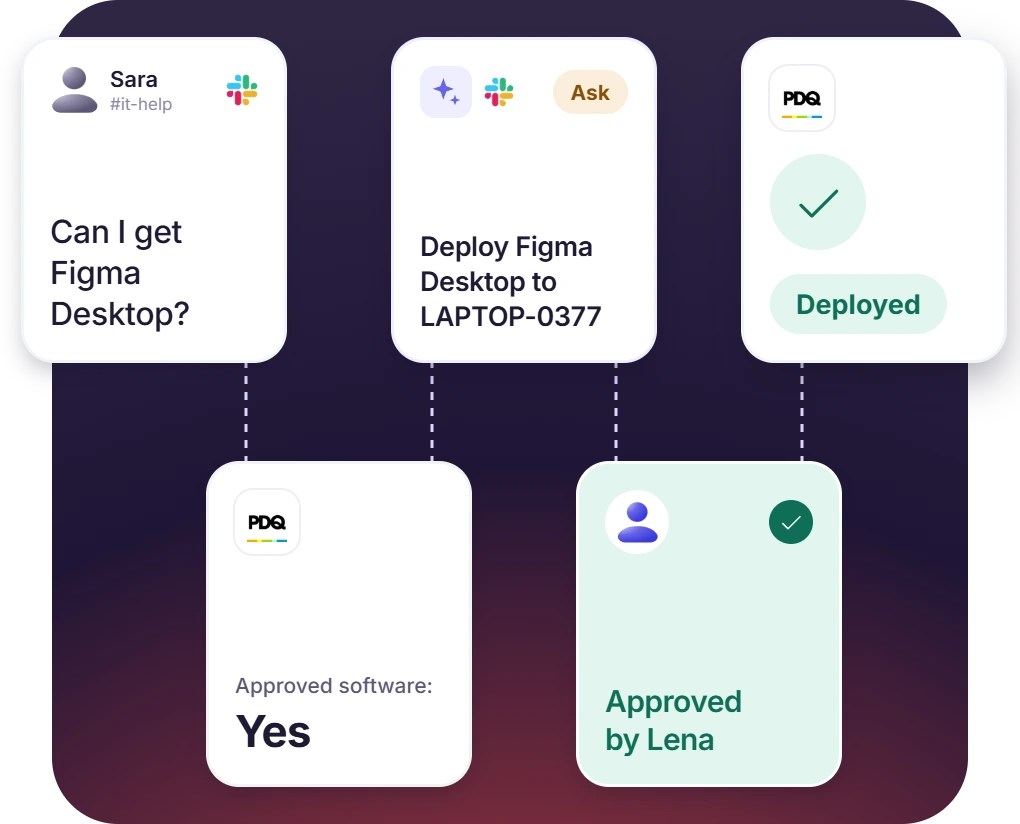
- Request in ticket, @Suptask searches PDQ Connect for packages and sets up the deployment for one device or a whole group
- PDQ Connect installs the package once the agent has approved it
- A template in the IT and Helpdesk library checks the request against the approved software page first
Vulnerability Triage Handled From the Security Inbox
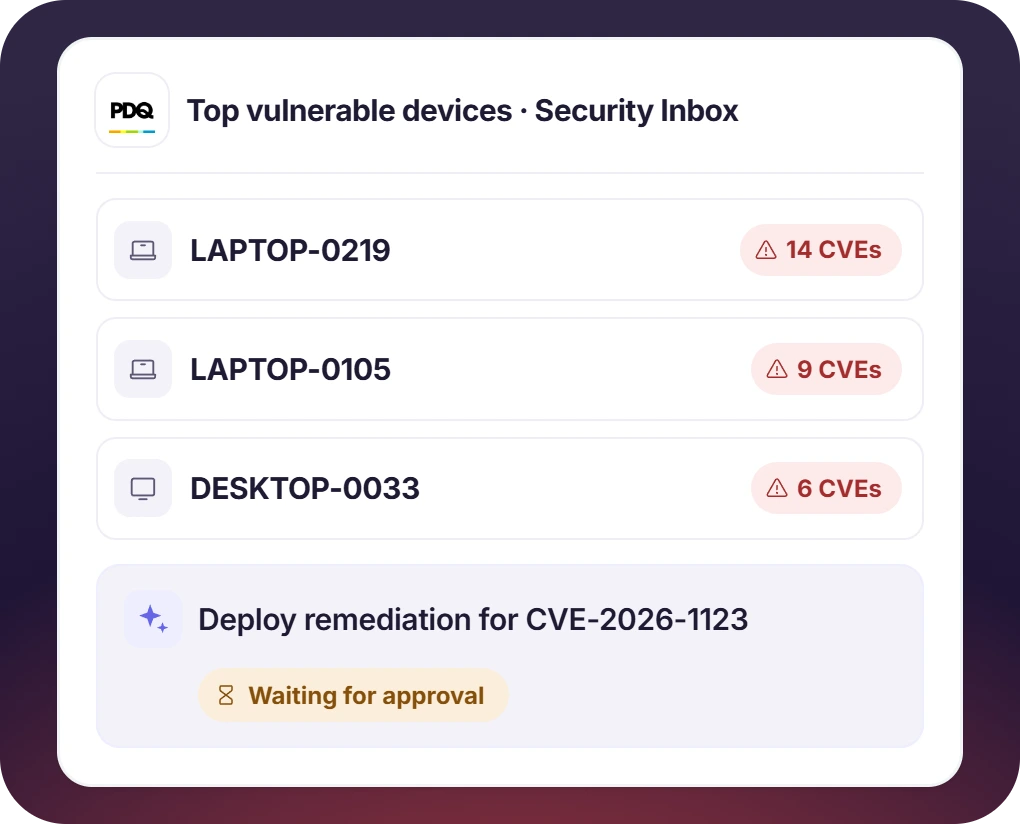
- @Suptask lists the CVEs on the fleet and ranks the devices most exposed to them
- PDQ Connect runs the recommended fix after an agent has approved it
- Security keeps the vulnerability tools on its Inbox, and the help desk Inbox keeps its device lookups
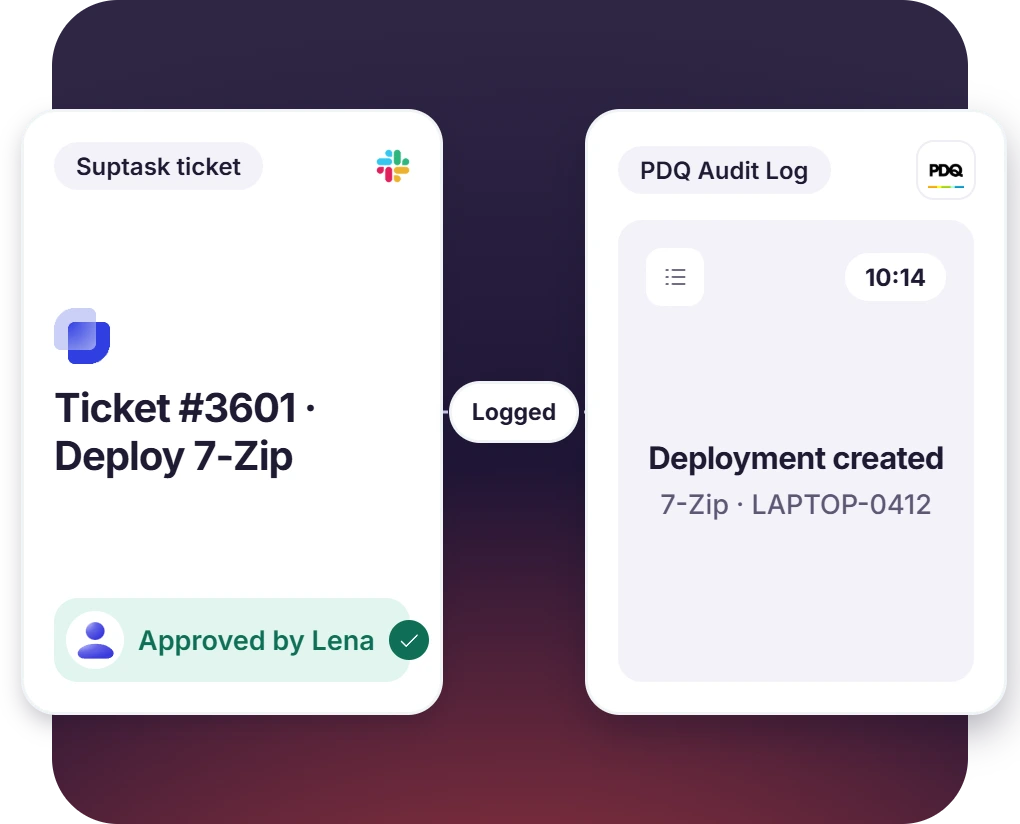
When the Assistant Changes Something, PDQ Records It
- Authorizing with a scoped account keeps the Assistant inside that user’s permissions
- Audit Logs in PDQ show the approved deployment
- PDQ’s App connections page lists who authorized the connection and can revoke it
How PDQ Connect Slack Integration Works
Setup
Ask
Resolve

What You Need to Connect PDQ Connect to Slack Tickets

Suptask admin
In the Suptask web app, under Intelligence, the connector is added to an Inbox. Agents then work with it in Slack.

Right PDQ user
The Assistant acts as the PDQ user who authorizes it, and a full administrator would give Auto tools administrator rights.

One OAuth approval
PDQ Connect publishes a public MCP server, the connection an AI assistant signs in to, so no API key or redirect URL is created.

Suptask’s custom plan
Device tools such as PDQ Connect are part of the Custom plan. Additional cost may apply.
What IT teams on PDQ Connect improve with Suptask
Built for IT Teams Who Manage Devices in PDQ Connect
IT help desks

Small IT teams

Teams adopting AI safely

Already trusted by fast-moving support teams.



Turn Slack into a help desk connected to the tools you already use
Frequently asked Questions
How do I connect PDQ Connect to Slack with Suptask?
The connection is made from the Suptask web app. You have to open the Inbox first, then go to the AI Assistant connectors and add PDQ Connect. After that, the Authorize button is clicked. A PDQ sign-in page opens, and you should sign in with the user that the Assistant is going to act as. The organization is selected, and the access is approved. At the end, the tools are chosen, and the [PDQ Connect support doc] has the current list.
No, it does not replace it. The devices, the packages, and the deployments are kept in PDQ Connect only. Suptask is used to look up this information from a ticket, and the approved actions are also run by your Slack help desk from the same ticket. The console is still responsible for the device management work. Every change that is made from a ticket is recorded in PDQ’s Audit Logs.
No, the API is not needed. Suptask is connected with PDQ Connect through its public MCP server, which PDQ publishes for the AI tools. The sign-in is done with OAuth, so an API key is not generated and there is no client ID or redirect URL. The PDQ Connect API documentation is not required for this integration.
With the write tools turned on, a group can be created by the Assistant, as well as a deployment and an automation. The remediation that PDQ recommends for a vulnerability is deployed by it, and a CVE can be ignored for one device or for the whole organization. The lookups that are read-only do not change anything. These write tools should be set to Ask, then each action is approved by an agent before it runs.
They can change, yes. The MCP server of PDQ Connect is in Early Access with PDQ at present, so the tools and their names are not final. The connector should be reopened in Suptask to see which tools are available now. The settings of each tool are on the same screen.
The device tools like PDQ Connect are a part of the Custom plan. An additional cost may also apply to them. A custom plan is quoted per agent per month. The pricing page helps to compare the plans. For your team, a demo should be booked and the scope is decided from that.