Slack Outlook Integration for Support Mailboxes
Suptask’s Outlook Slack integration turns support emails into trackable tickets in Slack. Your team answers the requests in a Slack thread, while the requester gets answers by email.
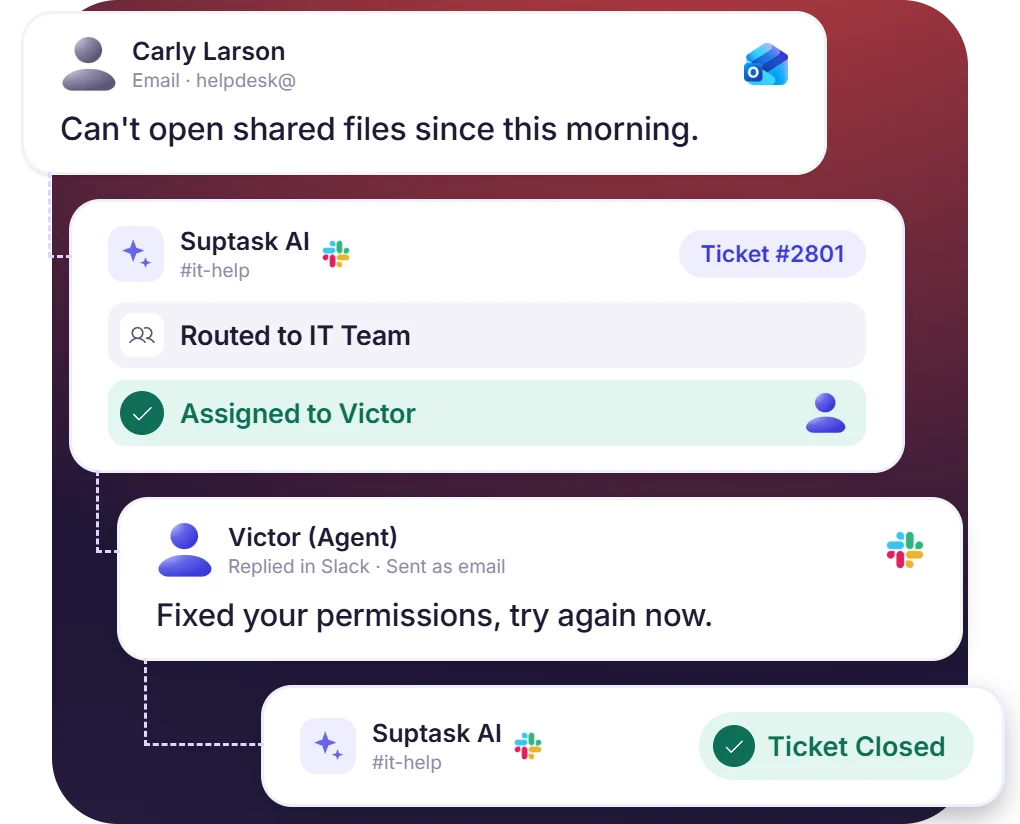











Outlook to Slack Forwarding Opens Tickets
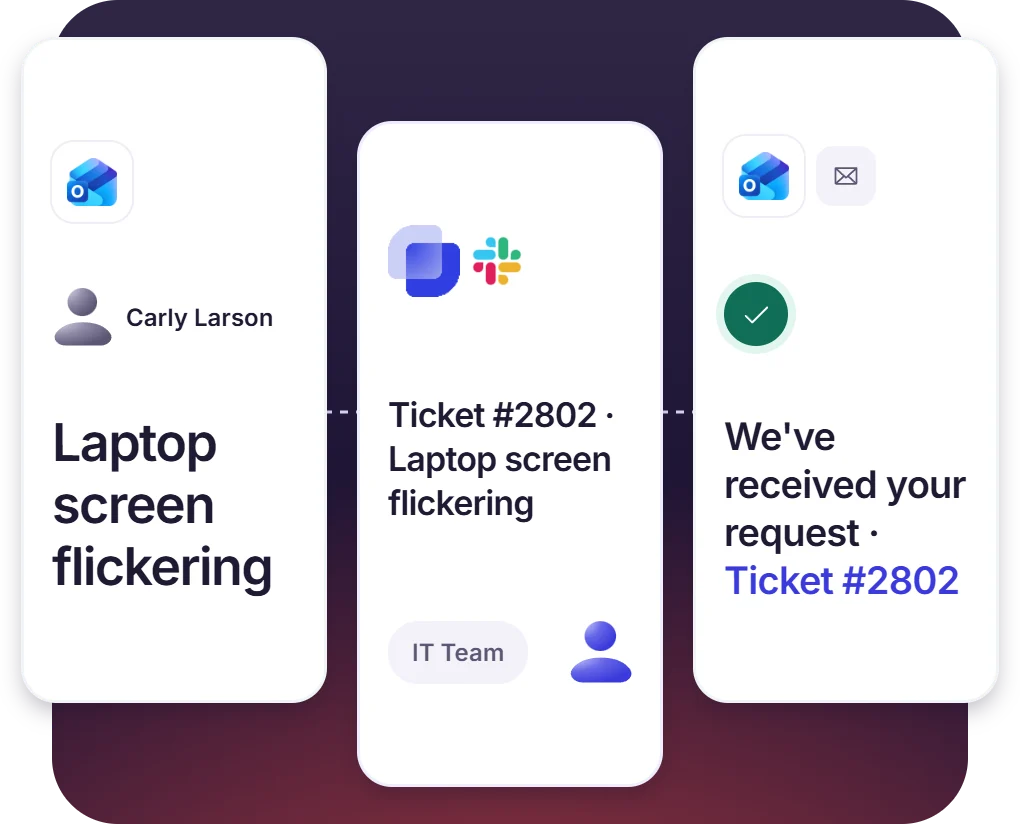
- Each forwarded email is opened in the inbox that the address is mapped to
- Automated confirmation on ticket goes back to sender with ticket number
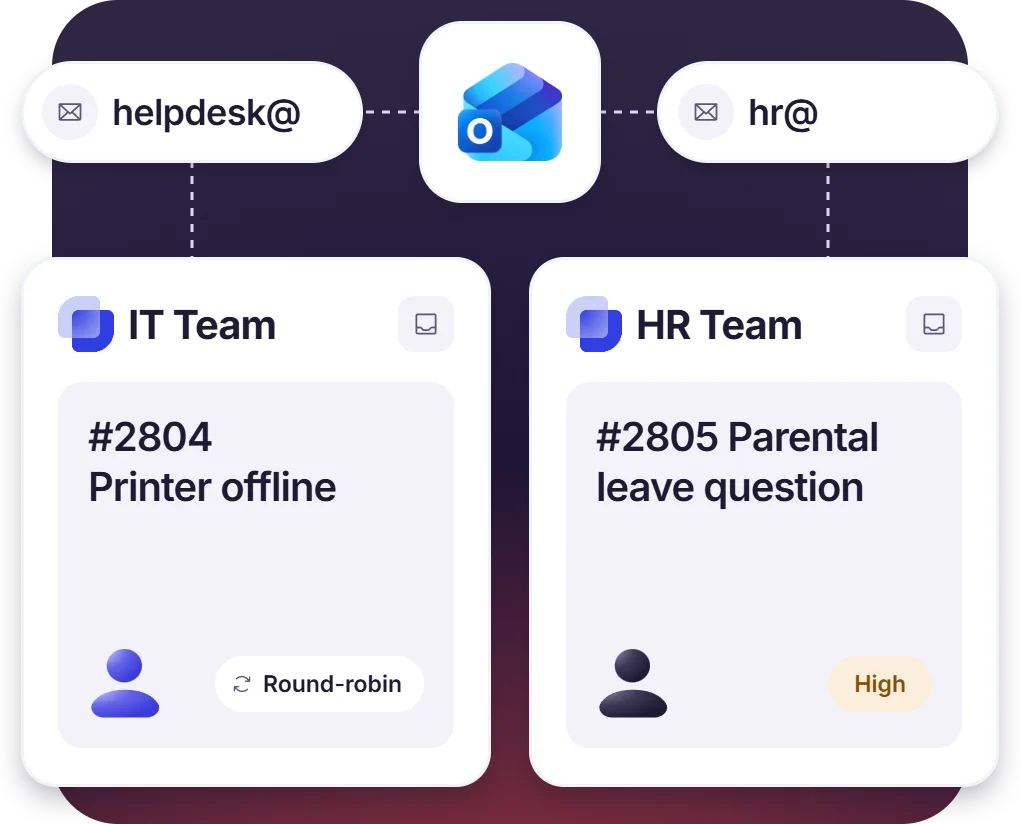
- Suptask routes helpdesk@ to one Inbox and hr@ to their own Inbox
Answer in Slack, and the Reply Arrives in Outlook
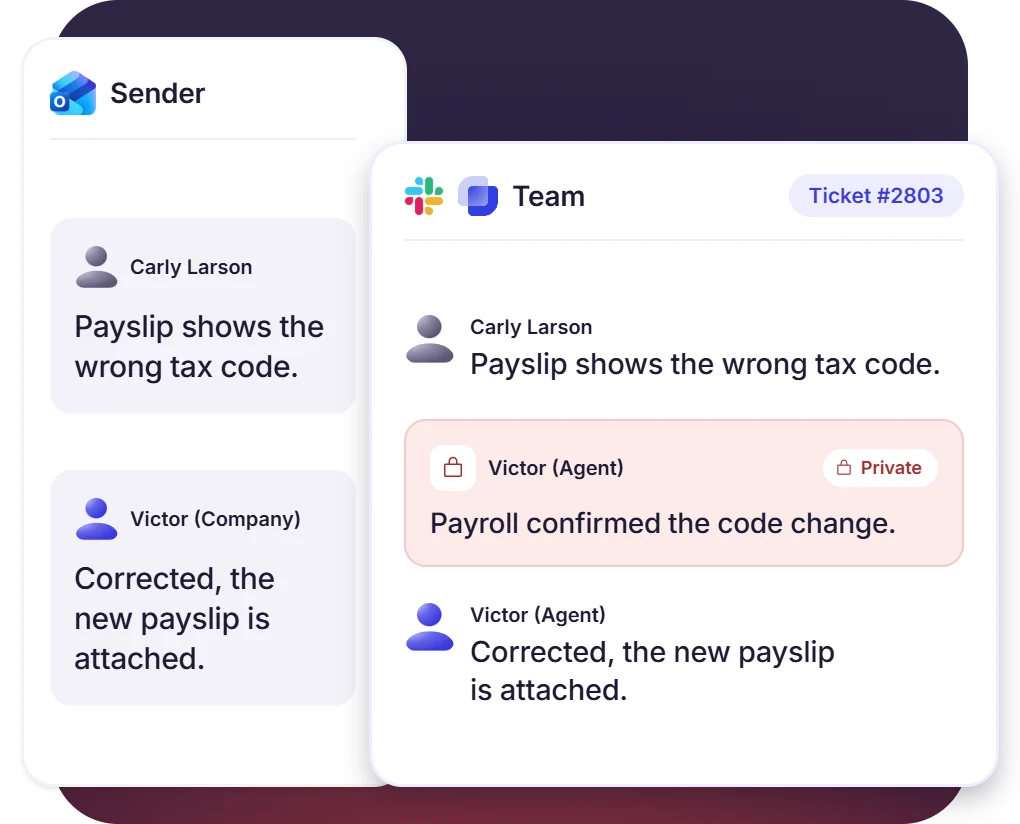
- Agent replies in Slack thread are sent to sender as an email
- Replies in the sender’s Outlook mailbox are added to the Slack thread with attachments
- Outgoing replies are sent using the company name under Suptask’s domain, or your own
Rule-Based Outlook Ticket Routing
- Spam sent to shared mailbox is filtered out so they never become a ticket
- Automation rules decide the owner, priority, and status for each new ticket
- AI routing picks the right form for each email, available on the Growth plan
SLAs and Reporting for Your Outlook Support Mailbox
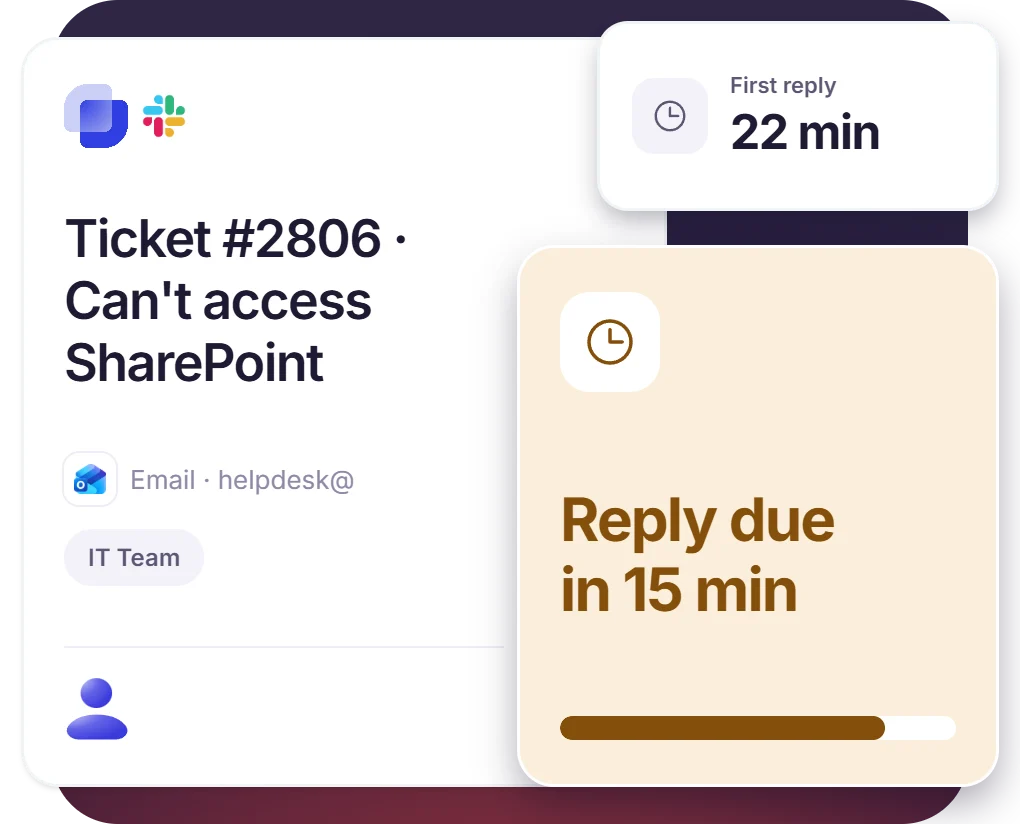
- The response target starts on arrival, and a reminder is sent before the target is missed
- Analytics filters email requests separately from ones raised in Slack
- Outgoing email is signed with DMARC, DKIM, and SPF. A custom domain can replace suptask-mail.com
How Slack Outlook Integration Works
Setup
Capture
Resolve

What You Need to Connect Outlook to Slack

Forwarding in Outlook
Forwarding is turned on by the mailbox owner, with incoming@suptask-mail.com as the destination on a mailbox already in use.

A shared mailbox
The shared mailbox is created by a Microsoft 365 admin and needs no license, with Microsoft checking the mail for spam first.

External forwarding allowed
Microsoft blocks auto-forwarding to outside addresses by default. An outbound anti-spam policy in the Defender portal allows it for one mailbox.

Redirect rule
A Redirect to rule in the shared mailbox keeps the original sender. Replies stay on the same ticket.
What support teams on Outlook improve with Suptask
Built for Teams That Run on Microsoft 365
Support teams on email

IT service desks

HR teams

Already trusted by fast-moving support teams.




Turn Slack into a help desk connected to the tools you already use
Frequently asked Questions
How do I connect Outlook to Slack with Suptask?
Outlook can be connected to Slack using Suptask, and there are two parts to it. The first part is done in Suptask only, where your support address should be mapped to an Inbox. The second part is the mail itself, which has to reach incoming@suptask-mail.com. For this, you have two options. Forwarding is one, and it should be turned on in Outlook under Settings, Mail, Forwarding. This one helps when the mailbox is already in use by someone. The other option is a shared mailbox with a redirect rule in Microsoft 365, and this is the one we recommend. So after the forwarding is turned on, you should send one test email to your support address. Then the ticket for it will get opened in Slack.
Slack for Outlook is an add-in of Microsoft, and it is used for sending one email at a time into a Slack channel or a DM. Each one you have to send yourself. Suptask is not like that. It works on the whole mailbox, so every email that comes to your support address is turned into a ticket in your Slack ticketing system. Agents can give the reply from the Slack thread itself and that reply goes back to the person as an email. Also, if the same person writes back again, then it stays on the same ticket.
No. There is no calendar feature in Suptask. Suptask only handles the emails that are sent to your support address, nothing else from Outlook. For the calendar and the status sync, Slack has its own Outlook Calendar app, and you should use that one. It is a separate app, so the setup for it is also done separately.
Yes, and this is the recommended setup also. The emails should come in the shared mailbox first, so Microsoft can do the spam check on them before anything reaches Suptask. Then a redirect rule is used for sending the clean ones ahead. You should keep a redirect rule, not a forward. In a redirect, the original sender remains on the message, and because of that, the replies from that person stay on the same ticket. One more thing, a shared mailbox in Microsoft 365 does not need any license of its own.
The 5.7.520 bounce means that forwarding to an outside address is being blocked by your Microsoft 365 organization. By default, Microsoft keeps this block on, so when your rule tries to send the mail to incoming@suptask-mail.com, it comes back. Your admin can allow it, and it can be allowed for the support mailbox only. For this, an outbound anti-spam policy should be created in the Microsoft Defender portal. The setting might take up to one hour to apply, so you should test it again after some time.
Email to Slack ticketing is included in the Professional plan, and on this plan every email that comes to your support address becomes a ticket in Slack. The AI email routing is a part of the Growth plan. It is used for picking the right Inbox and the form for each email that comes in, so you do not have to make a rule for every one of them. The pricing page has the full comparison of all the plans.