Slack Email Integration Turns Support Email Into Tickets
Suptask’s Slack integration connects your company's support address to a ticket queue in Slack. Each email becomes a traceable ticket in Slack, and requesters keep following the status through email.
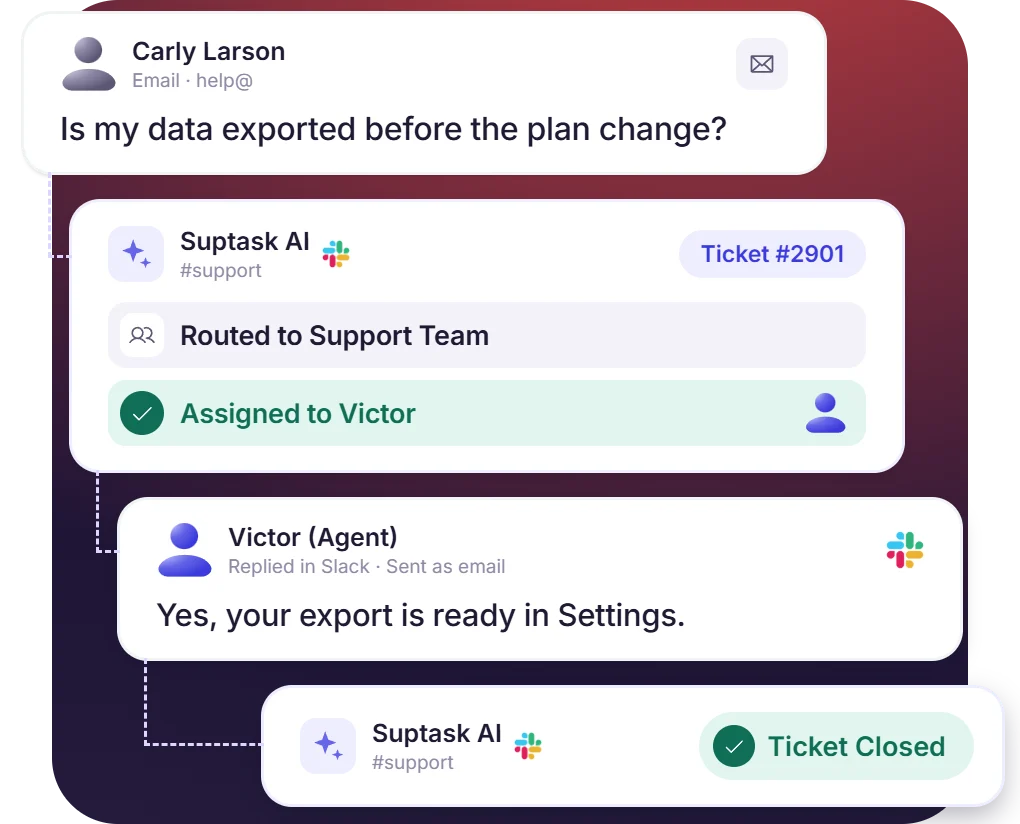











Email to Slack From Any Provider That Supports Forwarding
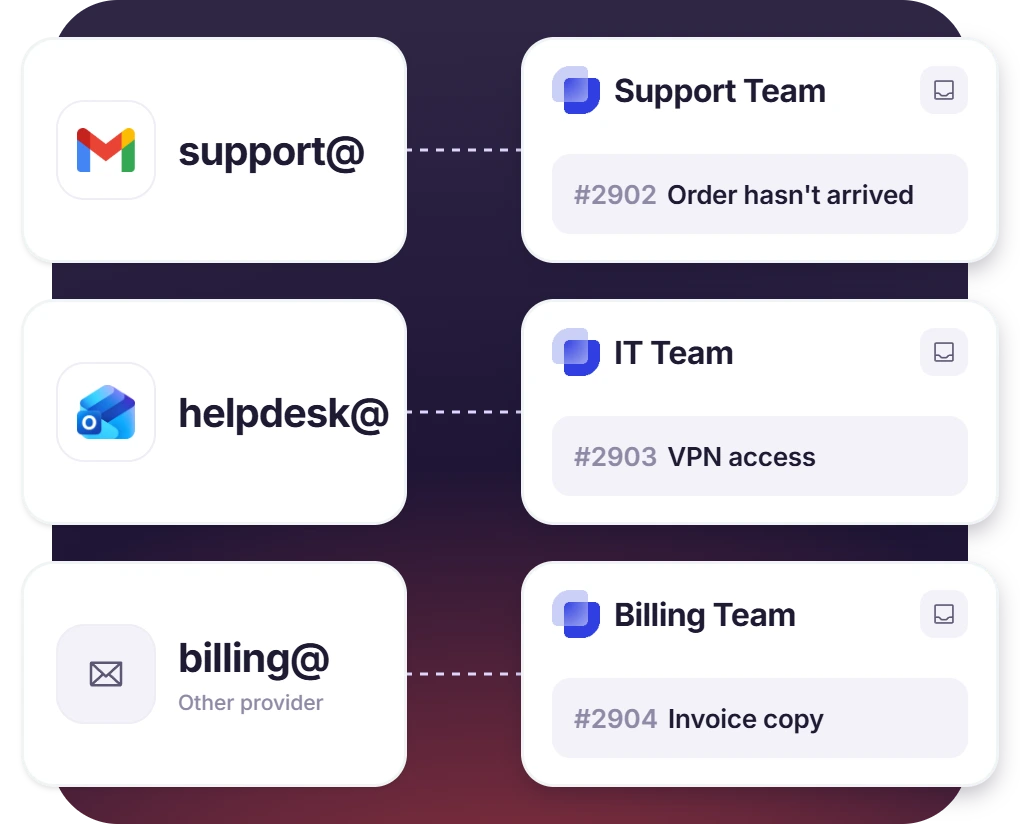
- Addresses like support@, help@, or billing@ can be forwarded from the hosted provider
- Each email lands as a ticket in the Slack channel of a mapped inbox
- Gmail and Outlook setup is documented, which will remain the same for other providers too
Agents Send Email From Slack by Replying in the Thread
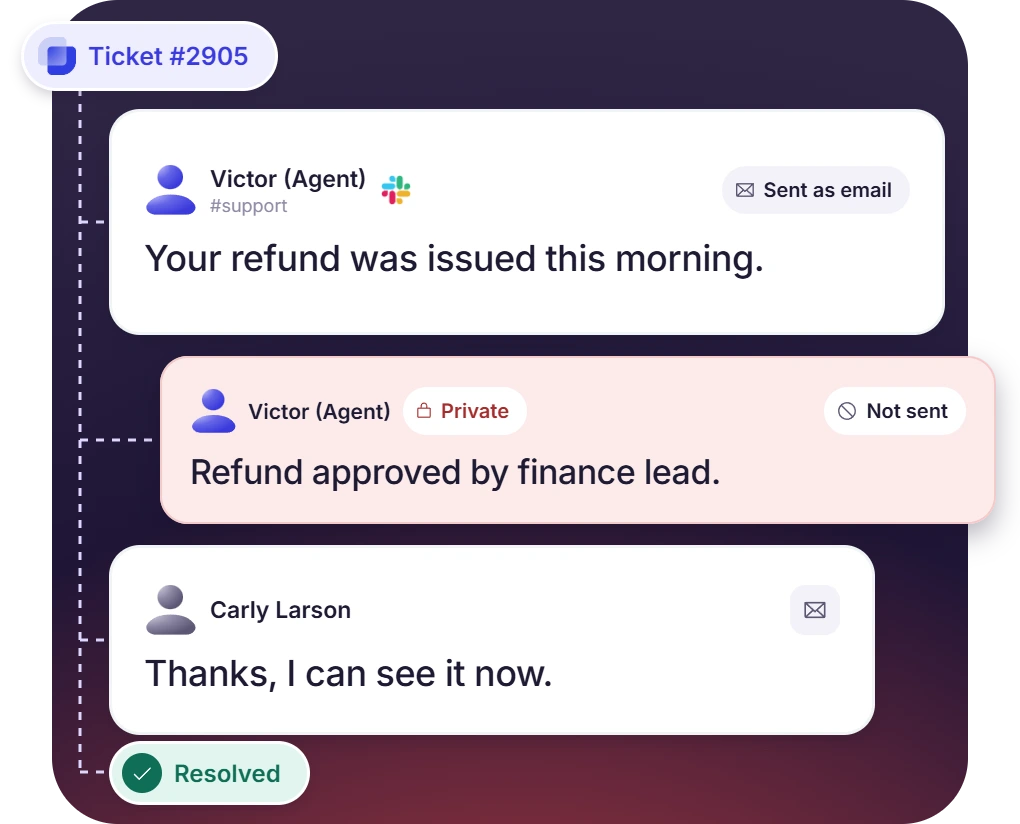
- Suptask sends agents' replies in Slack as an email with the organization name as the sender
- Replies from sender are added to Slack thread with attachments
- Agents can discuss privately in a Slack thread, and only answers are sent by email
Send Ticket Emails From Your Own Address With a Custom Domain
- Change the wording, colors, and name on the ticket emails, and the confirmation email can be turned off
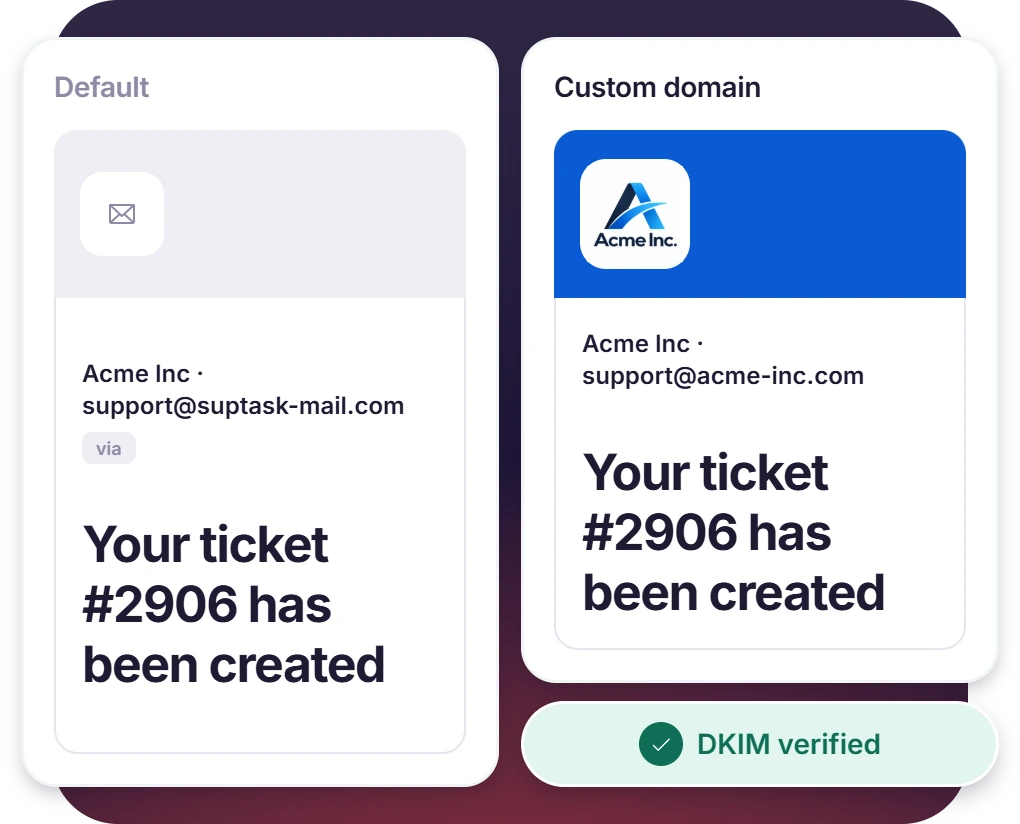
- Requesters see only your own address, for example, support@yourcompany.com
- Your DNS admin adds the DKIM and Return-Path records Suptask generates, and the “via” tag in Gmail is removed
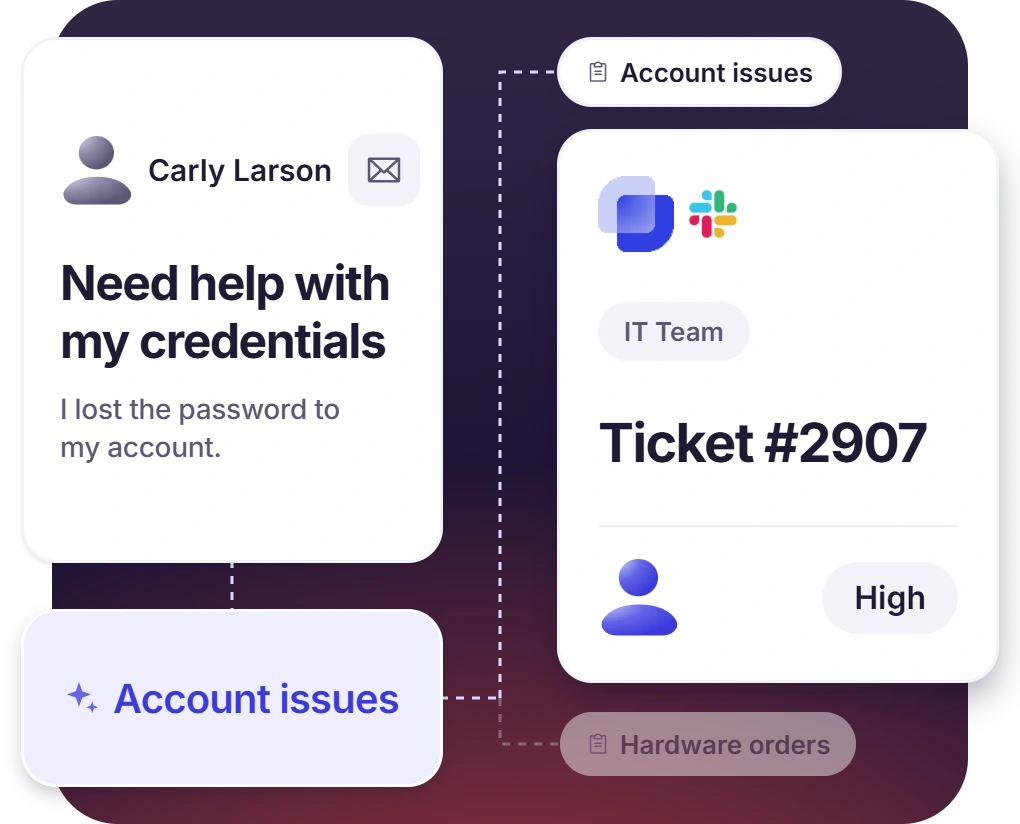
Route Each Email to the Team It Belongs To
- AI email routing reads each email and picks the Form and Inbox it belongs to, available with the Growth plan
- An email the routing cannot match is sent to a fallback Form, and it can be dropped instead
- Automation rules then set the owner and priority on the new ticket
How Slack Email Integration Works
Setup
Capture
Resolve

What You Need to Forward Email to Slack

Forwarding address
Any address on a provider that supports forwarding, like support@ or help@. Gmail and Outlook have step-by-step guides.

Suptask inbox
Each address maps to one Inbox, and the Inbox decides the Slack channel its tickets are created in.

DNS for custom domain
Suptask Support generates the DKIM and Return-Path records, and your DNS admin adds them. Nothing changes on SPF.

Right plan
Email to Slack ticketing starts on the Professional plan, and AI email routing starts on the Growth plan.
What teams answering email improve with Suptask
Built for Every Team With a Shared Address
Customer support

IT and internal support

MSPs and agencies

Already trusted by fast-moving support teams.




Turn Slack into a help desk connected to the tools you already use
Frequently asked Questions
How do I forward email to Slack with Suptask?
The forwarding is set up in two places, first in Suptask and then in the email account which you are forwarding from. In Suptask, the inbox is added, and that inbox is where the tickets will be created. On the provider side, a forwarding rule is made on the support address, and the rule has to be pointed to incoming@suptask-mail.com. Every email that comes to the support address is then forwarded to that address, and Suptask uses it to open the ticket in the Slack channel. The same two steps are shown with the screenshots on the Gmail page. Microsoft users can follow the Outlook page for the rule in the Outlook settings. Other providers are also fine for this, the steps do not change much as long as forwarding is supported in them.
Slack gives an email address to a channel on its own, and emails sent to that address are posted in the channel like a normal message. After that, nothing more happens with it. No owner is assigned to the message, there is no status on it, and the reply has to be written by the agent from his own mailbox. In Suptask, the same email is converted into a ticket in your Slack help desk, and the ticket has an owner and a status that can be changed as the work moves ahead. The reply that the agent writes in Slack is sent back to the sender as an email. The requester is not required to be in Slack for any of this.
The answer is sent out from Slack itself. The agent writes it in the ticket thread, and Suptask delivers the same text to the requester as an email from the support address. When the requester replies to that email, the reply is posted back in the same thread with the attachments also included in it. The follow-up is therefore happening in one thread, and the agents are not required to keep the mailbox open along with Slack.
A custom domain can be used for outgoing emails. The custom email domain is configured once, and after that the emails are going out from your own address like support@yourcompany.com. For this, the DKIM record and the Return-Path record are provided by Suptask Support. Your DNS admin should add them to the DNS. The SPF record, which you already have is not changed at all, it stays as it is. The default setup is working without any DNS change, so the custom domain is only for the teams who want their own address on the emails.
Three emails are going out from Suptask, the confirmation email, the update email, and the closed email. The wording on each one of them is editable. The company name is also set in the same place. For the colors, you can set the background, the header, the labels, and the borders. Some teams are not wanting a confirmation email on every ticket, and it can be turned off also.
Email-to-Slack ticketing is included in the Professional plan. The AI email routing is a Growth plan feature, it reads the email and sends it to the team that should be handling it. The pricing page has the full comparison of what is included in each plan, and the other features can be checked there also.