When Slack is where the team makes decisions, but customer requests, vendor emails, and internal tasks still land in inboxes, it is easy for work to slip. Slack email integration apps help close that gap, but they do not all do the same job. Some simply push emails into a channel. Others let teams reply, assign, and track conversations from Slack in a help-desk style workflow. This guide compares nine options for 2026.
TL;DR by workflow: for two-way ticketing, start with Suptask and Gmelius. For shared inboxes with Slack collaboration, compare Front and Hiver. For lightweight Gmail-to-Slack sharing, use Slack for Gmail or Slack’s native Email app. If you already use Zoho or Freshworks, look at Zoho Mail and Freshchat. Outlook-first teams should pay close attention to Outlook integration for Slack.
What Slack Email Integration Actually Means (And The 3 Workflow Types)
A Slack email integration is not one single workflow. Most tools fall into one of three tiers.
Visibility is the simplest version: emails show up in a Slack channel so the team can see them. A form submission, vendor note, customer message, or alert lands in Slack, but replying in Slack does not update the original email thread.
Collaboration adds more team context. Slack becomes the place to discuss, assign, route, or comment on an email, while the actual customer reply usually still happens in the email platform or shared inbox. Front and Hiver are good examples of this tier.
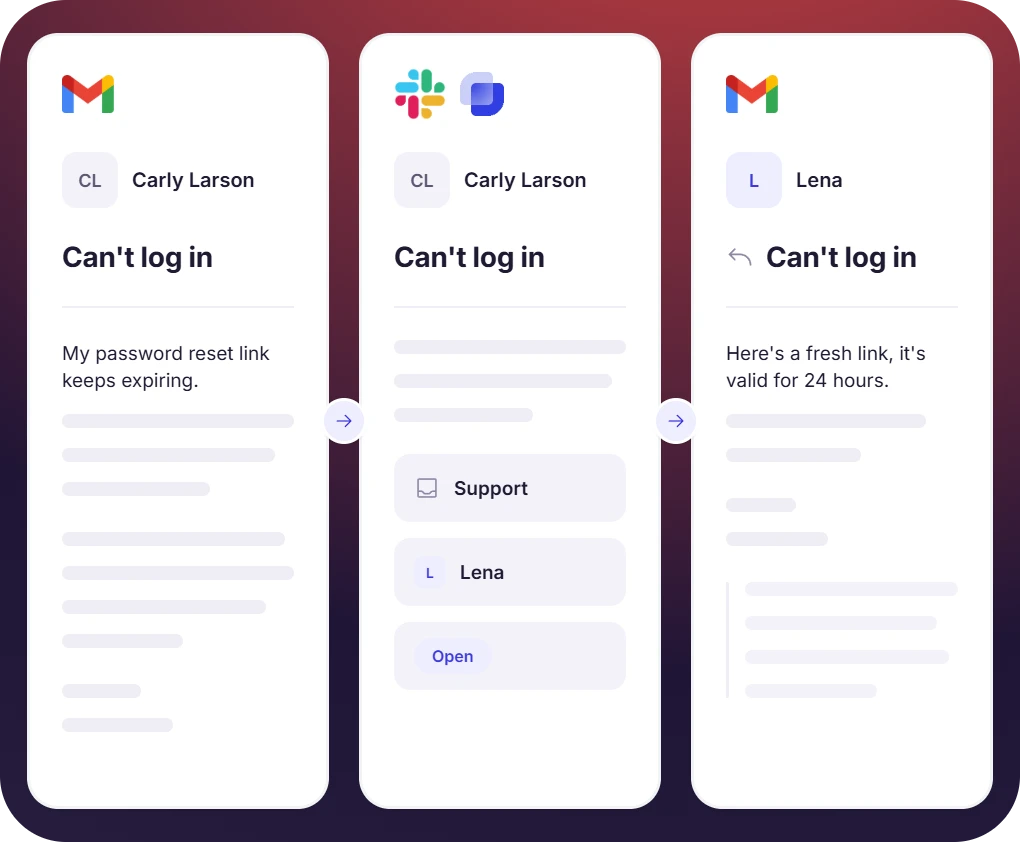
Two-way ticketing goes a step further and turns email into trackable work inside Slack. A customer sends an email, the request becomes a Slack ticket, someone owns it, and replies from Slack go back to the email thread. Status, priority, SLA, and reporting stay attached to the same conversation.
If all you need is awareness, email-to-Slack channel forwarding may be enough. If customers are waiting because no one is sure who owns the reply, you are probably looking for two-way ticketing.

How We Compared These Apps
We looked at each email Slack app through the lens of real workflow fit: one-way versus two-way sync, provider support, routing, noise control, ownership tracking, status, assignee, SLA options, pricing, free-tier availability, setup time, admin controls, and security signals such as SOC 2 and GDPR.
Comparison Table: Best Slack Email Integration Apps By Workflow
The 9 Best Slack Email Integration Apps In 2026
1. Slack For Gmail - Best For Manual Gmail-To-Slack Sharing

Slack for Gmail is the official Gmail add-on for sharing individual emails into Slack. You open an email, choose a channel or DM, add a bit of context, and send it over. It is useful for one-off collaboration, but it is not a ticketing tool. It will not automate routing, create ownership, or sync replies back to Gmail.
Best for:
- Individuals who occasionally move Gmail context into Slack.
- Sales, recruiting, and customer success handoffs.
- Teams that want a free slack for gmail add on.
Not ideal for:
- High-volume support inboxes.
- Teams that need assignments, SLAs, or reporting.
- Outlook, Zoho, or shared custom inbox teams.
Key features:
- Send Gmail emails to Slack channels or DMs.
- Add a note before sharing.
- Include email attachments.
- Works from the Gmail side panel.
- Official Slack add-on for Gmail.
- Free to use.
Pricing: Slack for Gmail is free.
Limitations:
- Manual sharing only.
- No automatic Gmail to Slack routing.
- No Slack to Gmail reply sync.
Choose this if: You need a free, low-friction way to bring the occasional Gmail thread into Slack.
2. Suptask - Best For Email-To-Slack Ticketing With Gmail, Outlook, And Zoho Support

Suptask is a Slack-native ticketing platform for teams that want to manage email requests where the team is already working. It turns emails into Slack tickets so agents can assign, reply, track, and close work. Its main advantage is broad inbox coverage across Gmail, Outlook, Zoho, and custom forwarding workflows, plus support for multi-workspace and Slack Enterprise Grid environments.
Best for:
- Support, IT, ops, and customer service teams that work in Slack.
- Teams comparing Gmail, Outlook, and Zoho workflows.
- Companies that need an email ticketing system for Slack, not just notifications.
Not ideal for:
- Teams that only share the occasional Gmail thread.
- Teams that want email to remain the main agent workspace.
- Very small teams that do not need ticket ownership.
Key features:
- Email requests become Slack tickets with status and ownership.
- Slack replies can be sent back to the requester by email.
- Gmail-to-Slack ticketing for Google Workspace teams.
- Outlook integration for Slack for Microsoft-first teams.
- Private, channel-based, and DM ticketing.
- Multi-workspace, SSO, SLA, automation, and Slack Enterprise Grid options.
Pricing: Suptask has a free plan limited to 10 tickets per month. Paid Slack ticketing starts at $8/agent/month monthly, or $7/agent/month on annual billing. Check Suptask pricing before rollout because Email to Slack Ticketing Integration is listed under Custom.
Limitations:
- Email-to-Slack ticketing may require a Custom plan.
- It works best when agents are active in Slack.
- Low-volume teams may not need full ticketing structure.
Choose this if: You want Slack-first email ticketing with two-way replies, Outlook coverage, and flexible inbox support.
3. Gmelius - Best For Two-Way Email Ticketing In Slack

Gmelius is a Slack-first support platform that turns incoming emails into trackable tickets. It is built for teams that want to keep working in Slack while customer email threads stay updated. The product is strongest when support work needs structured triage channels, assignments, AI assistance, and SLA reporting. It is the more heavyweight option when you want a full help-desk layer around Slack and email.
Best for:
- Support teams that want email tickets managed from Slack.
- Teams with multiple support addresses or custom email domains.
- Managers who need SLA tracking and response reporting.
Not ideal for:
- Very small teams that forward only a few emails per week.
- Teams that want the lowest per-agent price.
- Teams that prefer a shared inbox as the main workspace.
Key features:
- Incoming emails create Slack tickets in a triage channel.
- Agents can reply from Slack and send responses back by email.
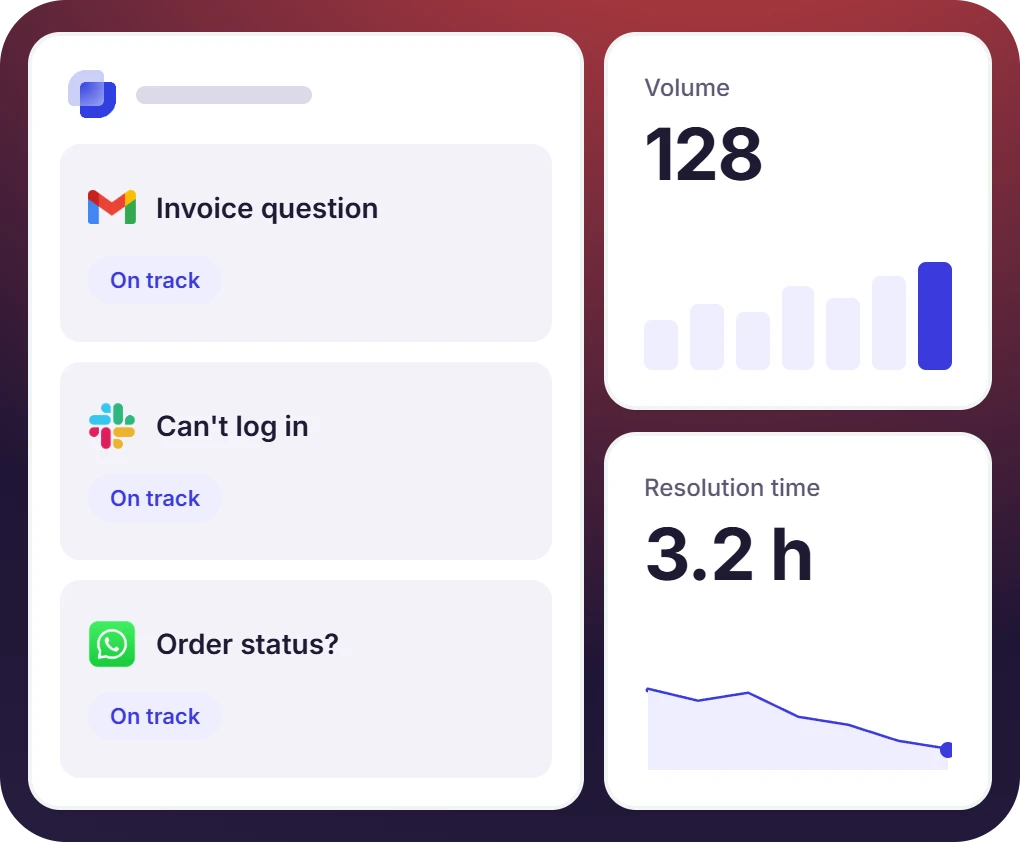
- Assignee, status, priority, and response-time tracking.
- SLA rules and reporting on higher tiers.
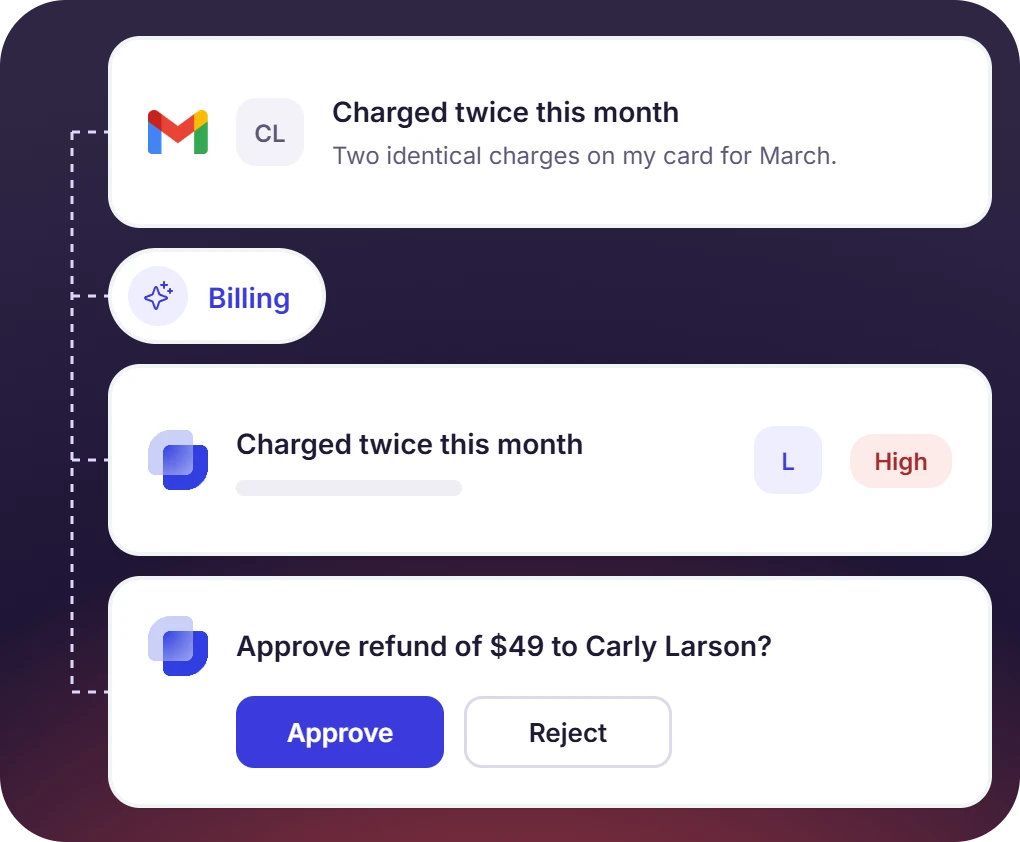
- AI summaries, draft replies, and auto-filled fields.
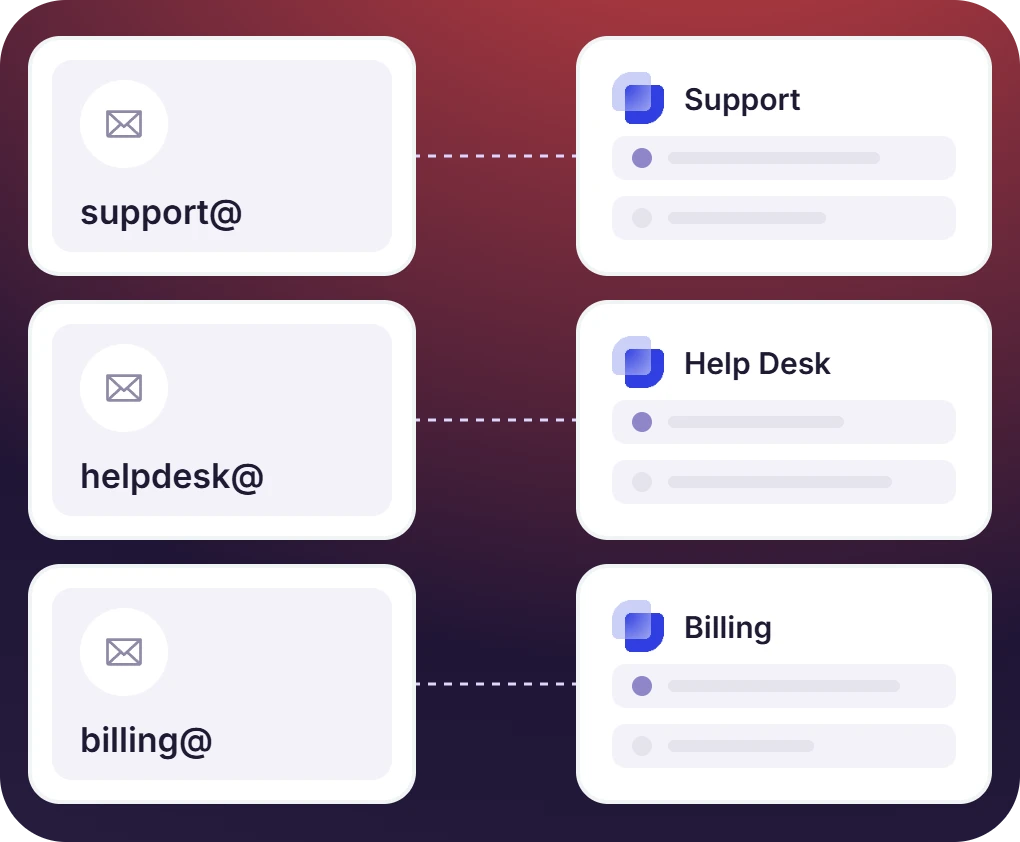
- Multiple custom email addresses for different queues.
Pricing: Gmelius Helpdesk Starter starts at $24/agent/month for 1-15 agents. Professional starts at $49/agent/month. AI features may require an optional AI pack.
Limitations:
- Setup takes more work than a basic forwarding rule.
- Costs rise as your agent count grows.
- Some SLA and AI features sit outside the entry plan.
Choose this if: You want support-grade two-way email ticketing in Slack, with AI and SLA depth available as you scale.
4. Front - Best For Shared Inbox Teams That Collaborate With Slack

Front is a customer communication platform built around shared inboxes. Email, chat, SMS, and other channels live in Front, while Slack is used for internal visibility and side discussions. That makes Front a good match for teams that want a polished shared inbox first. The tradeoff is that Front remains the main workspace, not Slack.
Best for:
- Customer-facing teams that need shared inbox ownership.
- Teams handling email alongside chat, SMS, WhatsApp, or social channels.
- Companies that want Front as the system of record.
Not ideal for:
- Slack-only teams that want to reply to customer email from Slack.
- Very small teams looking for a free email Slack app.
- Teams that need multiple channel types on the lowest plan.
Key features:
- Shared inboxes with assignments, tags, comments, and drafts.
- Gmail, Office 365, and custom email channel support.
- Slack channels can be connected for internal collaboration.
- Rules, analytics, ticketing, and knowledge base tools.
- AI add-ons available on paid plans.
- Omnichannel support on higher tiers.
Pricing: Front Starter starts at $25/seat/month when billed annually and supports up to 10 seats. Professional starts at $65/seat/month. A 14-day free trial is available.
Limitations:
- Replies happen in Front, not directly from Slack.
- Starter supports only one channel type.
- AI features are paid add-ons unless you are on Enterprise.
Choose this if: You want shared inbox control first and Slack collaboration second.
5. Hiver - Best For Gmail And Outlook Shared Inboxes With Slack Notifications

Hiver is a shared inbox and customer service platform for teams that work from Gmail or Outlook. Its Slack integration is mainly about updates: new conversations, assignments, notes, and status changes can appear in Slack. That gives the team visibility without moving the inbox itself into Slack, which is often enough for email-first teams.
Best for:
- Gmail or Outlook teams managing shared inboxes.
- Finance, IT, ops, and support teams that need email assignment.
- Teams that want a free starting point.
Not ideal for:
- Teams that need Slack-to-email reply sync.
- Teams that want Slack to be the support system of record.
- Teams looking for a pure Gmail Slack integration add-on.
Key features:
- Shared inboxes with assignments, notes, and views.
- Slack notifications for conversation updates.
- Email, live chat, and knowledge base on the free plan.
- AI compose and summarize paid plans.
- Google and Microsoft sign-in support.
- Reporting and analytics on paid plans.
Pricing: Hiver has a free plan. Growth starts at $25/user/month when billed annually, or $35/user/month on monthly billing.
Limitations:
- Slack is mainly for notifications and discussion.
- Customer replies happen in Hiver, not Slack.
- Advanced analytics and AI require paid plans.
Choose this if: Your team lives in Gmail or Outlook and only needs Slack visibility.
6. Slack’s Native Email App - Best For Sending Emails To A Slack Channel

Slack’s native Email app gives a channel or DM its own email address. When someone sends an email to that address, the message appears in Slack. It is the quickest way to send email to Slack without bringing in another support platform, and it works best for alerts, forms, vendors, and other low-volume visibility use cases.
Best for:
- Teams that want email to Slack visibility with no new vendor.
- Low-volume alerts, vendor messages, and internal notifications.
- Teams already on a paid Slack plan.
Not ideal for:
- Support queues that need owners and reply tracking.
- Sensitive inboxes that should not be visible to a full channel.
- Teams that need reporting or SLA management.
Key features:
- Create a unique email address for a Slack channel or DM.
- Receive forwarded emails as Slack messages.
- Use Gmail or Outlook add-ons for one-off sharing.
- Use Slackbot forwarding for personal email visibility.
- Available on paid Slack subscriptions.
- No separate vendor fee beyond Slack.
Pricing: Channel and DM email addresses are available on paid Slack subscriptions. The Email app itself is included with Slack.
Limitations:
- One-way only.
- Replying in Slack does not email the sender.
- Broad forwarding can create channel noise fast.
Choose this if: You want the simplest one-way email-to-Slack channel setup.
7. Freshchat - Best For Freshworks Teams Handling Chat And Email

Freshchat is Freshworks’ customer messaging platform for chat, email, and digital channels. Its Slack integration can route conversations into Slack and support replies through Freshchat workflows. It is most useful for teams already working inside Freshworks, rather than teams looking for a standalone Gmail-to-Slack or Outlook-to-Slack setup.
Best for:
- Teams already using Freshworks or Freshchat.
- Support teams combining chat, email, WhatsApp, and social channels.
- Small teams that can start on the free agent tier.
Not ideal for:
- Teams that only need email forwarding.
- Slack-native teams that do not want Freshchat as the hub.
- Companies that do not need live chat or messaging channels.
Key features:
- Team inbox for chat and email conversations.
- Slack notifications for new and updated conversations.
- Reply to Freshchat conversations from Slack through commands.
- Route conversations to a Slack channel.
- Add teammates to conversations.
- Support for multiple digital messaging channels.
Pricing: Freshchat has a free plan for up to 10 agents. Growth is listed at $19/agent/month, with annual pricing shown from $15/agent/month.
Limitations:
- Works best inside the Freshworks ecosystem.
- Not a dedicated Slack email app for Gmail or Outlook.
- Advanced AI and channel features may require higher plans.
Choose this if: You already use Freshworks and want Slack connected to your support conversations.
8. Zoho Mail Slack Integration - Best For Teams Already On Zoho Mail

Zoho Mail’s Slack integration is mainly for teams that already use Zoho Mail as their inbox. It can post filtered emails into Slack channels and lets users search, view, and send mail with /zohomail commands. For Zoho teams, that creates a practical Slack and email integration without adding a separate help desk, though it is not a full SLA-based ticketing system.
Best for:
- Teams already using Zoho Mail.
- Small businesses that want low-cost email and Slack coordination.
- Users who want basic Zoho Mail actions inside Slack.
Not ideal for:
- Gmail or Outlook-first teams.
- Teams that need full two-way ticket tracking.
- Support teams that need SLA dashboards.
Key features:
- Forward filtered Zoho Mail messages to Slack channels.
- Use /zohomail to search, view, list, and send emails.
- Keep Slack channels focused with filter conditions.
- Discuss Zoho emails with teammates in Slack.
- Reply or forward emails from Slack through Zoho workflows.
- Works inside the Zoho ecosystem.
Pricing: Zoho Mail has a forever free plan for up to 5 users in select regions. Mail Lite starts from $1/user/month in many regions on annual billing.
Limitations:
- Best only if Zoho Mail is your email provider.
- Regional availability and pricing can vary.
- Slash-command workflows are less structured than ticketing.
Choose this if: Your team already uses Zoho and needs lightweight Zoho Mail and Slack coordination.
9. Zapier - Best For Custom Email-To-Slack Automation

Zapier is the automation route for teams that want custom email triggers without buying a dedicated support tool. It connects Slack with Gmail, Outlook, Zoho Mail, Email by Zapier, and many other apps. You can post new emails to Slack, filter by sender or subject, route labels, and build multi-step workflows. It is flexible, but it is not a help desk.
Best for:
- Ops teams with custom email-to-Slack rules.
- Teams connecting Slack with many tools at once.
- Companies testing workflows before buying a dedicated platform.
Not ideal for:
- Teams that need native two-way email replies from Slack.
- Support teams that need assignees, SLAs, and reporting.
- Teams that do not want to maintain automations.
Key features:
- Trigger Slack messages from Gmail, Outlook, Zoho, or Email by Zapier.
- Filter emails by label, sender, subject, or other conditions.
- Build multi-step Zaps across many tools.
- Use paths, delays, and formatting on paid plans.
- Connect Slack to a large app ecosystem.
- Support custom workflows without code.
Pricing: Zapier has a free plan for basic automation. Professional starts at $19.99/month when billed annually.
Limitations:
- Most email-to-Slack automations are one-way.
- Task usage can increase cost as volume grows.
- Workflows need testing and maintenance.
Choose this if: You want custom email triggers in Slack, not a full ticketing system.
How To Choose The Right Slack Email Integration App
Start with one question: where should the work actually happen?
If you handle customer support email at volume, two-way ticketing is usually the safer choice. Suptask and Gmelius are the strongest fits because they let teams reply, assign, and track requests from Slack instead of only forwarding emails into a channel. Choose Suptask when Outlook, Zoho, Gmail, multi-workspace support, or Slack-native ticketing matters. Choose Gmelius when deeper SLA reporting and AI support-desk features matter more.
If your team lives in Gmail and mainly needs visibility, Hiver or Slack for Gmail may be enough. Hiver makes more sense when shared inbox ownership matters. Slack for Gmail is better when someone just needs to move a single Gmail thread into Slack.
If you do not want to add another tool, use Slack’s native Email app. It gives you a fast email-to-Slack channel workflow, but it does not solve ownership.
If you already pay for Freshworks or Zoho, test their Slack integrations before adding another vendor. If your workflow is unusual, Zapier is the flexible automation option.
The real question is who owns the follow-up when something goes wrong. Visibility tools are cheap, but responsibility often falls back to the channel. Ticketing tools cost more, but they create an owner, a status, and a record.
For a wider stack review, compare these options against your existing Slack integration tools before adding another app.
How To Set Up Email Forwarding To Slack, Gmail To Slack, And Outlook Rules
For basic forwarding, Slack’s native Email app is the fastest setup.
- Open the Slack channel or DM where emails should appear.
- Click the channel or member name at the top.
- Open Integrations.
- Select Send emails to this channel/conversation, then copy the generated email address.
From Gmail, go to Gmail forwarding settings, add the Slack channel email address, and confirm it. From Outlook, create a rule using Outlook forwarding rules, then choose a forward or redirect action.
Forwarding emails to Slack is useful for visibility. At scale, it is not enough because it does not assign owners, sync replies, or track SLAs. For the full walkthrough, see Suptask’s guide on how to forward emails to a Slack channel.
FAQ: Send Email From Slack, Gmail To Slack, Outlook, IMAP, And Zoho
Can I Send Emails From Slack?
Yes, but only with the right tool. Suptask and Gmelius let agents reply from Slack and send the response back to the email thread. Zoho Mail supports sending email from Slack through /zohomail. Slack’s native Email app receives email into Slack, but it does not send replies back to the sender.
What’s The Difference Between Slack’s Native Email App And A Slack Email Integration App?
Slack’s native Email app gives a channel an email address. Messages sent there appear in Slack. A broader slack email app can add routing, assignments, two-way replies, ticket status, SLA tracking, analytics, Gmail support, Outlook support, Zoho support, or custom inbox support.
Can Slack Integrate With Gmail?
Yes. Slack for Gmail lets you manually send Gmail threads into Slack. Zapier can automate Gmail to Slack notifications. Suptask and Gmelius go further by turning Gmail emails into Slack tickets with ownership, status, and reply sync.
Can I Integrate Outlook With Slack?
Yes. Outlook teams can forward mail to Slack’s native Email app, use Slack’s Outlook add-in for one-off sharing, or use a two-way tool. Suptask is the strongest option here because it includes Outlook integration for Slack and supports email ticketing workflows.
Is There A Free Slack Email Integration?
Yes. Slack for Gmail is free. Slack’s native Email app is included with paid Slack plans. Hiver, Freshchat, Zapier, Zoho Mail, and Suptask all have free starting options, although each has limits around users, tickets, tasks, channels, or supported workflows.
Why Do People Use Slack Instead Of Email?
Slack is faster for internal coordination. Teams can tag the right person, discuss requests in channels, and avoid reply-all threads. Email still works better for external conversations, contracts, and long-form records. The best setup often keeps email customer-facing and uses Slack for ownership.
What Is An IMAP Slack Integration?
An IMAP Slack integration usually means connecting a standard mailbox to Slack through forwarding, automation, or middleware. It can help with visibility, but support teams usually need more than an IMAP feed. They need reply sync, ownership, status, and reporting.
Closing CTA
If you have decided you need two-way email ticketing in Slack, where your team replies from Slack and the email thread stays in sync, Suptask covers Gmail, Outlook, and Zoho workflows and starts free. Explore the Slack email integration to see how it fits your team.