Slack Gmail Integration That Turns Support Email Into Tickets
Suptask’s Gmail Slack integration makes a ticket in Slack from every email to a Google Workspace support address. Agents answer in the thread, and the reply goes to the sender as an email.
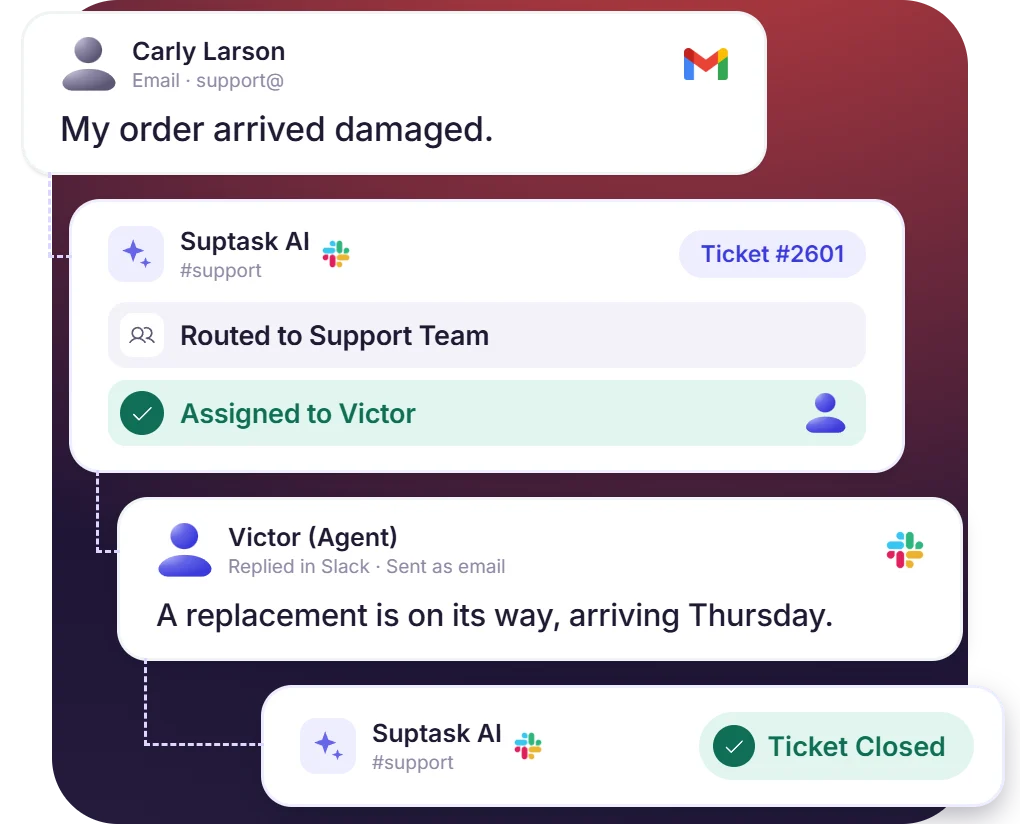











Gmail to Slack Ticketing for Every Support Email
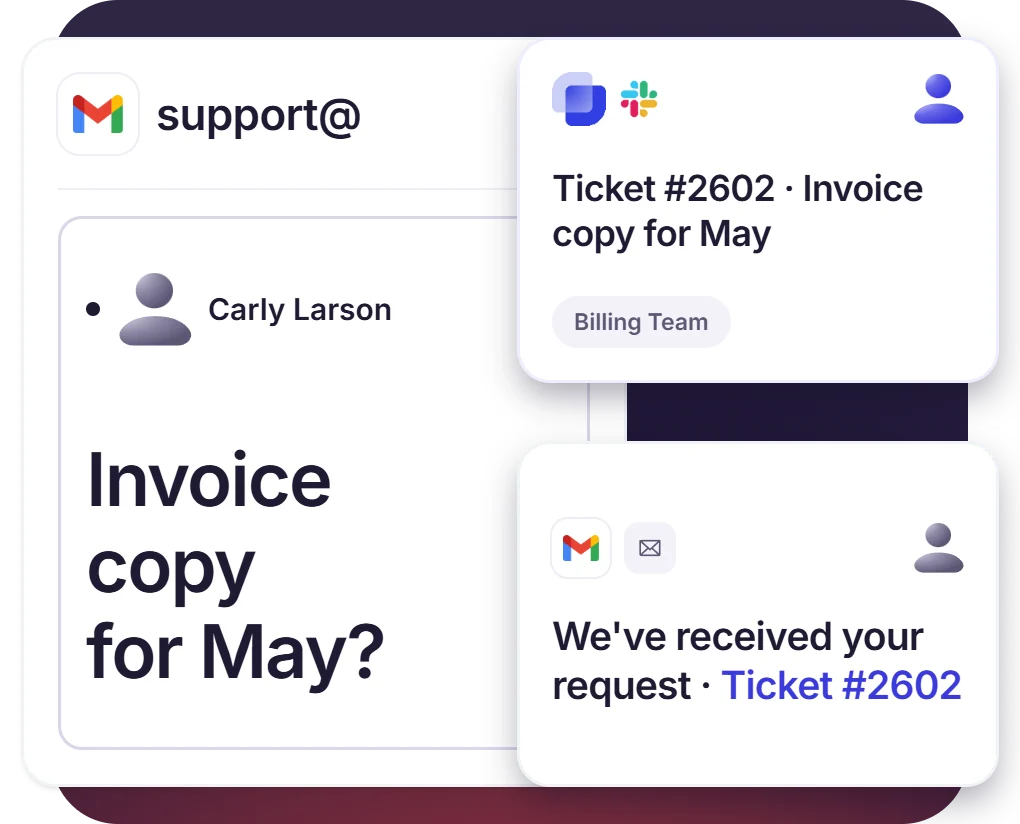
- Every email sent to the support address becomes a ticket in the mapped Inbox
- A confirmation email with the ticket number is sent back to the sender
- Each address maps to its own Inbox, so billing@ and support@ go to different teams
Agents Reply in Slack, and the Customer Gets an Email
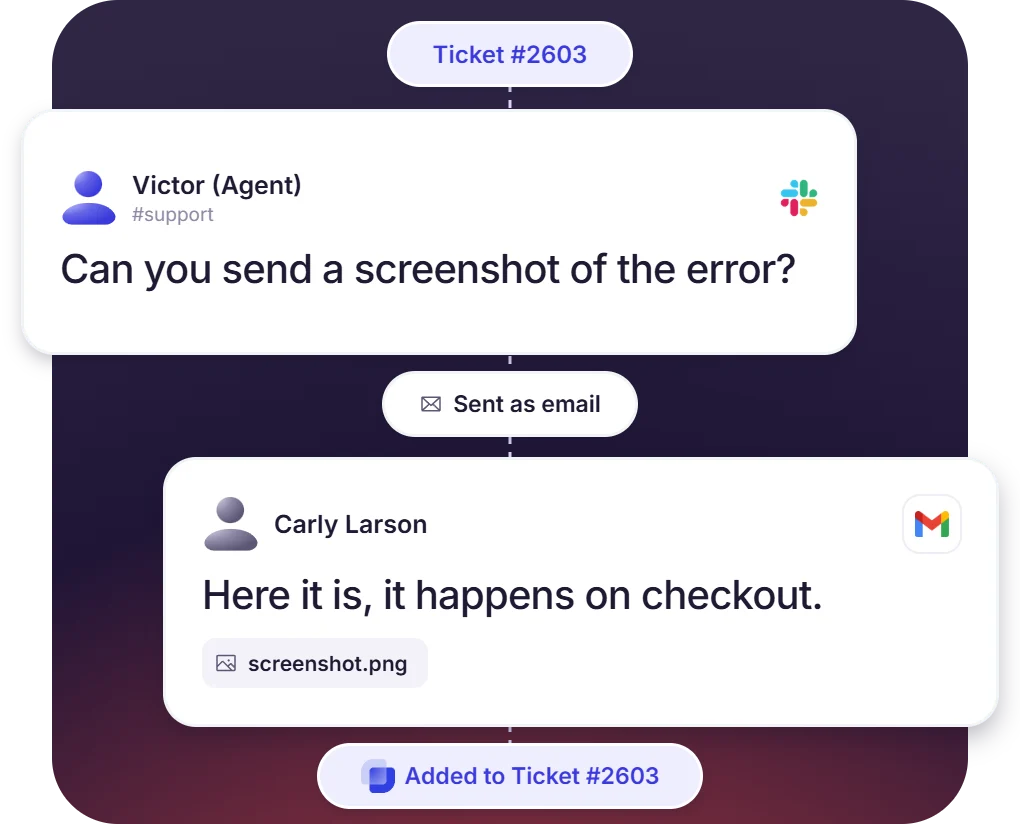
- The Slack integration with Gmail sends each reply in the thread to the sender as an email
- Replies go out under the company name, signed as “Agent (Company)”
- Customer replies, and attachments are added back to the same ticket
Assign, Prioritize, and Route Gmail Tickets
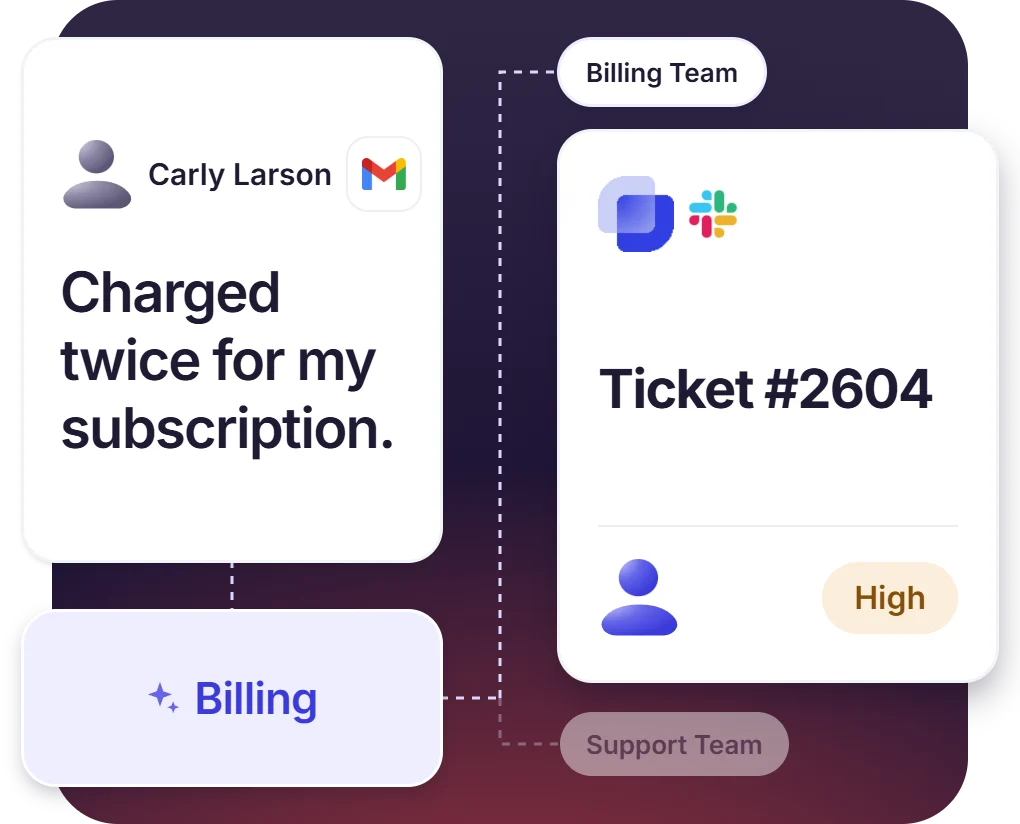
- The owner, priority, and status are set by automation rules on arrival
- AI email routing on the Growth plan sorts each email to the right Inbox and form
- Notes added inside the ticket are visible in Slack only
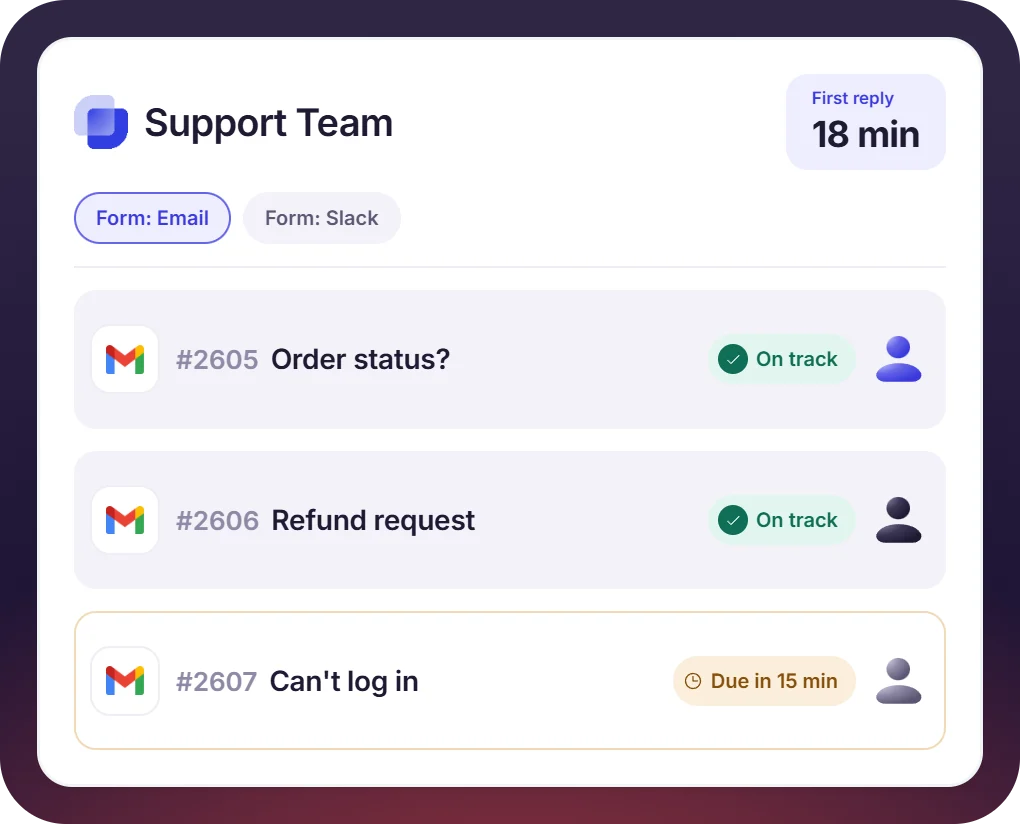
SLAs and Reports for the Gmail Support Inbox
- SLA clocks start when the email arrives, with reminders before a breach
- Analytics can be filtered by Form to see email tickets next to requests from Slack
- Emails are authenticated with DMARC, DKIM, and SPF, and can use your own domain
How the Slack Gmail Integration Works
Setup
Capture
Resolve

What You Need to Connect Gmail to Slack

Google Workspace admin access
Forwarding is set as a routing rule in Gmail settings, so access to the Admin console is needed.

Your support address
The address customers already email, such as support@ or help@. It is added to a Suptask Inbox with the sender name shown on replies.

Routing to Suptask
Add incoming@suptask-mail.com as a recipient for the support address, and leave Gmail’s spam filter on.

Sender identity
Replies come from support@suptask-mail.com under the company name by default. Suptask Support can set up a custom domain.
What support teams on Gmail improve with Suptask
Gmail Ticketing for Support, IT, and Finance Teams
Support teams on email

IT and internal help desks

Finance and billing

Already trusted by fast-moving support teams.





Turn Slack into a help desk connected to the tools you already use
Frequently asked Questions
How do I connect Gmail to Slack with Suptask?
The support address is added to an Inbox in Suptask, and then a routing rule is created in the Google Workspace Admin console. The rule forwards that address to incoming@suptask-mail.com. Send a test email once the setup is done, and the ticket will show up in Slack.
Slack for Gmail is an add-on that is used for sending individual emails into a Slack channel or a DM. Suptask’s Slack Gmail integration is used for ticketing. Every email to your support address becomes a ticket in your Slack help desk. The reply written by an agent gets delivered to the sender as an email.
The customer gets a confirmation email with their ticket number. After that, your agents’ replies are received as normal emails, with your company name on them. Customers can reply to any of these emails with more details or attachments. Whether it is a question or a file, it gets added to the same ticket.
By default, the emails are sent from support@suptask-mail.com, with your company name used as the sender name. Suptask supports email authentication like DMARC, DKIM, and SPF on that sending domain. Let’s connect with the Suptask Support team if the replies have to be sent from your own domain.
Yes, more than one address can be connected. Each support address is mapped to its own Inbox. Whether it is support@, billing@, or helpdesk@, each one can go to a different team.
Email-to-Slack ticketing is included in the Professional plan. AI email routing comes with the Growth plan and sorts each email to the right Inbox and form. The pricing page has the full comparison of all plans.