GitLab Slack Integration for Tickets Needing Development Work
Suptask’s Slack GitLab integration turns support tickets into an issue in GitLab. Each issue's description is filled with ticket details and links back to the Slack ticket.
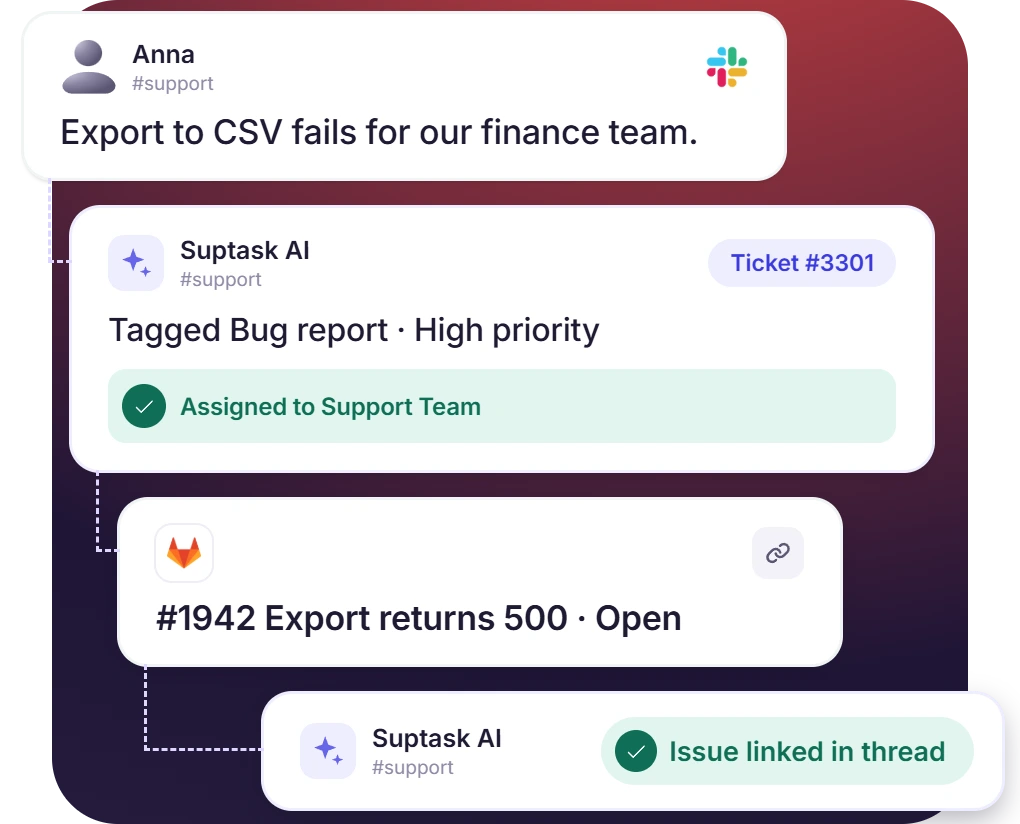











Create GitLab Issues From Slack Tickets
- Development requests are escalated to GitLab from a Suptask ticket in Slack
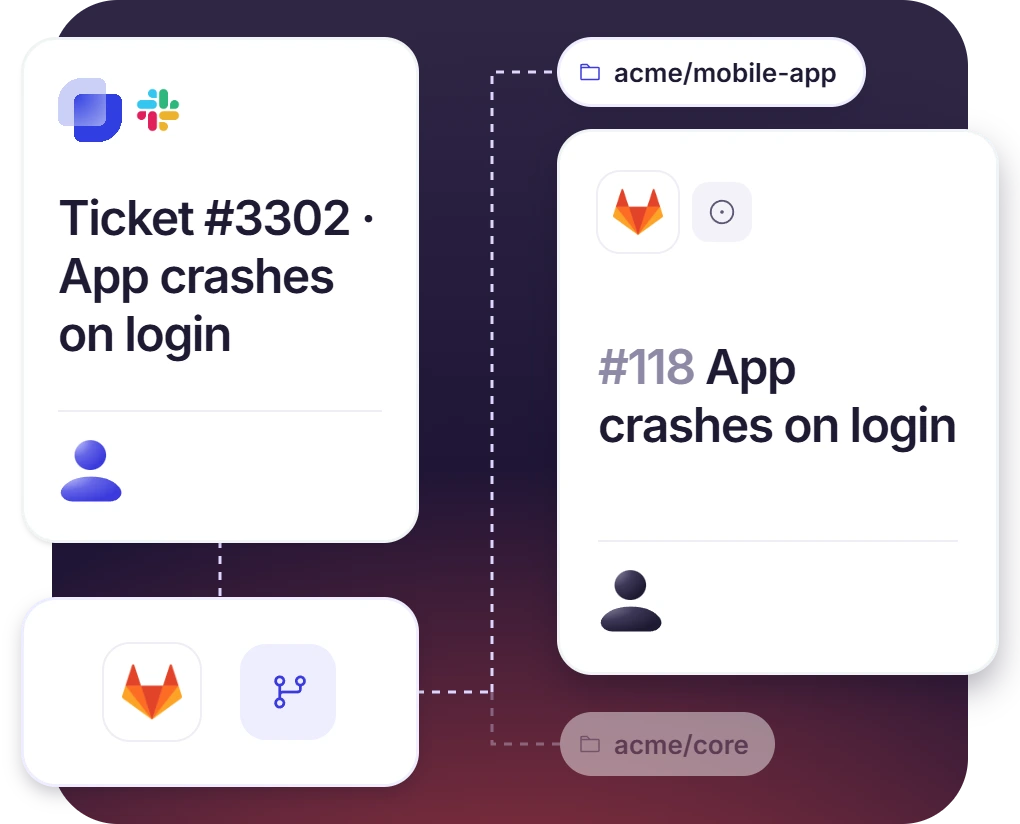
- Choose the repository, with one integration covering several GitLab projects
- The GitLab integration with Slack is enabled on the Forms for development requests, like bug reports
Agents Write the Issue From a Template Before It Reaches GitLab
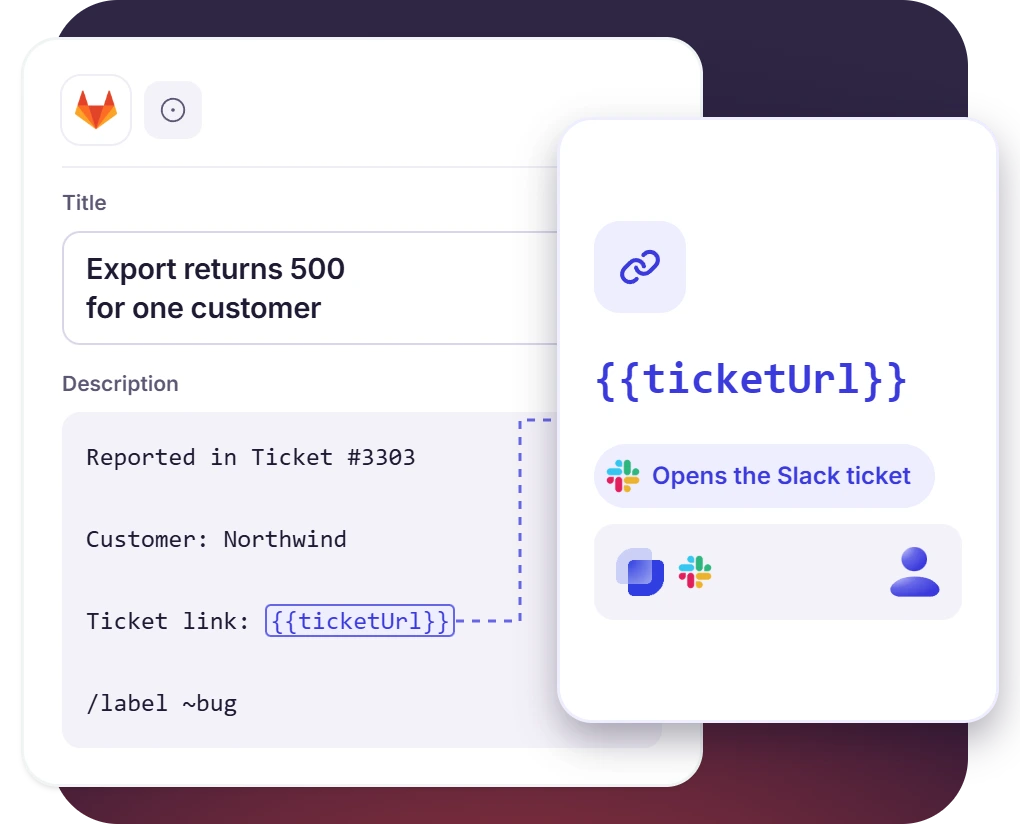
- The title and description remain editable right up to the moment the issue is created
- Placeholders fill in ticket details, including a link back to the ticket in Slack
- You can add default labels or GitLab quick actions to ensure issues land where they belong
GitLab to Slack, Issue and Merge Request Links on the Ticket
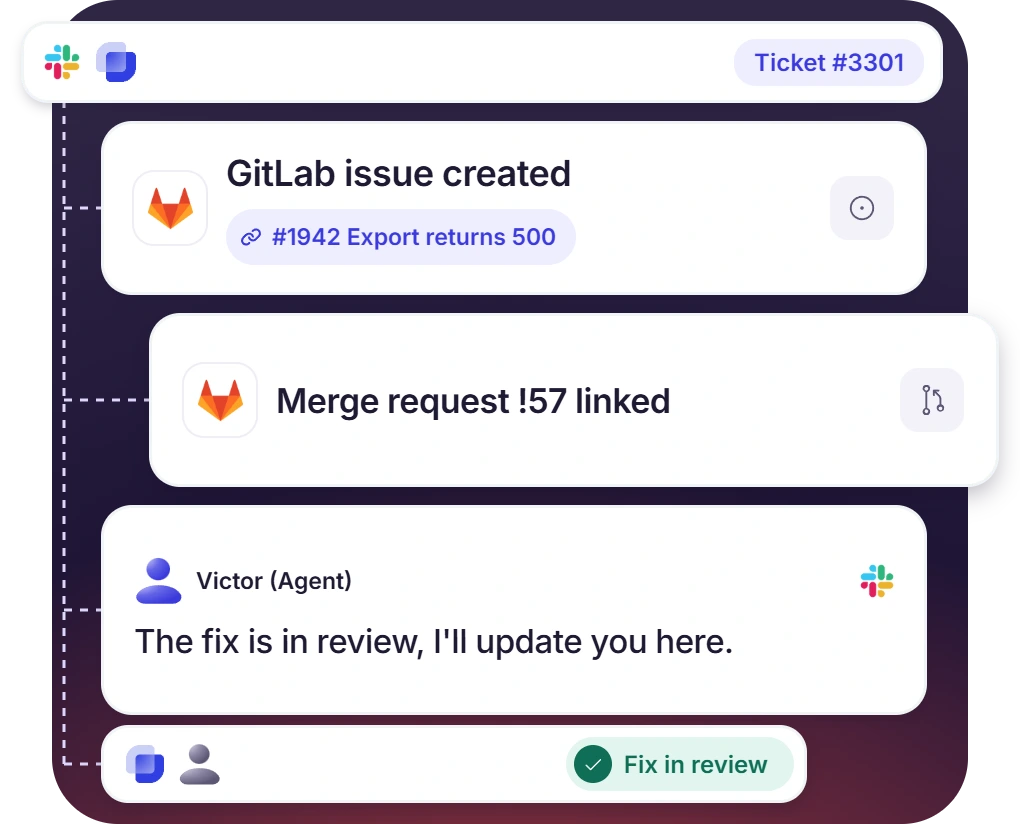
- Suptask posts the issue URL in the ticket’s message thread
- Merge request links on the ticket keep the fix traceable
- Teams are notified when a pipeline linked to a ticket fails
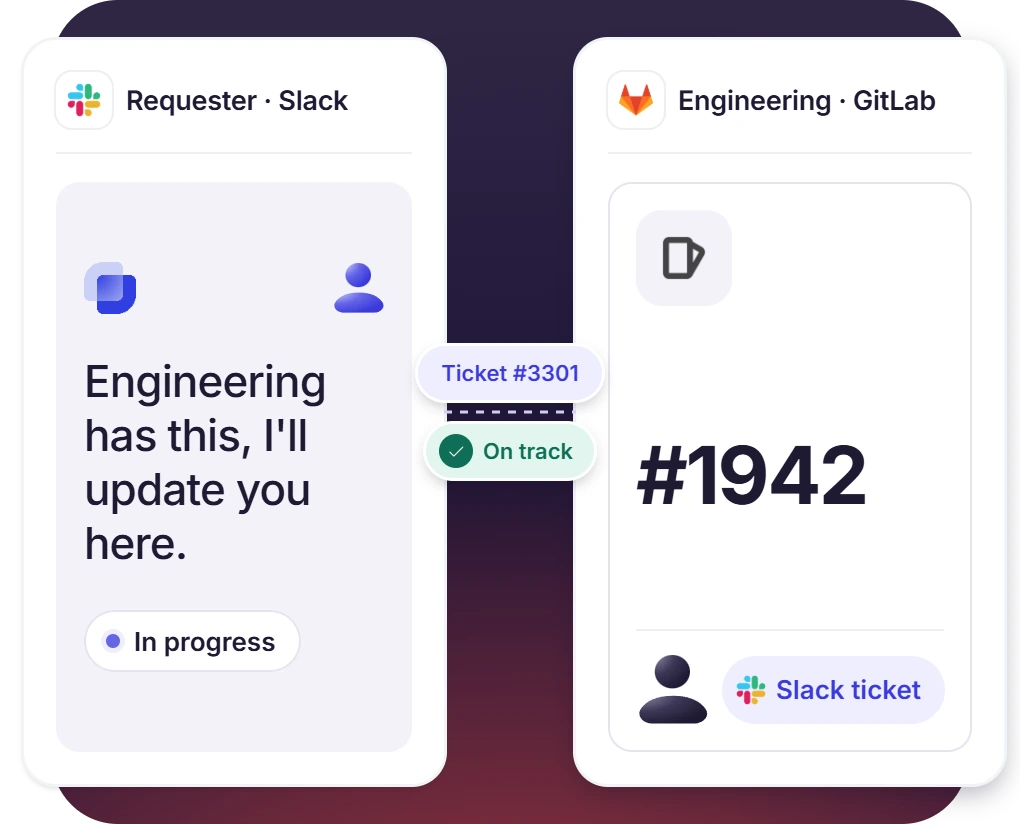
Support Owns the Ticket, Engineering Owns the Issue
- The ticket has an owner, priority, and SLA while engineering works on the issue
- Updates reach the requester in the Slack ticket, with a GitLab account needed
- Agents write technical details in internal notes that are not visible to requester
How GitLab Slack Integration Works
Setup
Escalate
Link

What You Need to Connect GitLab to Slack Tickets

GitLab access token
Creating the token happens in GitLab, with api as the minimum scope and the Developer role on a project token.

GitLab account and repositories
The GitLab account or organization name, and the exact, case-sensitive names of the repositories to connect.

Forms to enable
The integration is enabled on chosen Forms, like Bug reports. Default labels for new issues are set in the same place.

Suptask’s custom plan
The GitLab integration is part of the Custom plan, and each configured integration carries its own cost.
What support and engineering teams improve with Suptask
Built for Teams Who Work the Issue in GitLab
Customer support teams

Engineering and DevOps teams

Incident responders

Already trusted by fast-moving support teams.



Turn Slack into a help desk connected to the tools you already use
Frequently asked Questions
How do I integrate GitLab with Slack using Suptask?
The setup is done from the Integrations page in your Suptask account. Before that, you should create a GitLab access token, and the scope on it has to be api. A personal token works, project token works also, though a project token needs the Developer role on it. In Suptask, you add the GitLab integration and put in the server URL, the account name, and the repositories you want to connect to. Then you choose the Forms it is enabled for.
The GitLab for Slack app is made for developers. It is used to send GitLab notifications into Slack, and developers can run GitLab commands from there also. Suptask’s GitLab Slack integration works on the support side. A ticket in your Slack help desk is turned into a GitLab issue, with the details of the ticket in the description and a link that goes back. The two are not the same thing.
The title and the description are set by the agent before the issue gets created. The description is not blank when it opens. It comes pre-filled from a default template, and the template has placeholders in it. Placeholders are responsible for pulling the ticket information in. One of them is the ticket link, it takes the developer to the Suptask ticket in Slack.
Yes, there are two ways to do it. Default labels you set at the time of configuring the integration, and those get applied to the new issues. The other way is the GitLab quick action, which is added at the end of the description.
Yes. Merge request links can be added on the ticket, and that helps the support team to trace the fix. Pipeline failures are covered also. When a pipeline linked to a ticket fails, the team gets notified.
The GitLab integration comes under the Custom plan. Integrations are priced per configured integration in Suptask, so some additional cost may apply. Book a demo, and the team will scope it for you.